PowerEdge: How to reset components for PowerEdge M1000e
Summary: This article provides the information on how to reset the active CMC, reset iDRAC without rebooting the operating system, or to virtually reseat servers causing them to behave as if they were removed and reinserted. If the chassis has a standby CMC, resetting the active CMC causes a failover and the standby CMC becomes active. ...
Instructions
Table of Contents
1.Using the CMC Web interface
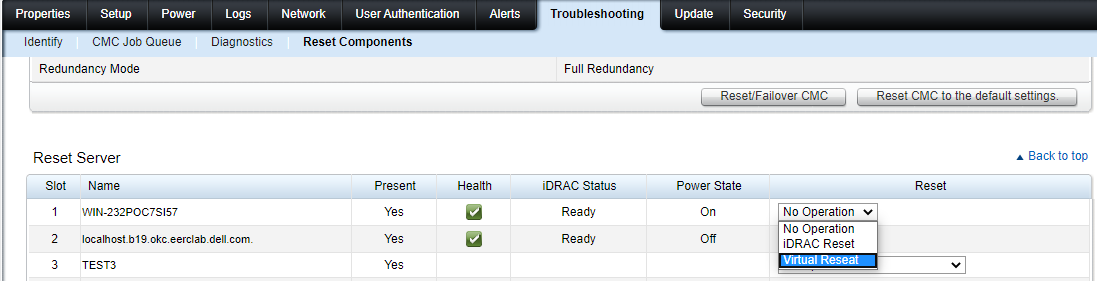
In the system tree, go to Chassis Overview, and click Troubleshooting > Reset Components. The Reset Components page is displayed.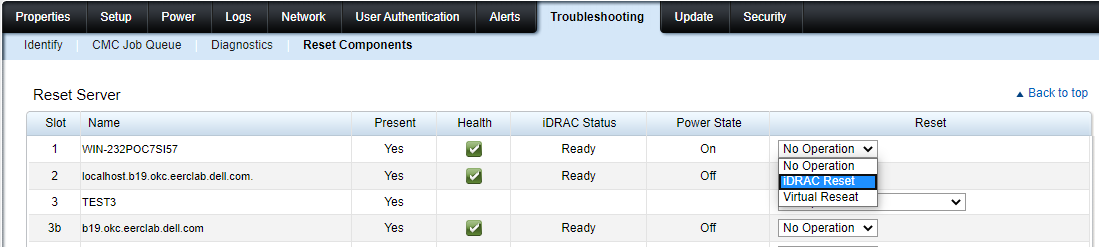
2.Reset the active CMC
In the CMC Status section, click Reset/Failover CMC. If a standby CMC is present and a chassis is fully redundant, a failover occurs causing the standby CMC to become active.
3.Reset the iDRAC only (without rebooting the Operating System)
In the Reset Server section, click iDRAC Reset in the Reset drop-down menu for the servers, whose iDRAC you want to reset, and then click Apply Selections. This resets the iDRACs for the servers without rebooting the operating system. For more information, see the CMC Online Help. To reset only the iDRAC, without rebooting the operating system, using RACADM, see the Chassis Management Controller for Dell PowerEdge M1000e RACADM Command Line Reference Guide .
4. Virtually reseat the server
In the Reset Server section, click Virtual Reseat in the Reset drop-down box, for the servers that you want to reseat, and then click Apply Selections.
This operation causes the servers to behave as if they were removed and reinserted.