What To Check If You Receive an Access Denied Message When Accessing a File on an Encrypted System
Summary: This article provides information about what to check first when an "Access Denied" error message is received when accessing a file.
Symptoms
Affected Products:
- Dell Encryption
- Dell Data Protection | Encryption
Cause
Not Applicable
Resolution
Verify the following:
- Does the user have NTFS permissions to access the file?

- If it is determined the user has appropriate NTFS permissions on the file and our encryption product is suspect, then check the following:
Is the User Activated? This can be checked by noting the presence of a 16-character light blue alphanumeric Shield ID in the About section of the local encryption console.
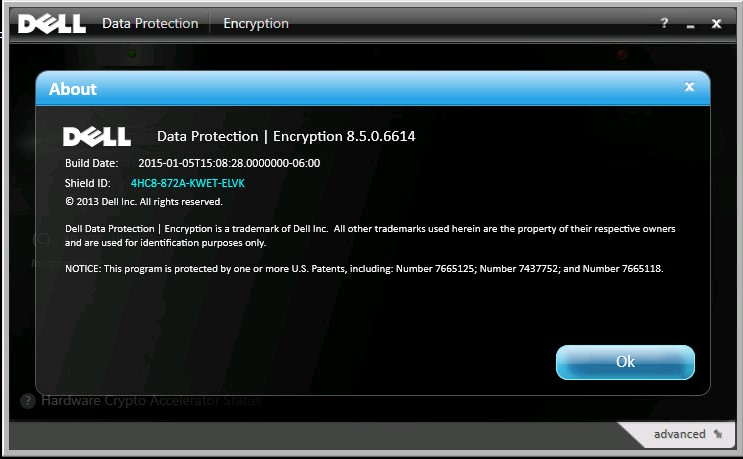
Figure 1: (English Only) Dell Data Protection | Encryption about screen
A nonactivated user has a blank Shield ID in older versions or red Encryption Client ID in the newer versions.
v8.16 and later:
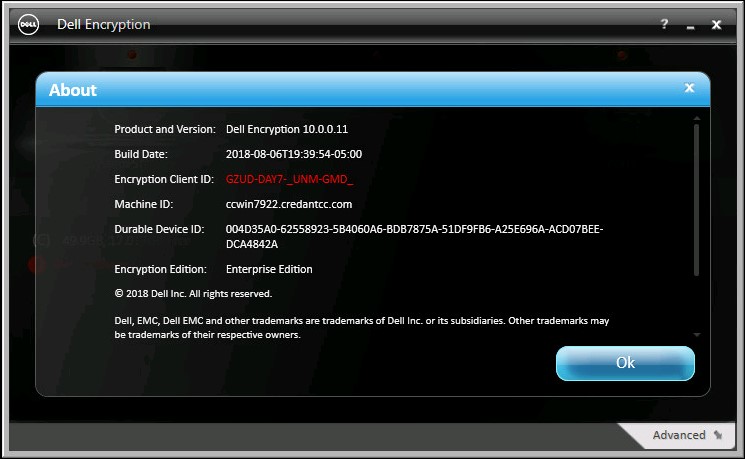
Figure 2: (English Only) Dell Encryption about screen
v8.15 and earlier:
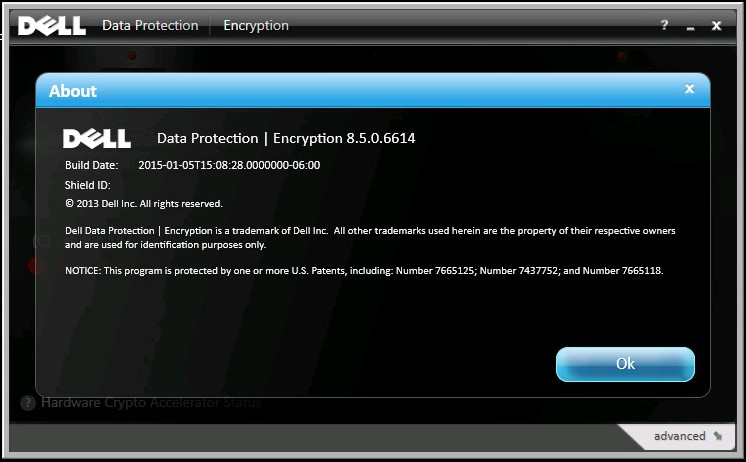
Figure 3: (English Only) Dell Data Protection | Encryption about screen
If the user is not activated consult the log file, at the location shown below, for activation issues.
Dell Encryption Enterprise Shield (formerly Dell Data Protection | Encryption Shield) Logs:
C:\ProgramData\Dell\Dell Data Protection\Encryption\CMGShield.log
WSDeactivate cannot fix NTFS permissions. Reference, How to run WSDeactivate on Dell Encryption Enterprise Shield \ Dell Data Protection Enterprise Edition Shield
To contact support, reference Dell Data Security International Support Phone Numbers.
Go to TechDirect to generate a technical support request online.
For additional insights and resources, join the Dell Security Community Forum.