How to Install MyOffice Standard
Summary: This article discusses how to download and install MyOffice Standard Home Edition.
This article applies to
This article does not apply to
This article is not tied to any specific product.
Not all product versions are identified in this article.
Instructions
Affected Products:
- MyOffice Standard Home Edition
Affected Operating Systems:
- Windows 10
New Cloud Technologies MyOffice Standard Home Edition is available to Dell customers who have selected Russia as their region during Windows 10 setup.
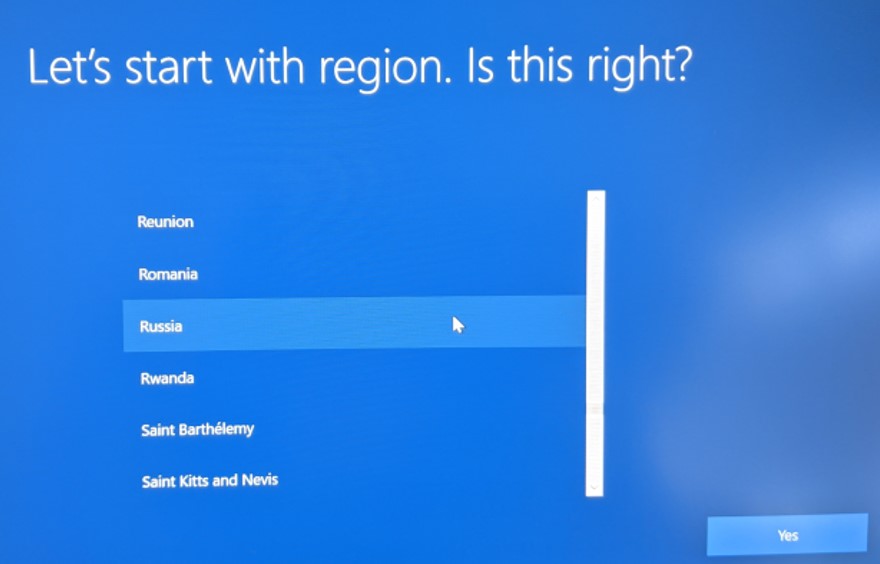
Figure 1: (English Only) Region Selection
Note: Prior to installing MyOffice Home Standard, MyDell or My Alienware must be installed on the computer.
- Alienware platforms: https://www.microsoft.com/p/my-alienware/9nf1jbhqgns5
- All other Dell platforms: https://www.microsoft.com/p/my-dell/9pn7t3jfprz6

To install the product:
- Click the Windows Start Menu, search for MyDell or My Alienware, and then click the appropriate tile.
- In the MyDell or My Alienware app, click the second radio button.
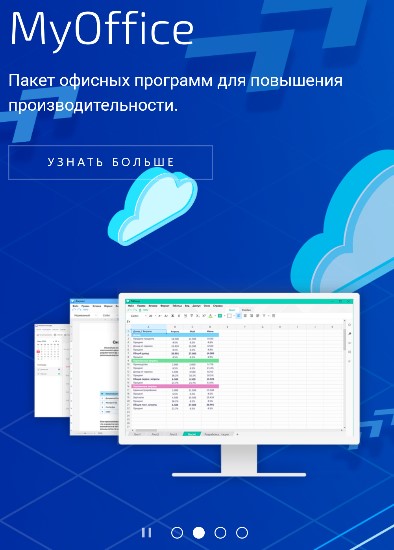
Figure 2: (Russian Only) Learn More
- In the web browser, click Download.

Figure 3: (Russian Only) Download MyOffice
- Double-click MyOfficeStandardHomeEdition.msi to launch the installer.
- In the installation user interface (UI), Click Next.
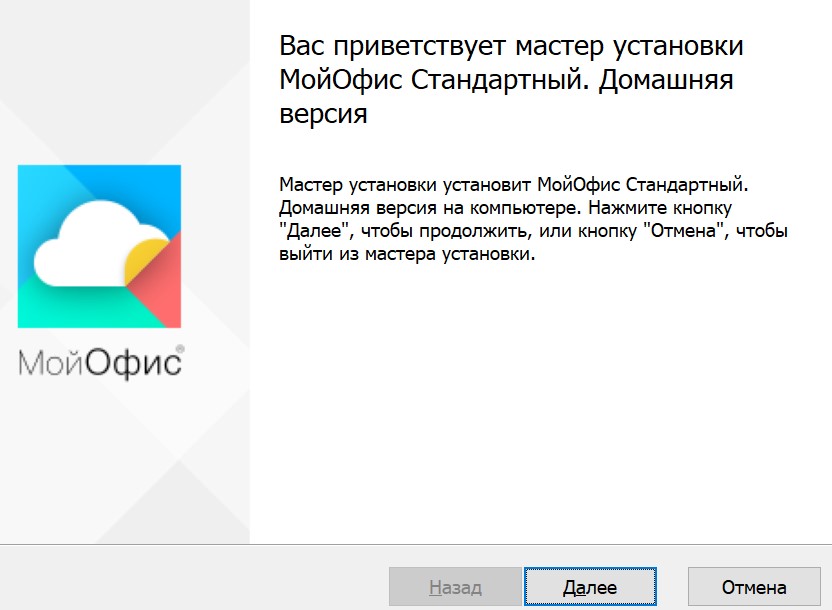
Figure 4: (Russian Only) Click Next
- Optionally Change the installation directory and then click Next.
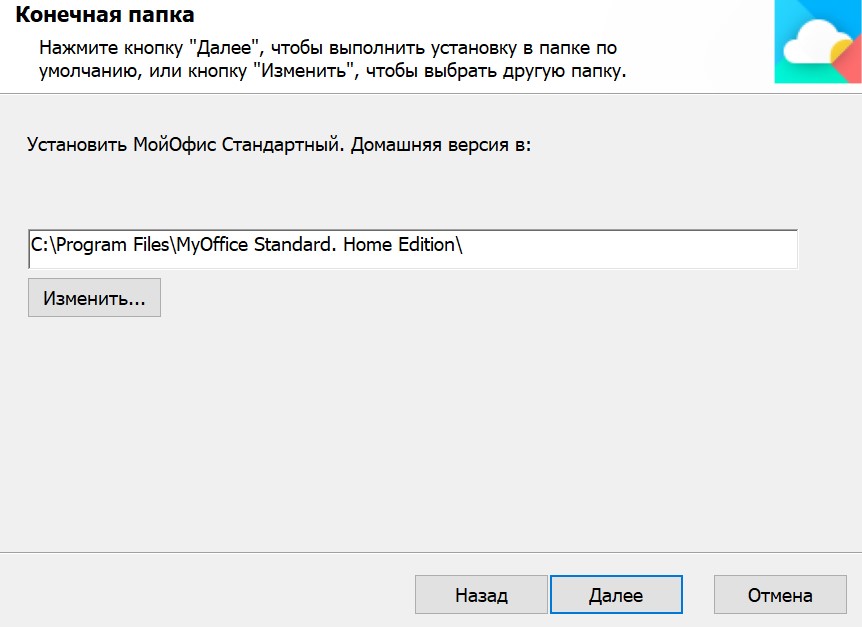
Figure 5: (Russian Only) Click Next
- Click Install.
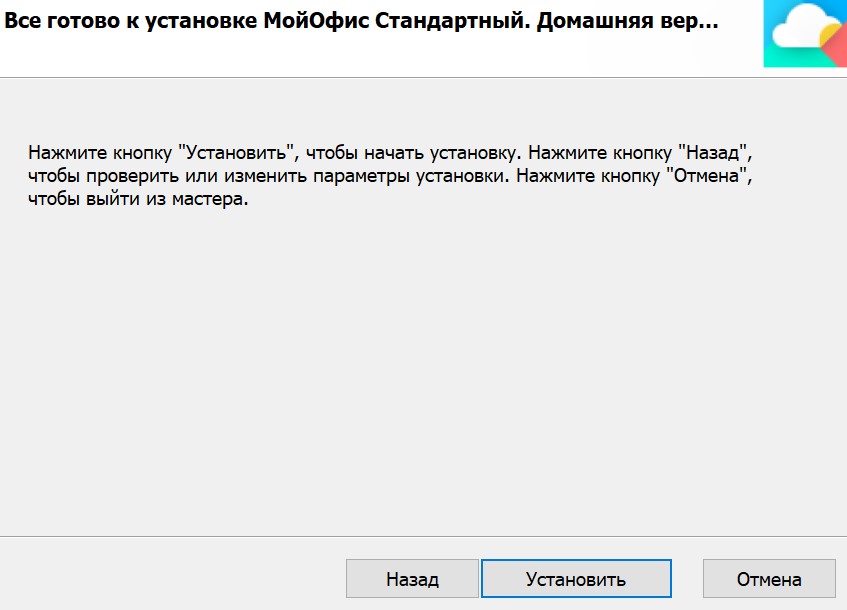
Figure 6: (Russian Only) Click Install
- Click Finish.
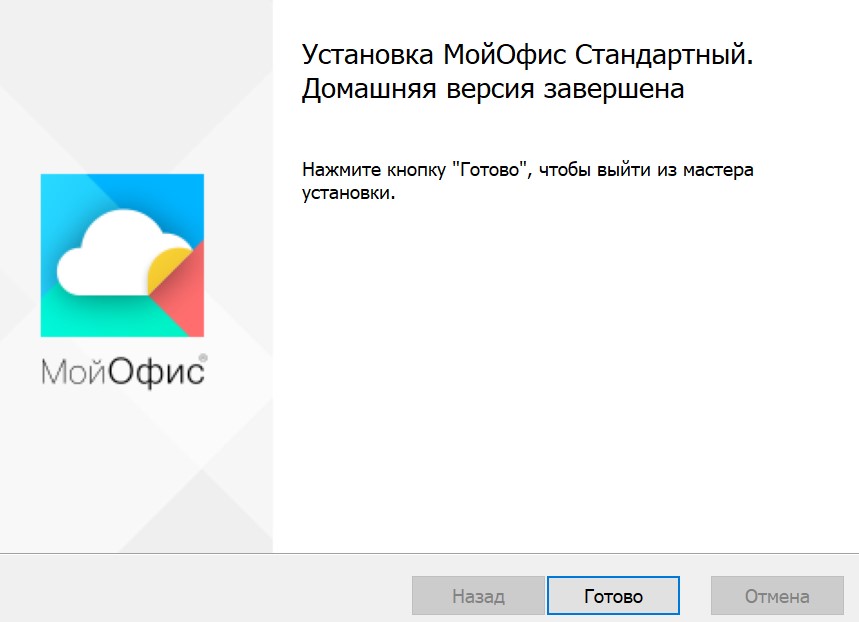
Figure 7: (Russian Only) Click Finish
Article Properties
Article Number: 000184294
Article Type: How To
Last Modified: 18 Mar 2024
Version: 3
Find answers to your questions from other Dell users
Support Services
Check if your device is covered by Support Services.