Dell Laptop Camera Not Working in Teams, Zoom, and Windows Camera Application
Summary: This article provides information about missing or incorrect drivers. They cause the laptop webcam to stop working on Dell laptops that use a Mobile Industry Processor Interface (MIPI) camera. ...
Symptoms
The laptops listed in Table 1 and Table 2 below may be configured with a high-performance MIPI camera. These laptops require a different set of drivers than laptops with conventional webcams. Missing or incorrect drivers can cause camera issues.
One or more of the symptoms may include:
- Webcam is not working in Teams, Zoom, Discord, or other applications.
- Windows Hello may not function.
- Webcam intermittently lagging and stuttering during a conference call using video.
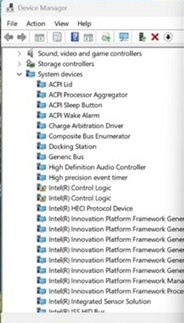
- A yellow bang on the Intel AVStream Camera, or Camera sensor, or Intel Control logic in Device Manager. Often there is no abnormal device in the Device Manager.
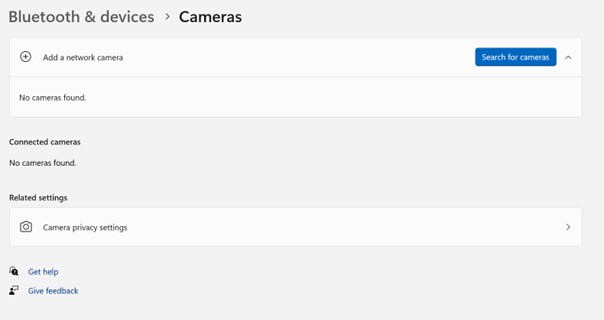
- Camera not detected under Bluetooth and Device → Cameras.
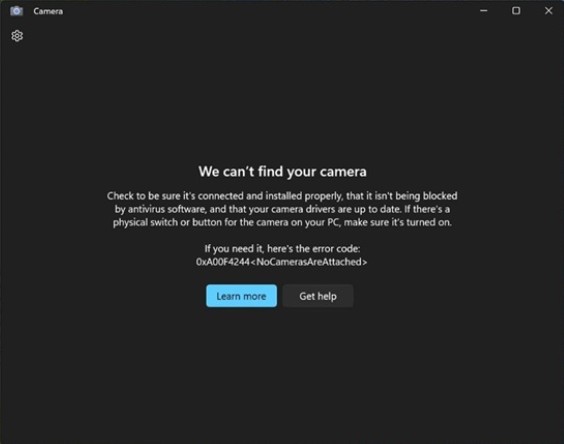
- A camera error message “We cannot find your camera” in the Windows Camera app: (See the first picture).
We cannot find your camera
- Error message: "We can’t find your camera" shown in the screenshot below.
- Camera not detected under Bluetooth and Device → Cameras.
| Dell Laptops | Dell Pro Laptops | Dell Pro Max Laptops | XPS Laptops | Dell Pro Precision | Dell Pro Rugged |
|---|---|---|---|---|---|
| Dell 14 Premium DA14250 | Dell Pro 14 Premium PA14250 | Dell Pro Max 14 MC14250 | XPS 14 DA14260 | Dell Pro Precision 7 14 PW714260 | Dell Pro Rugged 10 TAB RA00260 |
| Dell 16 Premium DA16250 | Dell Pro 13 Premium PA13250 | Dell Pro Max 14 Premium MA14250 | XPS 16 DA16260 | Dell Pro Precision 7 16 PW716260 | Dell Pro Rugged 12 TAB RA02260 |
| Dell Pro 16 Plus PB16250 | Dell Pro Max 16 MC16250 | Dell Pro Precision 5 14 PW514261 | |||
| Dell Pro 14 Plus PB14250 | Dell Pro Max 16 Premium MA16250 | Dell Pro Precision 5 16 PW51626 | |||
| Dell Pro 13 Plus PB13250 | |||||
| Dell Pro 14 Premium PA14260 |
| Latitude Laptops | Precision Mobile Workstation | XPS Laptops |
|---|---|---|
| Latitude 9450 2-in-1 | Precision 5690 | XPS 16 9640 |
| Latitude 9440 2-in-1 | Precision 5680 | XPS 13 9350 |
| Latitude 9430 | Precision 5490 | XPS 14 9440 |
| Latitude 9330 | Precision 5480 | XPS 13 9340 |
| Latitude 9420 | Precision 5470 | XPS 13 Plus 9320 |
| Latitude 7650 | XPS 13 9315 | |
| Latitude 7450 | XPS 13 9315 2-in-1 | |
| Latitude 7350 Detachable | ||
| Latitude 7350 | ||
| Latitude 7640 | ||
| Latitude 7440 | ||
| Latitude 7340 | ||
| Latitude 7030 Rugged Extreme | ||
| Latitude 7230 Rugged Extreme | ||
| Latitude 7320 Detachable | ||
| Latitude 9450 2-in-1 |
Cause
Windows Update, Norton Updater, and other utilities can push incorrect or incomplete drivers. This can also happen when reinstalling the OS, deploying a corporate OS image, or manually installing drivers. There are dependencies on other Intel drivers that must be installed in a specific order.
Resolution
-
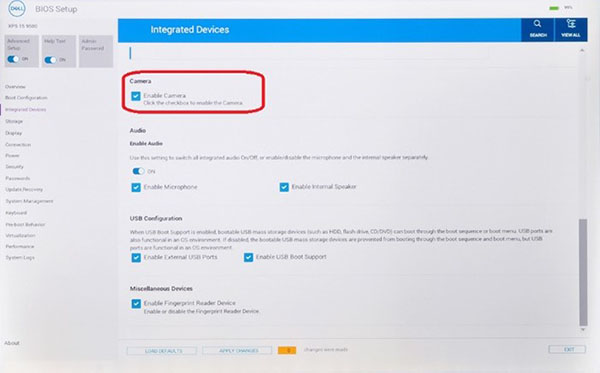
Ensure that the checkbox next to Enable Camera in the BIOS is filled.
-
Install the latest
Intel 2D ImagingDriver for Camera from the Dell Website by running the executable file. This driver is listed under the “Camera” category on Dell’s Support Site. Dell Knowledge Base Article: How to Download and Install Dell Drivers and Firmware.Note: After downloading the file locally, double-click it and follow the on-screen instructions. During the installation process, make sure to keep all software selected that the application lists as prerequisites. They will be installed automatically if they are missing, ensuring a successful installation.Note: The driver package on the Dell download site includes a utility that removes old driver files. The entire process may take one to two minutes with no progress bar displayed. Wait for the new window to open that confirms the driver is successfully installed. The removal utility is not included with automatic updates done by Windows Update.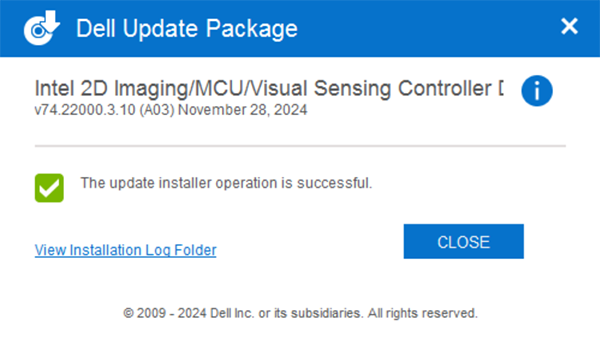
-
Reboot and confirm that the camera is working using the Windows Camera app.
-
If the camera is still not working, then update all the related drivers and BIOS. There are two options:
- (Highly Recommended) Run Windows Update, Dell Command Update (commercial platforms), Dell Update (consumer platforms), or SupportAssist (all platforms) to update all drivers to the latest version.
Note: If updating the drivers and BIOS through one of the tools, continue running the tool until no updates are required.
- Manually download and install the latest available versions of these drivers and BIOS from the Dell website. All these drivers are required for the camera to work correctly. Dell Knowledge Base Article: How to Download and Install Dell Drivers and Firmware
- Intel Chipset Device Software
- Intel Graphics or Arc Graphics Driver
- Intel Integrated Sensor Solution Driver (Related to the Intel Visual Sensing Controller (Intel Clover Falls (CVF)) or User Presence Detection (UPD).)
- Intel Serial I/O Driver
- Intel Management Engine Components Installer
- Update to the latest version of the BIOS that is available
- (Highly Recommended) Run Windows Update, Dell Command Update (commercial platforms), Dell Update (consumer platforms), or SupportAssist (all platforms) to update all drivers to the latest version.
- Reboot your laptop after installing all the drivers to confirm the problem is resolved.
- Yes, the problem is resolved. No further action is needed.
- No, the problem is not resolved. Contact Dell Technical Support for additional assistance.
Additional Information
Important Notes
- The MIPI camera interface uses a different communication protocol than traditional USB webcams and is not seen by the SupportAssist preboot onboard diagnostic. For more information see Dell Knowledge Base article Preboot Hardware Diagnostics Do Not Detect Intel MIPI Cameras on Dell Laptops