Dell Networking S 系列:基本介面組態 – SONIC 4.0
Summary: 如何設定 SONIC 4.0 介面的基礎知識。
This article applies to
This article does not apply to
This article is not tied to any specific product.
Not all product versions are identified in this article.
Instructions
Dell Networking S 系列:基本介面組態 - SONIC 4.0
摘要:如何設定 SONIC 4.0 介面的基礎知識。
指示
這些步驟假設交換器開始設定時,是以原廠預設為獨立裝置。請參閱連結的知識文章,以取得明確範例。
在原生模式下,SONIC 前面板介面的命名為從 Ethernet 0 到 Ethernet X,X 為最後一個前面板連接埠。 標準命名使用乙太網路 x/y/z 模式,其中 x/y 是插槽/連接埠編號,z 則用於分接連接埠。
介面命名格式變更:將預設介面命名模式從「原生」變更為「標準」。
- 在 Linux 提示中,以「sonic-cli」啟動 SONIC CLI:
admin@sonic:~$ sonic-cli
sonic#
- 以「show interface-naming」命令顯示目前所設定的介面狀態模式
sonic# show interface-naming
Interface naming mode is native
sonic#
- 顯示介面狀態,並查看預設介面命名慣例 (原生命名)「show interface status」(圖 1):
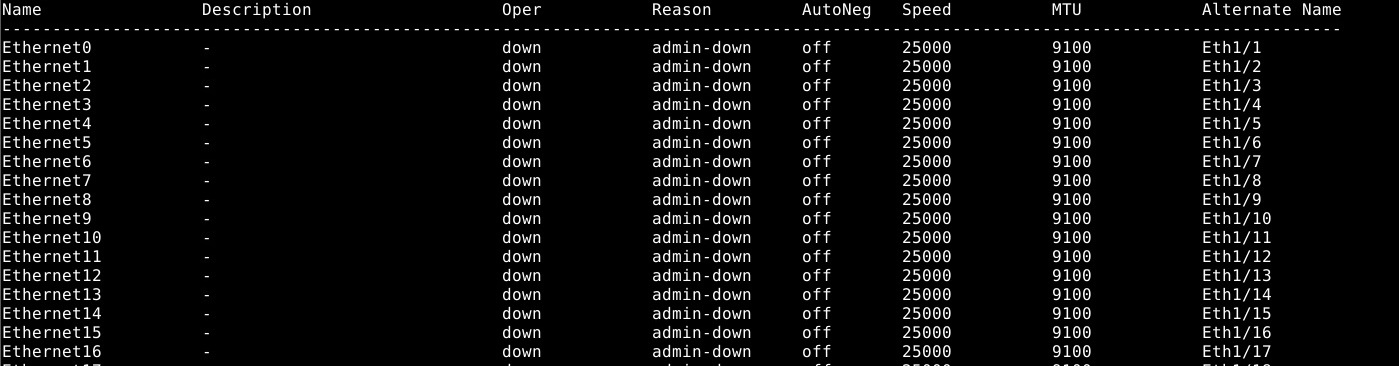
圖 1:show interface status 的範例。
- 若要修改交換器組態,請執行「configure terminal」命令。
sonic# configure terminal
sonic(config)#
- 若要將介面命名模式變更為「標準」模式,請使用命令「interface-naming standard」:
sonic(config)# interface-naming standard
Broadcast message: Interface naming mode has changed. Users running 'sonic-cli' are required to restart your session.

sonic(config)#
注意:所有使用者都必須退出並重新進入 SONIC CLI,模式變更才會生效。。
- 使用「exit」結束組態模式:
sonic(config)# exit
sonic#
- 以「exit」退出 SONIC CLI:
sonic# exit
admin@sonic:~$
- 以「sonic-cli」重新進入 SONIC CLI:
admin@sonic:~$ sonic-cli
sonic#
- 以「show interface status」顯示介面狀態:
sonic# show interface status
介面名稱從 Ethernet X 變更為 Eth x/y (圖 2)。
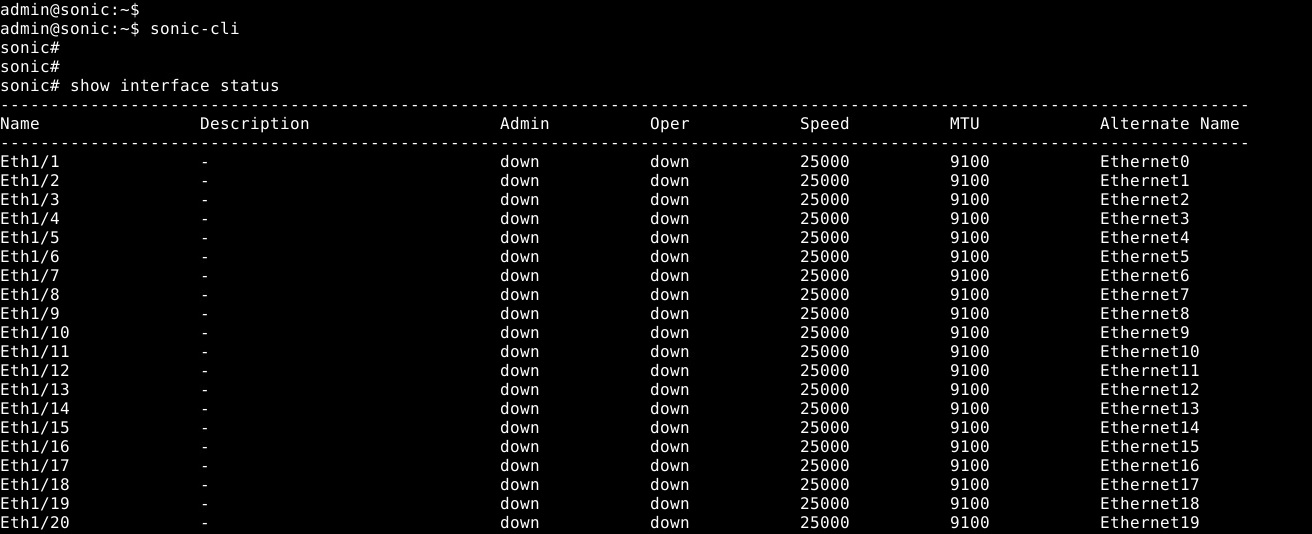
圖 2:標準模式:show interface status 的範例
- 使用「write memory」將執行中的組態儲存至啟動組態:
sonic# write memory
sonic#
個別介面組態:進入組態模式,然後進入介面組態模式。
- 以「sonic-cli」開始 SONiC CLI:
admin@sonic:~$ sonic-cli
sonic#
- 以「show running-configuration interface Eth 1/30」顯示介面組態:
sonic# show running-configuration interface Eth 1/30
!
interface Eth1/30
 mtu 9100
 speed 25000
 fec none
 shutdown
- 以「configure terminal」進入組態模式:
sonic# configure terminal
sonic(config)#
- 以「interface Eth 1/30」進入介面 Eth 1/30 組態模式:
sonic(config)# interface Eth 1/30
sonic(conf-if-Eth1/30)#
- 以「no shutdown」設定無關機 Eth 1/30:
sonic(conf-if-Eth1/30)# no shutdown
sonic(conf-if-Eth1/30)#
- 以「IP address 10.1.1.2/24」在介面 Eth 1/30 上設定 IP 位址:
sonic(conf-if-Eth1/30)# ip address 10.1.1.2/24
sonic(conf-if-Eth1/30)#
- 使用「end」結束組態模式:
sonic(conf-if-Eth1/30)# end
sonic#
- 以「show running-configuration interface Eth 1/30」顯示介面組態:
sonic# show running-configuration interface eth 1/30
!
interface Eth1/30
 mtu 9100
 speed 25000
 fec none
 no shutdown
 ip address 10.1.1.2/24
- 以「show ip interfaces」顯示 IP 介面:
sonic# show ip interfaces
Flags: U-Unnumbered interface, A-Anycast IP
-----------------------------------------------------------------------------------------------
Interface            IP address/mask                    VRF            Admin/Oper     Flags
-----------------------------------------------------------------------------------------------
Eth1/30              10.1.1.2/24                                           up/up
sonic#
- 以「show interface eth 1/30」顯示 Eth 1/30 的介面狀態:
(output truncated for brevity)

sonic# show interface eth 1/30

Eth1/30 is up, line protocol is up
Hardware is Eth
IPV4 address is 10.1.1.2/24
Mode of IPV4 address assignment: MANUAL
Mode of IPV6 address assignment: not-set
Interface IPv6 oper status: Disabled
IP MTU 9100 bytes
LineSpeed 25GB, Auto-negotiation off
FEC: DISABLED
Last clearing of "show interface" counters: never
…
- 使用「write memory」將執行中的組態儲存至啟動組態:
sonic# write memory
sonic#
多介面組態:若要同時設定多個介面,請使用「interface range」選項。若要使用 show 命令檢視一個介面範圍,您不需要「range」關鍵字。
範例:
- 若要設定連接埠 14 至 15 的連續範圍,命令為「interface range ethernet 1/1/14-1/1/15」。
- 若要設定連接埠 3、10、19 的非連續範圍,命令則為「interface range ethernet 3,10,19」。
- 若要混合連續和非連續範圍,命令則會是「interface range ethernet 1/1/3, 1/1/14-1/1/15」。
- 若要顯示多個介面,則不需要「range」選項。若要顯示 Ethernet 1/1-1/3、1/5,請使用命令「show interface Eth 1/1-1/3,1/5」:
(output truncated for brevity)
sonic# show interface Eth 1/1-1/3,1/5

Eth1/1 is down, line protocol is down, reason admin-down
Hardware is Eth, address is 0c:02:22:c7:00:08
Mode of IPV4 address assignment: not-set
...
Output statistics:
        0 packets, 0 octets
        0 Multicasts, 0 Broadcasts, 0 Unicasts
        0 error, 0 discarded, 0 Oversize

Eth1/2 is down, line protocol is down, reason admin-down
Hardware is Eth, address is 0c:02:22:c7:00:08
Mode of IPV4 address assignment: not-set
...
Output statistics:
        0 packets, 0 octets
        0 Multicasts, 0 Broadcasts, 0 Unicasts
        0 error, 0 discarded, 0 Oversize

Eth1/3 is down, line protocol is down, reason admin-down
Hardware is Eth, address is 0c:02:22:c7:00:08
Mode of IPV4 address assignment: not-set
...
Output statistics:
        0 packets, 0 octets
        0 Multicasts, 0 Broadcasts, 0 Unicasts
        0 error, 0 discarded, 0 Oversize

Eth1/5 is down, line protocol is down, reason admin-down
Hardware is Eth, address is 0c:02:22:c7:00:08
Mode of IPV4 address assignment: not-set
...
Output statistics:
        0 packets, 0 octets
        0 Multicasts, 0 Broadcasts, 0 Unicasts
        0 error, 0 discarded, 0 Oversize
sonic(config)# end
- 執行「configure terminal」命令。
sonic# configure terminal
sonic(config)#
- 使用「interface range Eth1/1-1/3,1/5,1/7-1/9」設定介面 Ethernet 1/1-1/3、1/5、/1/7-1/9:
sonic(config)# interface range eth 1/1-1/3,1/5,1/7-1/9
%Info: Configuring only existing interfaces in range
sonic(conf-if-range-eth**)#
- 以「no shut」設定介面為無關機:
sonic(conf-if-range-eth**)# no shutdown
sonic(conf-if-range-eth**)#
- 以「switchport access vlan 1」將介面設定為存取模式 vlan 1:
sonic(conf-if-range-eth**)# switchport access vlan 1
sonic(conf-if-range-eth**)#
- 使用「show interface status」確認使用者組態 (圖 3):
注意:Oper 和 Reason 欄位會顯示所設定介面範圍的已變更狀態。

圖 3:show interface status 的範例
- 以「show vlan 1」檢查 VLAN 1 介面指派 (圖 4):

圖 4:Show vlan 1 的範例
- 使用「write memory」將執行中的組態儲存至啟動組態:
sonic# write memory
sonic#
如需進一步協助,請參閱 Dell Technologies Enterprise SONiC 使用者指南說明文件,或聯絡 Dell Technologies 技術支援部門。
Affected Products
Networking, Enterprise SONiC DistributionArticle Properties
Article Number: 000202172
Article Type: How To
Last Modified: 23 May 2024
Version: 5
Find answers to your questions from other Dell users
Support Services
Check if your device is covered by Support Services.