Dell Networking S 系列:基本接口配置 – SONIC 4.0
Summary: 如何配置 SONIC 4.0 接口基础设置。
This article applies to
This article does not apply to
This article is not tied to any specific product.
Not all product versions are identified in this article.
Instructions
Dell Networking S 系列:基本接口配置 - SONIC 4.0
摘要:如何配置 SONIC 4.0 接口基础设置。
说明
这些步骤假定从出厂默认设置开始将交换机配置为独立设备。有关书面示例,请参阅链接的知识库文章。
在本机格式中,SONIC 前面板接口从以太网 0 命名为以太网 X,其中 X 是最后一个前面板端口。 标准命名采用以太网 x/y/z 模式,其中 x/y 是插槽/端口编号,而 z 用于表示分支端口。
接口命名格式变化:将默认接口命名模式从本机模式“Native”更改为标准模式“Standard”。
- 从 Linux 提示符处,使用“sonic-cli”启动 SONIC CLI:
admin@sonic:~$ sonic-cli
sonic#
- 使用“show interface-naming”来显示当前配置的接口状态模式
sonic# show interface-naming
Interface naming mode is native
sonic#
- 显示接口状态并查看默认接口命名约定(本机命名)“show interface status”(图 1):
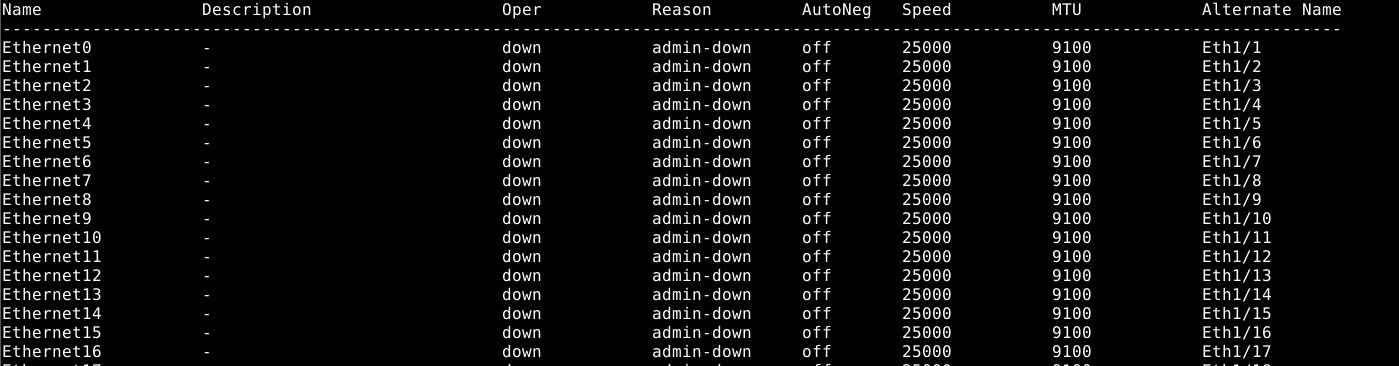
图 1:show interface status 示例。
- 要修改交换机配置,请运行“configure terminal”命令。
sonic# configure terminal
sonic(config)#
- 要将接口命名模式更改为标准模式,请使用命令“interface-naming standard”:
sonic(config)# interface-naming standard
Broadcast message: Interface naming mode has changed. Users running 'sonic-cli' are required to restart your session.

sonic(config)#
提醒:所有用户必须退出并重新进入 SONIC CLI,模式更改才能生效。。
- 使用“exit”退出配置模式:
sonic(config)# exit
sonic#
- 使用“exit”退出 SONIC CLI:
sonic# exit
admin@sonic:~$
- 使用“sonic-cli”重新进入 SONIC CLI:
admin@sonic:~$ sonic-cli
sonic#
- 使用“show interface status”来显示接口状态:
sonic# show interface status
注意接口名称从以太网 X 更改为以太网 x/y 的变化(图 2)。
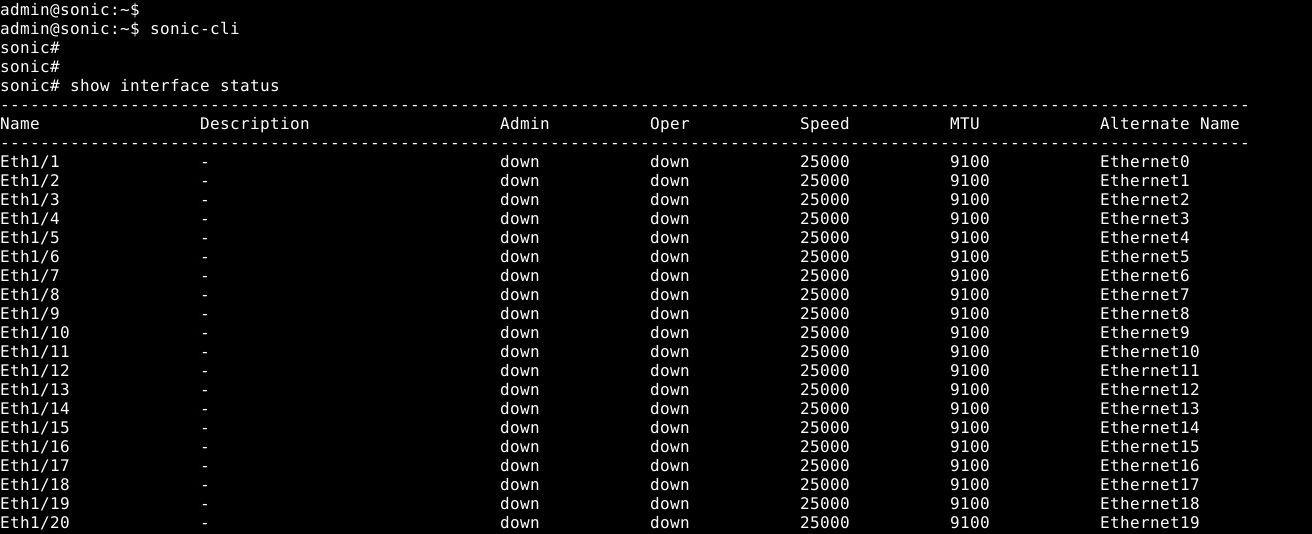
图 2:标准模式:show interface status 示例
- 使用“write memory”命令将正在运行的配置保存到启动配置:
sonic# write memory
sonic#
单个接口配置:进入配置模式,然后进入接口配置模式。
- 使用“sonic-cli”启动 SONiC CLI:
admin@sonic:~$ sonic-cli
sonic#
- 使用“show running-configuration interface Eth 1/30”来显示接口配置:
sonic# show running-configuration interface Eth 1/30
!
interface Eth1/30
 mtu 9100
 speed 25000
 fec none
 shutdown
- 使用“configure terminal”以进入配置模式:
sonic# configure terminal
sonic(config)#
- 使用“interface Eth 1/30”以进入接口以太网 1/30 配置模式:
sonic(config)# interface Eth 1/30
sonic(conf-if-Eth1/30)#
- 使用“no shutdown”以便不关闭接口以太网 1/30:
sonic(conf-if-Eth1/30)# no shutdown
sonic(conf-if-Eth1/30)#
- 在接口以太网 1/30 上使用“IP address 10.1.1.2/24”来配置 IP 地址:
sonic(conf-if-Eth1/30)# ip address 10.1.1.2/24
sonic(conf-if-Eth1/30)#
- 使用“end”退出配置模式:
sonic(conf-if-Eth1/30)# end
sonic#
- 使用“show running-configuration interface Eth 1/30”来显示接口配置:
sonic# show running-configuration interface eth 1/30
!
interface Eth1/30
 mtu 9100
 speed 25000
 fec none
 no shutdown
 ip address 10.1.1.2/24
- 使用“show ip interfaces”来显示 IP 接口:
sonic# show ip interfaces
Flags: U-Unnumbered interface, A-Anycast IP
-----------------------------------------------------------------------------------------------
Interface            IP address/mask                    VRF            Admin/Oper     Flags
-----------------------------------------------------------------------------------------------
Eth1/30              10.1.1.2/24                                           up/up
sonic#
- 使用“show interface eth 1/30”来显示以太网 1/30 的接口状态:
(output truncated for brevity)

sonic# show interface eth 1/30

Eth1/30 is up, line protocol is up
Hardware is Eth
IPV4 address is 10.1.1.2/24
Mode of IPV4 address assignment: MANUAL
Mode of IPV6 address assignment: not-set
Interface IPv6 oper status: Disabled
IP MTU 9100 bytes
LineSpeed 25GB, Auto-negotiation off
FEC: DISABLED
Last clearing of "show interface" counters: never
…
- 使用“write memory”命令将正在运行的配置保存到启动配置:
sonic# write memory
sonic#
多个接口配置:要同时配置多个接口,请使用“interface range”选项。要使用 show 命令查看一系列接口,不需要“range”关键字。
示例:
- 要配置端口 14 到 15 的连续范围,请使用“interface range ethernet 1/1/14-1/1/15”。
- 要配置端口 3、10、19 的非连续性范围,请使用“interface range ethernet 3,10,19”。
- 要配置连续和非连续性端口范围组合,请使用“interface range ethernet 1/1/3, 1/1/14-1/1/15”。
- 要显示多个接口,并不一定要使用“range”选项。要显示以太网 1/1-1/3、1/5,请使用命令“show interface Eth 1/1-1/3,1/5”:
(output truncated for brevity)
sonic# show interface Eth 1/1-1/3,1/5

Eth1/1 is down, line protocol is down, reason admin-down
Hardware is Eth, address is 0c:02:22:c7:00:08
Mode of IPV4 address assignment: not-set
...
Output statistics:
        0 packets, 0 octets
        0 Multicasts, 0 Broadcasts, 0 Unicasts
        0 error, 0 discarded, 0 Oversize

Eth1/2 is down, line protocol is down, reason admin-down
Hardware is Eth, address is 0c:02:22:c7:00:08
Mode of IPV4 address assignment: not-set
...
Output statistics:
        0 packets, 0 octets
        0 Multicasts, 0 Broadcasts, 0 Unicasts
        0 error, 0 discarded, 0 Oversize

Eth1/3 is down, line protocol is down, reason admin-down
Hardware is Eth, address is 0c:02:22:c7:00:08
Mode of IPV4 address assignment: not-set
...
Output statistics:
        0 packets, 0 octets
        0 Multicasts, 0 Broadcasts, 0 Unicasts
        0 error, 0 discarded, 0 Oversize

Eth1/5 is down, line protocol is down, reason admin-down
Hardware is Eth, address is 0c:02:22:c7:00:08
Mode of IPV4 address assignment: not-set
...
Output statistics:
        0 packets, 0 octets
        0 Multicasts, 0 Broadcasts, 0 Unicasts
        0 error, 0 discarded, 0 Oversize
sonic(config)# end
- 运行“configure terminal”命令。
sonic# configure terminal
sonic(config)#
- 使用“interface range Eth1/1-1/3,1/5,1/7-1/9”来配置接口以太网 1/1-1/3、1/5、/1/7-1/9:
sonic(config)# interface range eth 1/1-1/3,1/5,1/7-1/9
%Info: Configuring only existing interfaces in range
sonic(conf-if-range-eth**)#
- 使用“no shut”将接口配置为不关闭:
sonic(conf-if-range-eth**)# no shutdown
sonic(conf-if-range-eth**)#
- 使用“switchport access vlan 1”来配置访问模式 vlan 1 的接口:
sonic(conf-if-range-eth**)# switchport access vlan 1
sonic(conf-if-range-eth**)#
- 使用“show interface status”来验证用户配置(图 3):
提醒:“Oper”列和“Reason”列已更改所配置接口范围的状态。

图 3:Show interface status 示例
- 使用“show vlan 1”来检查 VLAN 1 接口分配(图 4):

图 4:Show vlan 1 示例
- 使用“write memory”命令将正在运行的配置保存到启动配置:
sonic# write memory
sonic#
有关进一步的帮助,请参阅 Dell Technologies 企业 SONiC 用户指南发行文档或联系 Dell Technologies 技术支持。
Affected Products
Networking, Enterprise SONiC DistributionArticle Properties
Article Number: 000202172
Article Type: How To
Last Modified: 23 May 2024
Version: 5
Find answers to your questions from other Dell users
Support Services
Check if your device is covered by Support Services.