Avamar: How to supply specialized flags to Avamar backups
Summary: Modifying backup behavior is accomplished through Avtar flags, which can be applied to datasets or individual clients to deviate from default settings, are useful for troubleshooting, and environment customization. ...
This article applies to
This article does not apply to
This article is not tied to any specific product.
Not all product versions are identified in this article.
Instructions
Avtar flags are useful for a wide range of applications, from increasing the logging verbosity to assist with troubleshooting. Also to modifying the default behavior of a backup to suit a particular environment. Included below are the two most common ways to apply these modifications. Consult Dell Avamar support before applying avtar flags to avoid any undesired effects.
Method #1 Apply flags to a Dataset.
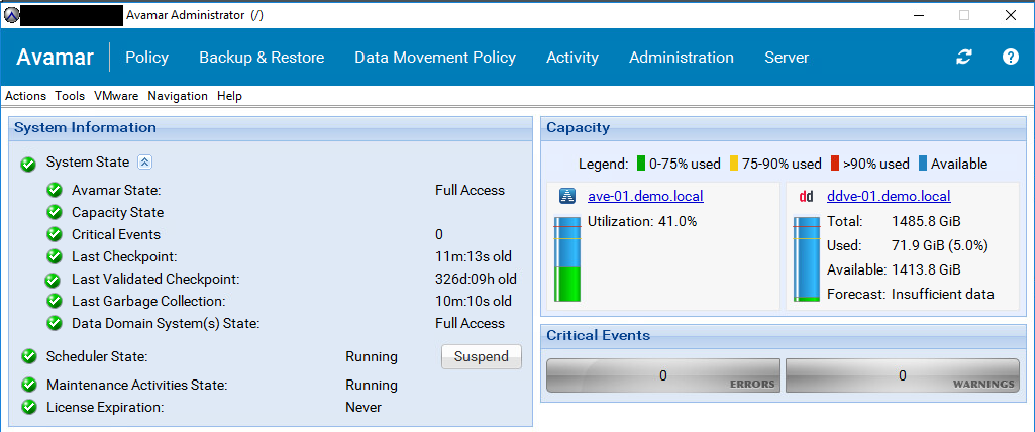
- Log in to the Avamar Administrator UI
- Select the Tools menu and then click Manage Datasets.
- Select the wanted dataset and then click the edit button.
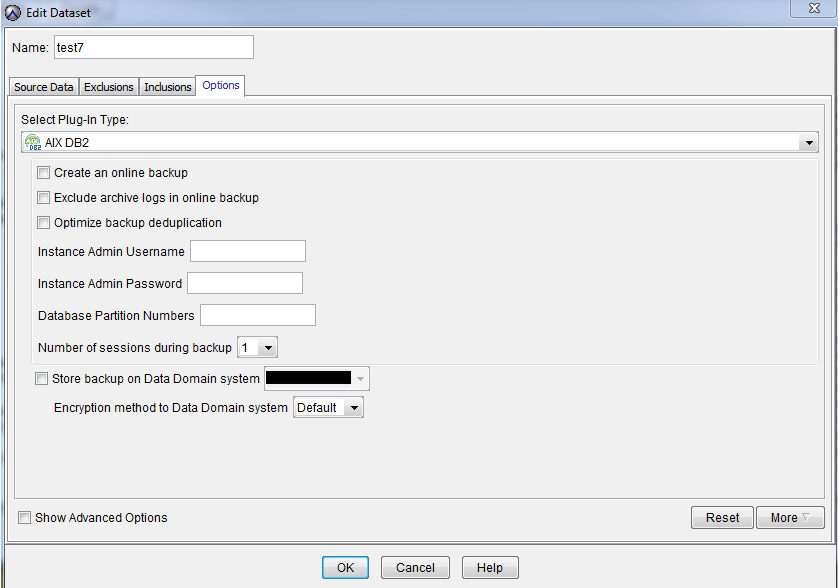
- Select the Options tab from the open window.
- Select the correct plug-in from the Select Plug-In Type: drop-down
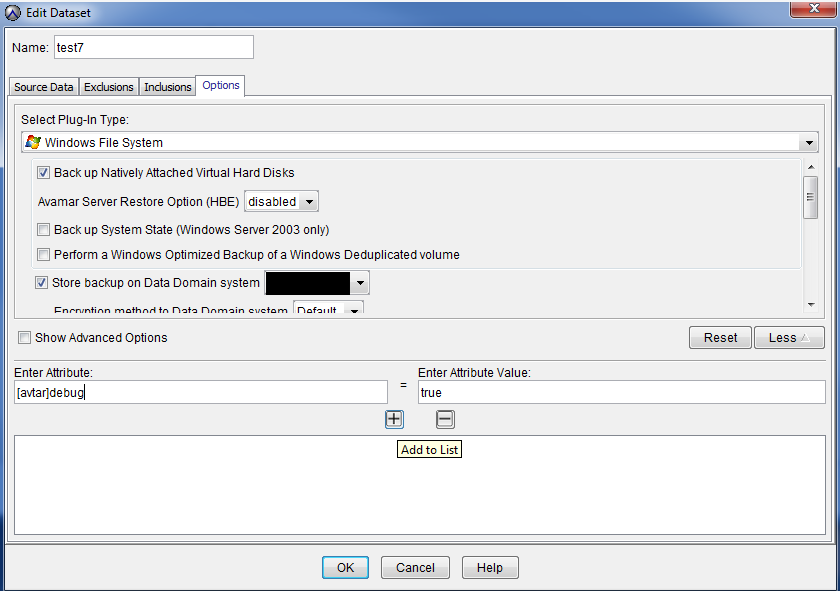
- Click the More button.
- Enter the wanted avtar flag and click the + sign to add it to the Dataset.


Method #2 Apply flags directly to a particular client.
- Log in to the wanted client
- Locate the var directory.
- Create an
avtar.cmdfile. - Open this file and place the wanted flag into the file.
- Save the file. If working on a Windows or Mac platform, ensure that
avtar.cmddid not get saved as a text file.
Avtar flags can be added to individual clients by creating an avtar.cmd file in the var directory of the client. This location varies by OS.
| Client OS | Log Location |
|---|---|
| Windows | C:\program files\avs\var\ |
| Linux | /usr/local/avamar/var |
| Other UNIX platforms | /opt/AVMRclnt/var |
| NetWare | sys:\avamar\var |
| Mac | /private/var/avamar |
Additional Information
Use the [avtar] prefix when adding flags to a dataset. For an avtar.cmd file, discard that prefix and use -- instead.
For example, applying the debug flag on a dataset vs. an individual client would look like this:
|
Dataset |
Individual Client |
|
|
|
Affected Products
Avamar Client, Avamar Plug-inProducts
AvamarArticle Properties
Article Number: 000004730
Article Type: How To
Last Modified: 11 Oct 2025
Version: 7
Find answers to your questions from other Dell users
Support Services
Check if your device is covered by Support Services.