VNX: How attach a server to a VNX via http://mydocuments.emc.com. (User Correctable)
Summary: Steps on how to create a customized host-to-storage connectivity document in mydocs.
This article applies to
This article does not apply to
This article is not tied to any specific product.
Not all product versions are identified in this article.
Instructions
Below are steps on how to create a customized host connectivity document, tailored to your specific environment within the mydocs website. Within the pdf document, it will give you the steps for presenting storage to host.
1. Go to the following site:
https://mydocuments.emc.com/
2. Select VNX Series.
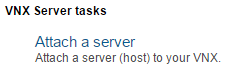
3. Scroll down to VNX Server tasks.
4. Select Attach a server.
5. Your Configuration page will appear.
a. Select server operating system.
b. Select path management software.
c. Select the VNX model.
d. Select storage connection type.
6. Hit Next .
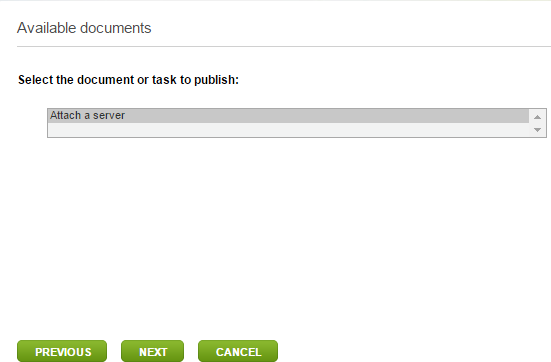
7. Click within the box that says, Select the document or task to publish: and select the document, then click Next .
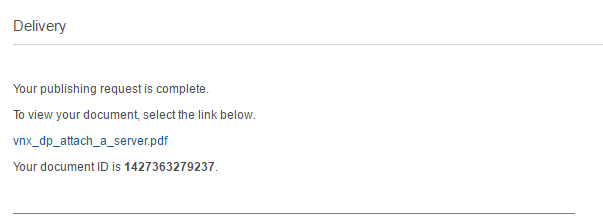
8. Click to view the document.
1. Go to the following site:
https://mydocuments.emc.com/
2. Select VNX Series.
3. Scroll down to VNX Server tasks.
4. Select Attach a server.
5. Your Configuration page will appear.
a. Select server operating system.
b. Select path management software.
c. Select the VNX model.
d. Select storage connection type.
6. Hit Next .
7. Click within the box that says, Select the document or task to publish: and select the document, then click Next .
8. Click to view the document.
Additional Information
-Please consult the appropriate Host Connectivity Guide found at https://support.emc.com, as well for detailed configuration information.
Affected Products
VNX/VNXeProducts
VNX1 Series, VNX2 Series, VNX/VNXeArticle Properties
Article Number: 000022403
Article Type: How To
Last Modified: 17 Jun 2025
Version: 5
Find answers to your questions from other Dell users
Support Services
Check if your device is covered by Support Services.