Avamar: ADME: error de respaldo: error de inicio de sesión 74: La cuenta no se encontró en la base de datos de Avamar
Summary: Avamar Data Migration Enabler (ADME) falla en la exportación porque un cliente tiene una ruta de dominio no válida debido a un cambio en la ubicación del dominio. Esto da como resultado un error de inicio de sesión 74: La cuenta no se encontró en la base de datos de Avamar. ...
This article applies to
This article does not apply to
This article is not tied to any specific product.
Not all product versions are identified in this article.
Symptoms
Al activar un respaldo, ADME falla instantáneamente en la fase de selección:
========================================== SELECTION - PHASE =========================================ADMe is locked - retaining existing password...
ADMe session started...
Environment-1 is now locked by [ Batch-Owner=admbatch-OracleJob.cfg PID=13218 ]
User-Input: 1 -sid OracleGrp -select -d -butype cod mod nah
INFO-01A: Active-Auto Date Range - 2018-08-01 to 2018-08-10
Purging previous pseudo client backups from [/ADME/admepseudo]
avtar Error 5126: Login error 74: Account not found in the Avamar database
avtar FATAL 5308: Failed to initiate session with server
avtar Error 5126: Login error 74: Account not found in the Avamar database
avtar FATAL 5308: Failed to initiate session with server
avtar Error 5126: Login error 74: Account not found in the Avamar database
avtar FATAL 5308: Failed to initiate session with server
Scanning-Group [OracleGrp]-[cai-oracle.emc.com]...
avtar Error 5126: Login error 74: Account not found in the Avamar database
avtar FATAL 5308: Failed to initiate session with server
INFO-07: Configuration check succeeded
INFO-14: Total backup count selected [0]
ERROR-04A Selection list is empty [ RC=1 ], this will impact continuing with a migration operation
Env- Session Complete: RC=1 08/09/18 16:52
ATO-BATCH-FAILURE: [-select] RC=[] Start-Time:09/08/18 16:52 End-Time:09/08/18 16:52 Elapsed-Time-HH:MM=n/a Env#:1
Cause
La causa de esto se debe a que ADME no puede encontrar al cliente mencionado. Una posible razón es que el cliente se ha movido de un dominio a otro.
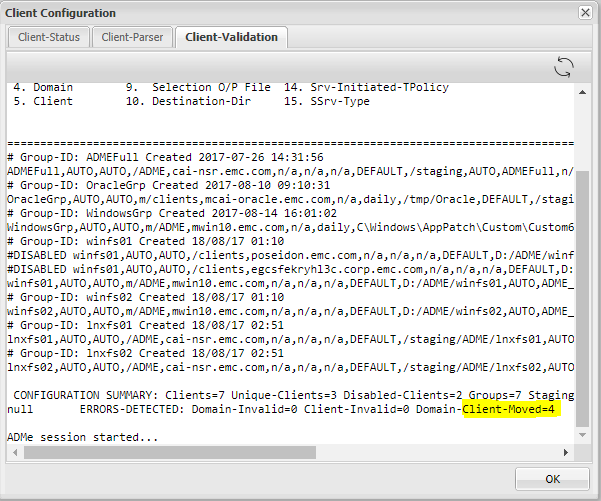
- Al comprobar la validación del cliente, podemos ver que ADME señala que algunos de los clientes se han movido de su dominio existente.
- Esto significa que ADME está viendo la ruta del cliente anterior y se debe actualizar con la nueva ruta (dominio) a la que se ha movido el cliente.
Resolution
- ADME no puede exportar algunos clientes específicos porque no puede encontrar al cliente.
- La causa de esto es que el cliente se ha movido.
- El cliente se debe actualizar con la ruta correcta.
- Los pasos para actualizar la ruta son los siguientes:
- Para actualizar la ruta del cliente, se deben realizar los siguientes pasos desde la CLI interactiva de ADME.
- Abra Avamar Server como root y escriba "adme"
- Elija la segunda opción, puede escribir 2 o C.
- Haga clic en "G" para Grupos.
- Seleccione el grupo donde tiene el cliente donde ha cambiado su dominio.
- Escriba 'M' para modificar.
- Debe actualizar el cuarto campo que tiene la ruta de dominio del cliente.
- Por último, después de actualizar el nuevo dominio del cliente, debe escribir "C" para confirmar los cambios.
Ruta antigua:
Nueva ruta:
Additional Information
- Abra Avamar Server y escriba "adme"
- Elija la segunda opción, puede escribir 2 o C:
==< cai-ave74 >================================ | ADMe Avamar Data Migration (Enabler) | | MAIN - MENU | | Version-4.1.11.45e =============================================== | 1. J) Job Policy Manager | | 2. C) Client-Config Manager | | 3. E) Environment-File Manager | | 4. V) View Selection Worklist | | 5. L) Event Log View | | 6. H) Help | | 7. R) Recovery Manager | | 8. S) Interactive Selection | | 9. M) Interactive Migration | | 10. A) ADMe Administration | | 11. G) ADMe Upgrade | | | =============================================== - Haga clic en "G" para Grupos
==========================================================================================================< cai-ave74 >=============== CONFIGURATION MANAGER [DOMAIN-VIEW]: <domain-name> [client-count] ==================================================================================================================================== 1) /ADME [1] 2) /MC_RETIRED [8] 3) /NDMP [2] 4) /Oracle [1] 5) /REPLICATE/cai-ave.emc.com [1] 6) /REPLICATE/cai-ave.emc.com/cai-vcen 7) /REPLICATE/cai-ave.emc.com/cai-vcen 8) /REPLICATE/cai-ave.emc.com/cai-vcen 9) /REPLICATE/cai-ave.emc.com/clients 10) /REPLICATE/cai-ave75.emc.com [1] 11) /REPLICATE/cai-ave75.emc.com/cai-vc 12) /VMWare [2] 13) /cai-vcenter.emc.com [3] 14) /cai-vcenter.emc.com/ContainerClien 15) /cai-vcenter.emc.com/VirtualMachine 16) /clients [4] 17) /clients/_DESACTIVATED [1] ==================================================================================================================================== Config Options: [#=Domain I=Inhibit-Stats G=Group F=Refresh H=Search S=Status-All C=Cfg-View P=Cfg-Parse R=Report U=Cfg-Edit B=Build-CSV-Stats W=Col-Width Q=Quit] > G -
Seleccione el grupo en el que tiene el cliente donde ha cambiado su dominio:
==========================================================================================================< cai-ave74 >=============== CONFIGURATION MANAGER [GROUP-VIEW]: <group-name> [client-count] ==================================================================================================================================== 1) ADMEFull [1] 2) OracleGrp [1] 3) WindowsGrp [1] 4) lnxfs01 [1] 5) lnxfs02 [1] 6) winfs01 [3] 7) winfs02 [1] ==================================================================================================================================== Config Options: [#=Group Z=Calculate-Aggregate-Size C=View-Cfg R=Report U=Cfg-Edit S=Status-All Def=Domain-View>] > 2 - Escriba 'M' para modificar:
==========================================================================================================< cai-ave74 >=============== CONFIGURATION MANAGER [GROUP-CLIENT-VIEW]: <client-name> [#Entries-state] Blue=Not-Config Green=Enabled Red=Disabled Yellow=Invalid ==================================================================================================================================== 1) cai-oracle.emc.com [1-E] ==================================================================================================================================== CLIENT-STATS-DISABLED: Not-Configured=0 Disabled=0 Enabled=0 Invalid=0 Retired=0 ==================================================================================================================================== Config Options: [ D=Disable E=Enable M=Modify O=Remove R=Report T=Audit V=Quick-View Def=Group-View>] > M Enter a client# to add/modify or [ Press Enter to Return ]:> 1 DEBUG2 - Itemx=cai-oracle.emc.com Domainx=OracleGrp Mode=3 Available Client Group-ID's: ADMEFull OracleGrp WindowsGrp lnxfs01 lnxfs02 winfs01 winfs02 Client [cai-oracle.emc.com] is currently defined in groups: OracleGrp Ready to Modify client [/clients][cai-oracle.emc.com] in ADMe configuration. Enter An Existing or New Group-ID or [Def=OracleGrp] Q=Quit: -
Actualice el 4º campo que tiene la ruta de dominio del cliente:
==================================================================
         Review All Fields to Establish Selected Client Entry
==================================================================

        Fld-1 ADMe Group-ID Name [OracleGrp]: >
        Fld-2 Start-Date [AUTO]: >
        Fld-3 End-Date [AUTO]: >
        Fld-4 Domain-Name [/clients]: >
        Fld-5 Client-Name [cai-oracle.emc.com]: >
        Fld-6 Avamar-Policy-Group-Name [n/a]: >
        Fld-7 Avamar-Retention-Type [daily]: >
        Fld-8 Exclude-Folders [/tmp/Oracle]: >
        Fld-9 Output-FIle [DEFAULT]: >
        Fld-10 Stage-Destination-Directory [/staging/OracleGrp]: >
        Fld-11 Migration-BU-Scripts [AUTO]: >
        Fld-12 Migration-Monthly-Policy [ORCLNWGRP]: >
        Fld-13 Migration-EOY-Policy [n/a]: >
        Fld-14 Migration-Server-Policy [n/a]: >
        Fld-15 Staging-Server-Type WINDOWS | UNIX [UNIX]: >
        Fld-16 Destination-Path-Suffix [n/a]: >
        Fld-17 Include-Folders [n/a]: >
        Fld-18 Incremental-Delete [n/a]: >


==================================================================

 Confirm Client Entry: [ C=Commit M=Modify Enter=Refresh Q=Quit]: >


==================================================================
 Enter All Fields to Modify a Client Entry, press enter to accept defaults
==================================================================

        Fld-1 ATO-Group-ID Name [OracleGrp]: >
        Fld-2 Start-Date [AUTO]:
        Fld-3 End-Date [AUTO]:
        Fld-4 Domain-Name [/clients]: > /Oracle
        Fld-5 Client-Name [cai-oracle.emc.com]: >
        Fld-6 Avamar-Policy-Group-Name [n/a]:
        Fld-7 Retention-Type [daily]:
        Fld-8 Exclude-Folders [/tmp/Oracle]:
        Fld-9 Output-FIle [DEFAULT]:
        Fld-10 Stage-Destination-Directory [/staging/OracleGrp]:
        Fld-11 Migration-BU-Scripts [AUTO]:
        Fld-12 Export-Policy-Client-Initiated [ORCLNWGRP]:
        Fld-13 Export-EOY-Policy-Client-Initiated [n/a]:
        Fld-14 Export-Policy-Server-Initiated [n/a]:
        Fld-15 Staging-Server-Type WINDOWS | UNIX [UNIX]:
        Fld-16 User-Defined-Destination-Path-Suffix [n/a]:
        Fld-17 Include-Folders [n/a]:
        Fld-18 Incremental-Delete [n/a]:


==================================================================

 Confirm Client Entry: [ C=Commit M=Modify Enter=Refresh Q=Quit]: > C
Affected Products
Avamar Data Migration EnablerProducts
Avamar Client, Avamar Data Migration EnablerArticle Properties
Article Number: 000052310
Article Type: Solution
Last Modified: 05 Sept 2025
Version: 5
Find answers to your questions from other Dell users
Support Services
Check if your device is covered by Support Services.