Avamar: Errore ADME-Backup - Errore di accesso 74: Account non trovato nel database Avamar
Summary: L'esportazione di Avamar Data Migration Enabler (ADME) non riesce perché un client ha un percorso di dominio non valido a causa di una modifica nella posizione del dominio. Ciò genera un errore di accesso 74: Account non trovato nel database Avamar. ...
This article applies to
This article does not apply to
This article is not tied to any specific product.
Not all product versions are identified in this article.
Symptoms
All'attivazione di un backup, ADME ha esito negativo immediatamente nella fase di selezione:
========================================== SELECTION - PHASE =========================================ADMe is locked - retaining existing password...
ADMe session started...
Environment-1 is now locked by [ Batch-Owner=admbatch-OracleJob.cfg PID=13218 ]
User-Input: 1 -sid OracleGrp -select -d -butype cod mod nah
INFO-01A: Active-Auto Date Range - 2018-08-01 to 2018-08-10
Purging previous pseudo client backups from [/ADME/admepseudo]
avtar Error 5126: Login error 74: Account not found in the Avamar database
avtar FATAL 5308: Failed to initiate session with server
avtar Error 5126: Login error 74: Account not found in the Avamar database
avtar FATAL 5308: Failed to initiate session with server
avtar Error 5126: Login error 74: Account not found in the Avamar database
avtar FATAL 5308: Failed to initiate session with server
Scanning-Group [OracleGrp]-[cai-oracle.emc.com]...
avtar Error 5126: Login error 74: Account not found in the Avamar database
avtar FATAL 5308: Failed to initiate session with server
INFO-07: Configuration check succeeded
INFO-14: Total backup count selected [0]
ERROR-04A Selection list is empty [ RC=1 ], this will impact continuing with a migration operation
Env- Session Complete: RC=1 08/09/18 16:52
ATO-BATCH-FAILURE: [-select] RC=[] Start-Time:09/08/18 16:52 End-Time:09/08/18 16:52 Elapsed-Time-HH:MM=n/a Env#:1
Cause
La causa di ciò è che ADME non riesce a trovare il client menzionato. Uno dei motivi possibili è che il client è stato spostato da un dominio a un altro.
- Controllando la convalida del client, è possibile notare che ADME indica che alcuni client sono stati spostati dal proprio dominio esistente.
- Ciò significa che ADME visualizza il percorso del client precedente e deve essere aggiornato con il nuovo percorso (dominio) in cui il client è stato spostato.
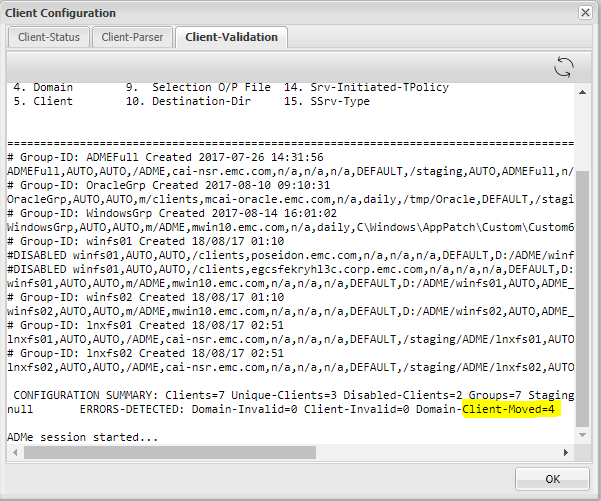
Resolution
- ADME non riesce a esportare alcuni client o client specifici perché non riesce a trovare il client.
- La causa di ciò è che il client è stato spostato.
- Il client deve essere aggiornato con il percorso corretto.
- La procedura per aggiornare il percorso è la seguente:
- Per aggiornare il percorso del client, è necessario effettuare le seguenti operazioni dalla CLI interattiva di ADME.
- Aprire Avamar Server come root e digitare "adme"
- Scegliere la seconda opzione, è possibile digitare 2 o C.
- Fai clic su "G" per i gruppi.
- Scegliere il gruppo in cui si trova il client in cui è stato modificato il dominio.
- Digitare 'M' per modificare.
- È necessario aggiornare il quarto campo con il percorso di dominio del client.
- Infine, dopo aver aggiornato il nuovo dominio client, è necessario digitare "C" per eseguire il commit delle modifiche.
Vecchio percorso:
Nuovo percorso:
Additional Information
- Aprire Avamar Server e digitare "adme"
- Scegliere la seconda opzione, è possibile digitare 2 o C:
==< cai-ave74 >================================ | ADMe Avamar Data Migration (Enabler) | | MAIN - MENU | | Version-4.1.11.45e =============================================== | 1. J) Job Policy Manager | | 2. C) Client-Config Manager | | 3. E) Environment-File Manager | | 4. V) View Selection Worklist | | 5. L) Event Log View | | 6. H) Help | | 7. R) Recovery Manager | | 8. S) Interactive Selection | | 9. M) Interactive Migration | | 10. A) ADMe Administration | | 11. G) ADMe Upgrade | | | =============================================== - Fai clic su "G" per i gruppi
==========================================================================================================< cai-ave74 >=============== CONFIGURATION MANAGER [DOMAIN-VIEW]: <domain-name> [client-count] ==================================================================================================================================== 1) /ADME [1] 2) /MC_RETIRED [8] 3) /NDMP [2] 4) /Oracle [1] 5) /REPLICATE/cai-ave.emc.com [1] 6) /REPLICATE/cai-ave.emc.com/cai-vcen 7) /REPLICATE/cai-ave.emc.com/cai-vcen 8) /REPLICATE/cai-ave.emc.com/cai-vcen 9) /REPLICATE/cai-ave.emc.com/clients 10) /REPLICATE/cai-ave75.emc.com [1] 11) /REPLICATE/cai-ave75.emc.com/cai-vc 12) /VMWare [2] 13) /cai-vcenter.emc.com [3] 14) /cai-vcenter.emc.com/ContainerClien 15) /cai-vcenter.emc.com/VirtualMachine 16) /clients [4] 17) /clients/_DESACTIVATED [1] ==================================================================================================================================== Config Options: [#=Domain I=Inhibit-Stats G=Group F=Refresh H=Search S=Status-All C=Cfg-View P=Cfg-Parse R=Report U=Cfg-Edit B=Build-CSV-Stats W=Col-Width Q=Quit] > G -
Scegliere il gruppo in cui si trova il client in cui è stato modificato il dominio:
==========================================================================================================< cai-ave74 >=============== CONFIGURATION MANAGER [GROUP-VIEW]: <group-name> [client-count] ==================================================================================================================================== 1) ADMEFull [1] 2) OracleGrp [1] 3) WindowsGrp [1] 4) lnxfs01 [1] 5) lnxfs02 [1] 6) winfs01 [3] 7) winfs02 [1] ==================================================================================================================================== Config Options: [#=Group Z=Calculate-Aggregate-Size C=View-Cfg R=Report U=Cfg-Edit S=Status-All Def=Domain-View>] > 2 - Digitare 'M' per modificare:
==========================================================================================================< cai-ave74 >=============== CONFIGURATION MANAGER [GROUP-CLIENT-VIEW]: <client-name> [#Entries-state] Blue=Not-Config Green=Enabled Red=Disabled Yellow=Invalid ==================================================================================================================================== 1) cai-oracle.emc.com [1-E] ==================================================================================================================================== CLIENT-STATS-DISABLED: Not-Configured=0 Disabled=0 Enabled=0 Invalid=0 Retired=0 ==================================================================================================================================== Config Options: [ D=Disable E=Enable M=Modify O=Remove R=Report T=Audit V=Quick-View Def=Group-View>] > M Enter a client# to add/modify or [ Press Enter to Return ]:> 1 DEBUG2 - Itemx=cai-oracle.emc.com Domainx=OracleGrp Mode=3 Available Client Group-ID's: ADMEFull OracleGrp WindowsGrp lnxfs01 lnxfs02 winfs01 winfs02 Client [cai-oracle.emc.com] is currently defined in groups: OracleGrp Ready to Modify client [/clients][cai-oracle.emc.com] in ADMe configuration. Enter An Existing or New Group-ID or [Def=OracleGrp] Q=Quit: -
Aggiornare il 4° campo con il percorso di dominio del client:
==================================================================
         Review All Fields to Establish Selected Client Entry
==================================================================

        Fld-1 ADMe Group-ID Name [OracleGrp]: >
        Fld-2 Start-Date [AUTO]: >
        Fld-3 End-Date [AUTO]: >
        Fld-4 Domain-Name [/clients]: >
        Fld-5 Client-Name [cai-oracle.emc.com]: >
        Fld-6 Avamar-Policy-Group-Name [n/a]: >
        Fld-7 Avamar-Retention-Type [daily]: >
        Fld-8 Exclude-Folders [/tmp/Oracle]: >
        Fld-9 Output-FIle [DEFAULT]: >
        Fld-10 Stage-Destination-Directory [/staging/OracleGrp]: >
        Fld-11 Migration-BU-Scripts [AUTO]: >
        Fld-12 Migration-Monthly-Policy [ORCLNWGRP]: >
        Fld-13 Migration-EOY-Policy [n/a]: >
        Fld-14 Migration-Server-Policy [n/a]: >
        Fld-15 Staging-Server-Type WINDOWS | UNIX [UNIX]: >
        Fld-16 Destination-Path-Suffix [n/a]: >
        Fld-17 Include-Folders [n/a]: >
        Fld-18 Incremental-Delete [n/a]: >


==================================================================

 Confirm Client Entry: [ C=Commit M=Modify Enter=Refresh Q=Quit]: >


==================================================================
 Enter All Fields to Modify a Client Entry, press enter to accept defaults
==================================================================

        Fld-1 ATO-Group-ID Name [OracleGrp]: >
        Fld-2 Start-Date [AUTO]:
        Fld-3 End-Date [AUTO]:
        Fld-4 Domain-Name [/clients]: > /Oracle
        Fld-5 Client-Name [cai-oracle.emc.com]: >
        Fld-6 Avamar-Policy-Group-Name [n/a]:
        Fld-7 Retention-Type [daily]:
        Fld-8 Exclude-Folders [/tmp/Oracle]:
        Fld-9 Output-FIle [DEFAULT]:
        Fld-10 Stage-Destination-Directory [/staging/OracleGrp]:
        Fld-11 Migration-BU-Scripts [AUTO]:
        Fld-12 Export-Policy-Client-Initiated [ORCLNWGRP]:
        Fld-13 Export-EOY-Policy-Client-Initiated [n/a]:
        Fld-14 Export-Policy-Server-Initiated [n/a]:
        Fld-15 Staging-Server-Type WINDOWS | UNIX [UNIX]:
        Fld-16 User-Defined-Destination-Path-Suffix [n/a]:
        Fld-17 Include-Folders [n/a]:
        Fld-18 Incremental-Delete [n/a]:


==================================================================

 Confirm Client Entry: [ C=Commit M=Modify Enter=Refresh Q=Quit]: > C
Affected Products
Avamar Data Migration EnablerProducts
Avamar Client, Avamar Data Migration EnablerArticle Properties
Article Number: 000052310
Article Type: Solution
Last Modified: 05 Sept 2025
Version: 5
Find answers to your questions from other Dell users
Support Services
Check if your device is covered by Support Services.