How to Downgrade Your Dell System BIOS
Summary: Learn how to downgrade Dell BIOS step-by-step using Windows or USB. Includes troubleshooting, security restrictions, and verification steps for all Dell systems.
This article applies to
This article does not apply to
This article is not tied to any specific product.
Not all product versions are identified in this article.
Instructions
Understanding BIOS Downgrades
What is a BIOS downgrade?
A BIOS downgrade means installing an earlier version of your computer's BIOS or UEFI firmware. Think of it like rolling back to a previous version of software when a newer version causes problems.
When should you downgrade?
Common reasons to downgrade:
- A newer BIOS version causes compatibility issues with your hardware or software
- You need a specific BIOS version for custom operating system images (common in business environments)
- New BIOS features conflict with your workflow or specialized applications
- IT department requires standardized BIOS versions across all computers
- Troubleshooting process to identify if a recent BIOS update caused system issues
When downgrading isn't recommended:
- Your computer is working normally with the current BIOS
- You're experiencing hardware problems (newer BIOS versions often include fixes)
- You don't have a specific technical reason for the downgrade
Note: While Dell thoroughly tests all BIOS updates before release, we generally recommend staying on the latest version for optimal performance, security patches, and hardware compatibility. However, we understand specific situations require earlier versions, and this guide is here to help.
Before You Begin
Important things to know:
- We typically recommend keeping your BIOS up to date, but we understand some situations require an earlier version
- Some systems cannot be downgraded due to security protections (we'll help you check)
- The downgrade process is similar to updating your BIOS, just with an older version
- Make sure your computer stays plugged in during the entire process
What you'll need:
- Your Dell Service Tag (find it on a sticker on your computer or in your system settings)
- A stable internet connection
- 15-20 minutes of uninterrupted time
Step 1: Check If Downgrade Is Possible
Some BIOS versions have security locks that prevent BIOS downgrades. This is normal and protects your computer from certain vulnerabilities.
You cannot downgrade if:
- Your current BIOS includes security fixes (these versions are locked for your protection)
- Your system message says "BIOS downgrade is not permitted"
If downgrade is blocked, your system is working as designed for security reasons.
Step 2: Download the Previous BIOS Version
- Go to Dell Drivers & Downloads
- Enter your Service Tag or let the website detect your computer
- Select BIOS from the category list
- Click Older versions (or similar link)
- Find and download the version you need
- Save the file to an easy-to-find location (like your Desktop or Downloads folder)
File name example: The file will be named something like "Latitude_5420_1.8.2.exe"
Method 1: Downgrade Using Windows (Easiest)
This method works if Windows is running normally on your computer.
- Locate the downloaded BIOS file on your computer
- Double-click the file to start the installer
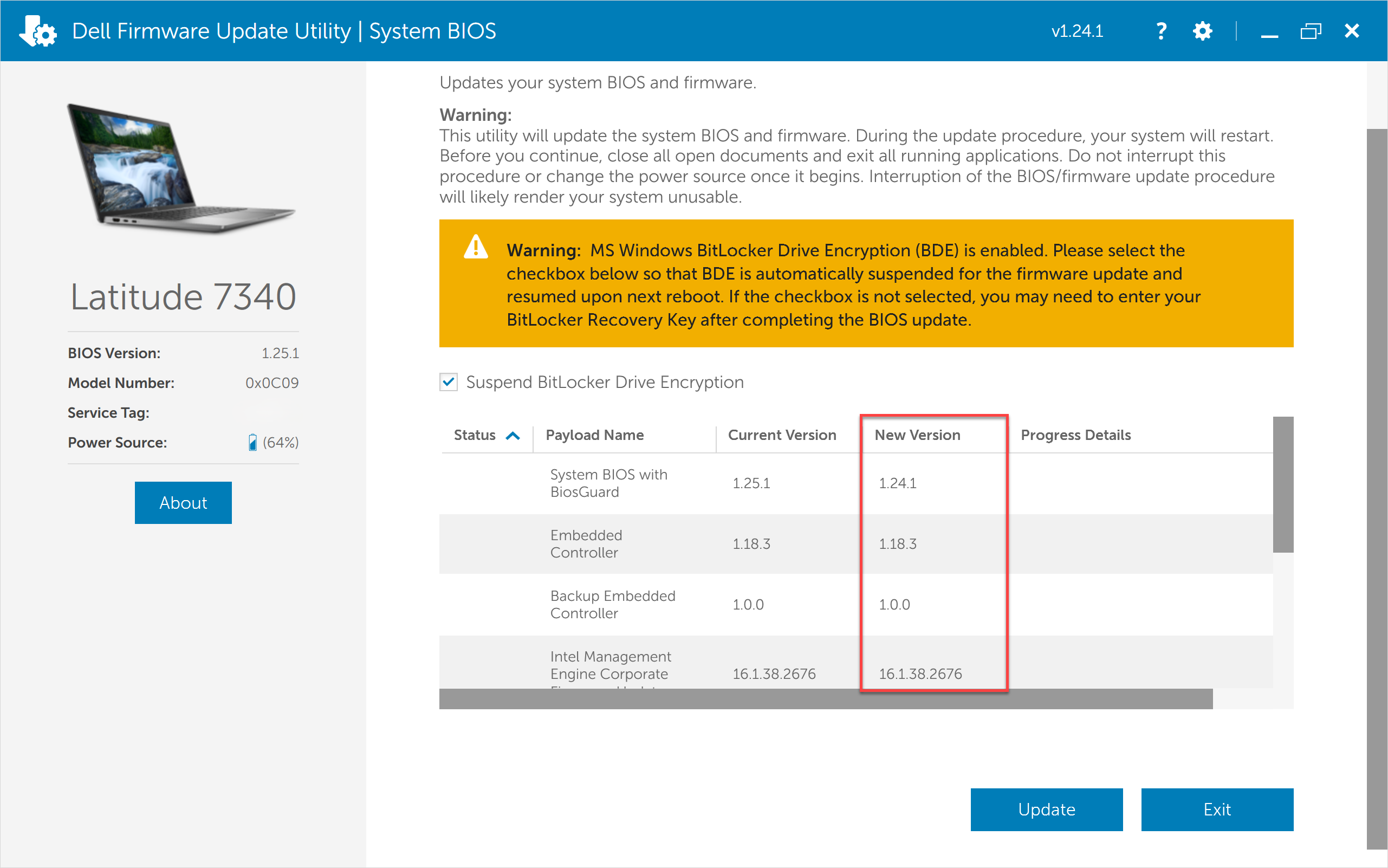
- Follow the on-screen prompts:
- Click Install or Update (yes, even though you're downgrading)
- Confirm the install when prompted
- Wait while it restarts and updates (this takes 5-10 minutes)
- Your computer will restart automatically when complete
What you'll see: Your screen may go black or show the Dell logo during the update. This is normal.
Method 2: Downgrade Using a USB Drive
Use this method if Windows won't start or you prefer manual installation.
Prepare Your USB Drive:
- Use a USB drive with at least 1 GB of space (all data will be erased)
- Format the drive:
- Plug in the USB drive
- Open File Explorer, right-click the drive
- Select Format
- Choose FAT32 for File system
- Click Start, then OK
- Copy the downloaded BIOS file to the USB drive
- Safely eject the USB drive
Install the BIOS:
- Turn off your computer completely
- Plug in the USB drive
- Turn on your computer and immediately press F12 repeatedly until you see the boot menu
- Select your USB drive from the list
- Follow the on-screen instructions to complete the installation
- Remove the USB drive after your computer restarts

After Downgrading
Your computer should:
- Restart normally into Windows
- Show the downgraded BIOS version in System Information
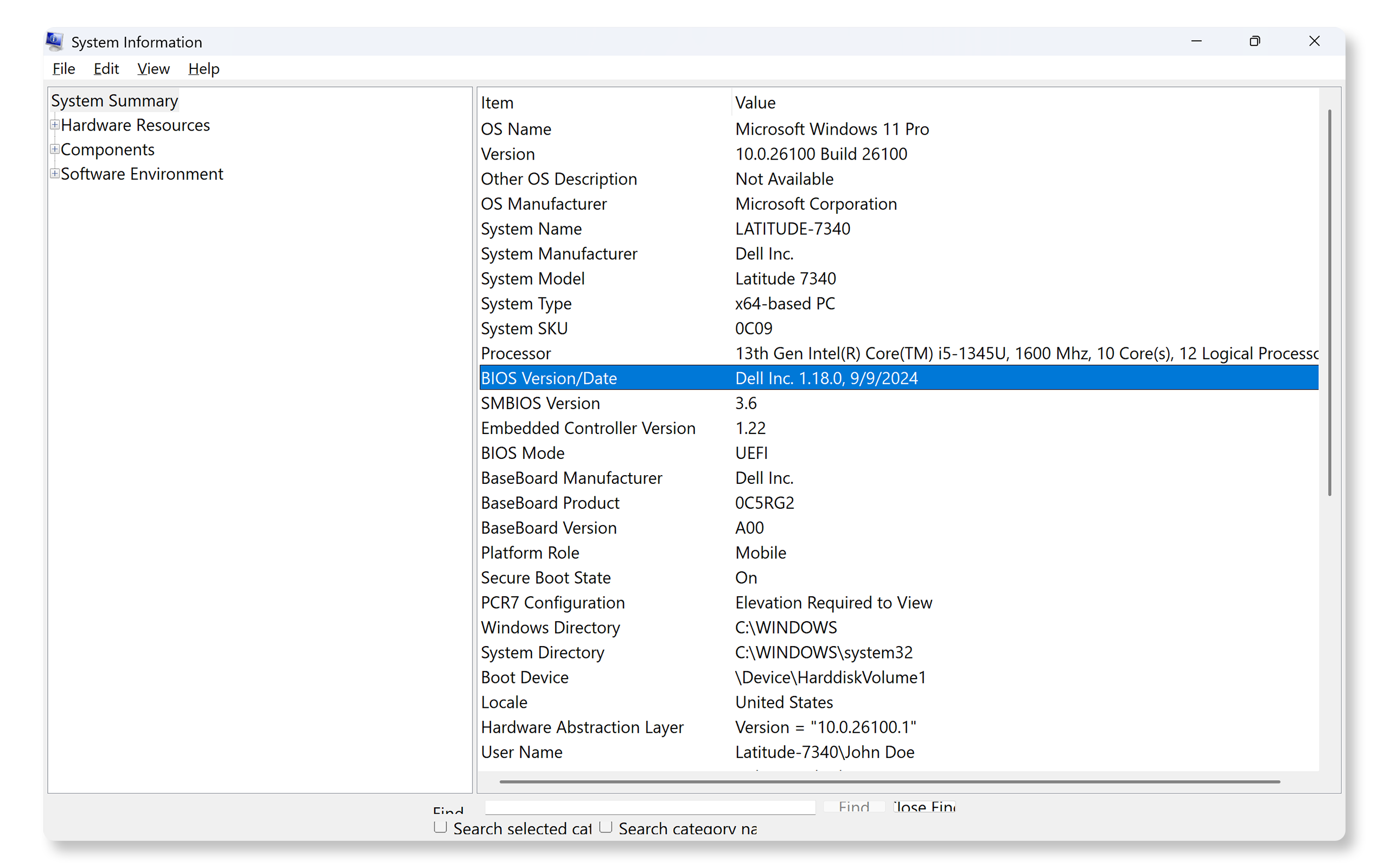
To verify the downgrade worked:
- Press Windows key + R
- Type msinfo32 and press Enter
- Look for BIOS Version/Date - it should show your downgraded version
Troubleshooting common issues with BIOS downgrade
"BIOS Downgrade Not Permitted" message
Cause: Your system has security protections that prevent downgrades for Intel security vulnerabilities.
Solution: This restriction cannot be bypassed. Try a newer version.
Computer won't start after downgrade
Symptoms: Black screen, beeping sounds, or stuck on Dell logo.
To recover using keyboard
- Turn off the computer.
- Press and hold Ctrl + Esc, and then press the power button.
- Release Ctrl + Esc after 5 seconds.
- Follow the on-screen recovery instructions.
To recover using USB
- Go to Dell Drivers & Downloads and download the BIOS recovery file.
- Create a recovery USB drive using the downloaded file.
- Follow the instructions provided with the recovery file.
Learn about recovering the BIOS when the downgrade fails.
Downloaded wrong BIOS version
Symptoms: Error message "BIOS file does not match system" or installation won't start.
Solution:
- Don't attempt to install the file.
- Delete the incorrect file.
- Verify your Service Tag and exact computer model (Select Start, type system, press Enter).
- Download the correct version for your specific model.
Download keeps failing
Try these solutions:
- Check your internet connection at speedtest.net
- Clear browser cache (Press Ctrl + Shift + Delete)
- Try a different browser
- Use Dell SupportAssist app: Drivers & Updates
- Download from another computer and transfer via USB
USB drive not detected in boot menu
Try these solutions:
- Verify USB is formatted as FAT32 (not NTFS)
- Try different USB ports (prefer USB 2.0)
- Check BIOS settings: Press F2, verify USB Storage Device is enabled
- Ensure BIOS file is in the root directory (not in folders)
- Try the correct boot key (F12 or F2)
Installation freezes or hangs
What to do:
- Wait at least 20 minutes before taking action
- If truly frozen after 20+ minutes, press and hold the power button for 10 seconds
- Attempt BIOS recovery (see "Computer won't start after downgrade")
- Contact Dell Support
Prevention: Keep power connected, close all applications, and don't use the computer during installation.
"Insufficient Battery" warning
Solution:
- Plug in the AC power adapter firmly.
- Wait 5 minutes for charging.
- Restart the installation.
Note: Laptops require AC power for BIOS updates, even with full battery. This is a safety feature.
System behaving oddly after downgrade
Expected changes:
- Older BIOS versions may lack newer features
- Boot time may be slower initially
- Some settings may reset to defaults
To resolve:
- Reset BIOS to defaults: Restart, press F2, select Restore Settings, press F10.
- Reconfigure your custom settings.
- Update chipset drivers from Dell Drivers & Downloads.
- Use the computer normally for a few hours.
If problems persist beyond 24 hours: Consider updating to the latest BIOS.
Frequently Asked Questions
Q: Can I downgrade my Dell BIOS to an older version?
A: Yes, in most cases. However, some systems have security locks that prevent downgrades, especially if your current BIOS includes Intel security fixes. You can attempt the downgrade using either the Windows installer or USB method. If your system blocks the downgrade, try a newer version.
Q: Why won't my Dell computer let me downgrade the BIOS?
A: Your system may block downgrades for security reasons. Systems with BIOS versions that address Intel Security Advisories are permanently locked to prevent rolling back to vulnerable versions. This protection is designed to keep your computer secure and cannot be bypassed.
Q: Is it safe to downgrade Dell BIOS?
A: Yes, when you follow proper steps. Keep your computer plugged into AC power, don't interrupt the installation, and download the correct BIOS version for your exact model. While there's a small risk if the process is interrupted, modern Dell systems have built-in recovery features. All BIOS versions from Dell.com are thoroughly tested before release.
Q: How do I find older BIOS versions for my Dell computer?
A: Go to Dell Drivers & Downloads, enter your Service Tag, select BIOS, and then select Older versions. This displays all available BIOS versions organized by release date. If you can't find a specific version, it may not be available for security reasons.
Q: What happens if BIOS downgrade fails on my Dell laptop?
A: If a downgrade fails, your laptop may not start normally. Modern Dell systems include recovery features. Turn off the computer, press and hold Ctrl + Esc, press the power button, release Ctrl + Esc after 5 seconds, and follow the recovery prompts. You can also use a USB recovery drive. Learn about recovering the BIOS when the downgrade fails.
Q: Do I need a USB drive to downgrade Dell BIOS?
A: No. If Windows is running normally, you can run the BIOS installer from within Windows, this is the easiest method. A USB drive is only needed if Windows won't start or you're using a non-Windows operating system. Both methods are equally safe and effective.
Q: Will downgrading BIOS delete my files or programs?
A: No. Downgrading BIOS will not delete files, programs, documents, or Windows. BIOS exists separately from your operating system and data. All your documents, applications, and settings remain intact. However, some BIOS settings (like boot order or virtualization) may reset to defaults and need adjustment.
Q: Can I downgrade BIOS on Dell Latitude, XPS, or OptiPlex?
A: Yes, you can downgrade BIOS on Dell Latitude, XPS, OptiPlex, Inspiron, Vostro, Precision, Alienware, and virtually all Dell systems, as long as security locks aren't in place. The process is the same across all models. Just download the correct BIOS version for your exact model.
Q: Why would I need to downgrade my Dell BIOS?
A: Common reasons include resolving compatibility issues with specific software or operating systems, supporting custom OS images for business deployments, fixing hardware compatibility problems from newer BIOS releases, meeting IT requirements for standardized versions, or troubleshooting to identify if a recent update caused issues. While Dell recommends staying updated, we understand specific situations require earlier versions.
Affected Products
Chromebox, Alienware, Dell All-in-One, Dell Pro All-in-One, Dell Pro Max Micro, Dell Pro Max Slim, Dell Pro Max Tower, Dell Pro Micro, Dell Pro Slim, Dell Pro Tower, Dell Slim, Dell Tower, Inspiron, Legacy Desktop Models, OptiPlex, Vostro, XPS
, G Series, Chromebook, G Series, Alienware, Dell Laptops, Dell Plus, Dell Pro, Dell Pro Max, Dell Pro Plus, Dell Pro Premium, Inspiron, Latitude, Dell Pro Rugged, Vostro, XPS, Legacy Laptop Models, Dell Pro Max Micro XE FCM2250, Dell Pro Max Slim XE FCS1250, Dell Pro Max Tower T2 XE FCT2250, Dell Pro Max 14 Premium MA14250, Dell Pro Max 16 Premium MA16250, Dell Pro Max 16 Plus MB16250, Dell Pro Max 18 Plus MB18250, Dell Pro Max 16 XE MC16250, Dell Pro Micro Plus XE QBM1250, Dell Pro Slim Plus XE5 QBS1250, Dell Pro Tower Plus XE5 QBT1250
...
Article Properties
Article Number: 000130652
Article Type: How To
Last Modified: 08 Dec 2025
Version: 14
Find answers to your questions from other Dell users
Support Services
Check if your device is covered by Support Services.