Unknown Device in Device Manager: How to Identify and Fix
Summary: Got an Unknown Device with a yellow exclamation mark in Device Manager? Follow our simple steps to identify the device and install the correct driver.
This article applies to
This article does not apply to
This article is not tied to any specific product.
Not all product versions are identified in this article.
Instructions
Seeing "Unknown Device" in Windows Device Manager? This article will help you find out what the device is and get the right driver installed so everything works properly on your Dell computer.
What Does "Unknown Device" Mean?
When you see "Unknown Device" in Device Manager, it usually means Windows doesn't have the right driver for a piece of hardware in your computer. This can happen after:
- Installing a fresh copy of Windows
- Updating Windows
- Adding new hardware to your computer
- Removing a driver by accident
Don't worry, this is a common issue that's easy to fix once you know what device needs a driver.
Before You Start
Update Windows First
Before trying to identify the unknown device, make sure Windows is fully updated. Many drivers are included in Windows updates, and this simple step might solve the problem automatically.
- Select Start > Settings > Windows Update.
- Select Check for updates.
- Install any available updates.
- Restart your computer if prompted.
After updating, check Device Manager again. The unknown device might now show up correctly with the proper name.
How to Identify an Unknown Device
If the unknown device is still there after updating Windows, you can use these steps to find out what it is.
Step 1: Open Device Manager
- Press the Windows key + R on your keyboard.
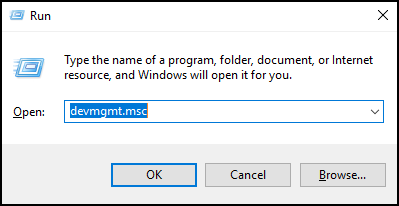
- In the Run box, type devmgmt.msc and select OK.
Device Manager will open and show you all the hardware in your computer.
Step 2: Find the Unknown Device
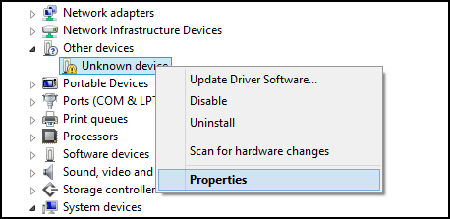
Look for the device marked with a yellow exclamation mark. It's usually listed under "Other devices" and labeled as "Unknown Device."
Step 3: Get the Device Information
- Right-click the Unknown Device.
- Select Properties.
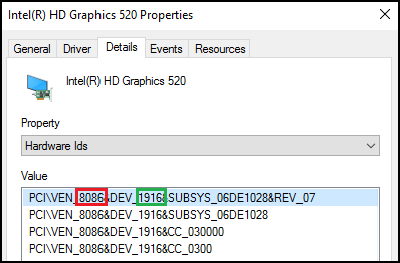
- Select the Details tab.
- In the Property dropdown menu, select Hardware Ids.
Step 4: Find the Vendor and Device ID
Look at the top line in the Value box. You'll see something like:
PCI\VEN_8086&DEV_1916
Here's what this means:
- VEN_8086 - This is the Vendor ID (the numbers after VEN_)
- DEV_1916 - This is the Device ID (the numbers after DEV_)
In this example:
- Vendor ID = 8086
- Device ID = 1916
Write down both numbers, you'll need them to look up what device it is.
Look Up What the Device Is
Now that you have the Vendor ID and Device ID, you can find out what the device is.
Use a Hardware Lookup Website
Visit one of these websites to search for your device:
- Enter your Vendor ID in the Vendor search box.
- Enter your Device ID in the Device search box.
- The website will tell you what the device is.
Example: If you search for Vendor ID 8086 and Device ID 1916, you'll find it's an Intel graphics card.
- You can also search here using the full Hardware ID to find drivers directly from Microsoft.
Common Vendor IDs
Here are some common manufacturers and their Vendor IDs:
- 8086 - Intel
- 10DE - NVIDIA
- 1002 - AMD
- 14E4 - Broadcom
- 8087 - Intel (wireless/Bluetooth)
- 10EC - Realtek
Download and Install the Right Driver
Once you know what the device is, you can download the correct driver.
For Dell Computer Parts
If the device is part of your Dell computer (like the graphics card, sound card, or network card):
- Go to Dell.com/support/drivers.
- Enter your computer's Service Tag or let the website detect your computer.
- Find and download the driver for the device you identified.
- Run the downloaded file and follow the installation steps.
- Restart your computer.
For complete instructions on downloading Dell drivers using SupportAssist, Dell Command Update, or downloading drivers manually, check out How to Update Drivers on My Dell Computer.
For Other Devices
If the unknown device is something you added to your computer (like a USB device, printer, or external card):
- Visit the device manufacturer's website
- Look for their support or downloads section
- Download the driver for your specific device model
Note: Always download drivers from official manufacturer websites only. Avoid third-party driver download sites or software, as they may contain malware.
What If I Can't Find the Hardware IDs?
If the information in Device Manager doesn't look like "VEN_" and "DEV_" numbers, try this:
- In the Property dropdown, try selecting Device instance path or Compatible IDs instead.
- Copy the full text you see.
- Search for it on Google to find out what kind of device it is.
Still Having Trouble?
If you've followed these steps and still can't identify the device or find the right driver, you have a few options:
Try Windows Update Again
Sometimes new drivers become available after initial Windows updates:
- Select Start > Settings > Windows Update.
- Select Advanced options > Optional updates.
- Look for any driver updates listed here.
Use Dell SupportAssist
SupportAssist can automatically detect and install missing drivers:
- Search for SupportAssist in the Start menu.
- Open the app and select Update software.
- Let SupportAssist scan and install available drivers.
Common Questions
Q: Is it safe to ignore an unknown device?
A: It depends. If your computer is working fine and you're not missing any features, it might be okay to leave it. However, unknown devices can sometimes be important parts like network cards or graphics drivers. It's best to identify them and install the proper drivers.
Q: Why do unknown devices appear after Windows updates?
A: Sometimes Windows updates can remove or replace drivers that were working before. This is why it's important to keep your drivers updated from Dell's website in addition to running Windows updates.
Q: Can I just delete the unknown device?
A: You can remove it from Device Manager, but it will likely come back the next time you restart your computer. It's better to install the correct driver instead.
Q: What if the device is listed multiple times?
A: If you see several unknown devices, you'll need to check each one individually using the steps above. They might be different pieces of hardware.
Affected Products
Alienware, Dell All-in-One, Dell Pro All-in-One, Dell Pro Max Micro, Dell Pro Max Slim, Dell Pro Max Tower, Dell Pro Micro, Dell Pro Slim, Dell Pro Tower, Dell Slim, Dell Tower, Inspiron, Legacy Desktop Models, OptiPlex, Vostro, XPS, G Series
, G Series, Alienware, Dell Laptops, Dell Plus, Dell Pro, Dell Pro Max, Dell Pro Plus, Dell Pro Premium, Inspiron, Latitude, Dell Pro Rugged, Vostro, XPS, Legacy Laptop Models, Fixed Workstations, Mobile Workstations, Dell Pro Max Micro XE FCM2250, Dell Pro Max Slim XE FCS1250, Dell Pro Max Tower T2 XE FCT2250, Dell Pro Max 16 XE MC16250, Dell Pro Micro Plus XE QBM1250, Dell Pro Slim Plus XE5 QBS1250, Dell Pro Tower Plus XE5 QBT1250
...
Article Properties
Article Number: 000151898
Article Type: How To
Last Modified: 27 Jan 2026
Version: 11
Find answers to your questions from other Dell users
Support Services
Check if your device is covered by Support Services.