DNS Records Explained
Summary: When you set up your domain in Office 365, DNS records are required so that the email, instant messaging (Skype for Business), and other services work correctly.
This article applies to
This article does not apply to
This article is not tied to any specific product.
Not all product versions are identified in this article.
Instructions
Set up Domain
DNS stands for Domain Name System, which is the largest digital database in the world, containing information about every web site on the internet. Every website online has an IP address that is its actual internet location, and this number is used to locate the website within the database. The data that tells the web server how to respond to your input is known as the DNS records or zone files.
 DNS Records Explained
DNS records are basically mapping files that tell the DNS server which IP address each domain is associated with, and how to handle requests sent to each domain. When someone visits a website, a request is sent to the DNS server and then forwarded to the web server provided by a web hosting company, which contains the data contained within the site.
Various strings of letters are used as commands that dictate the actions of the DNS server, and these strings of commands are called DNS syntax.
 DNS Management
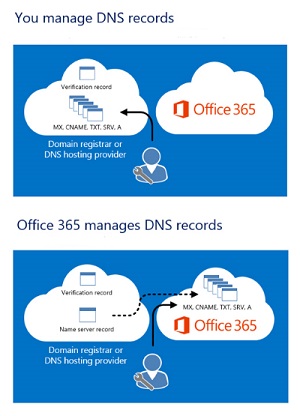
There are two options for managing your domain's DNS records with Office 365.
- Keep managing the DNS records for Office 365 yourself at your DNS host. This option is sometimes called partial redelegation.
- Have Office 365 create and manage the Office 365 DNS records for your domain after you change your nameserver (NS) records to point to Office 365. This option is sometimes called full redelegation.
Note: Set up records automatically for GoDaddy domains: If your domain's nameservers point to GoDaddy (that is if GoDaddy is your domain's DNS host), Office 365 can automatically set up DNS for your Office 365 services for you at GoDaddy. This is the simplest option if you have a GoDaddy domain, but you can opt (in the setup wizard) to add the records manually yourself. It is important to note that you can't choose to have Office 365 manage DNS for a GoDaddy domain.
 Selecting a Management Option
The domains setup wizard in Microsoft Online Portal uses one of the two options. Start the setup wizard by choosing Add domain on the Domains page in Office 365.
|
Self Management If you do not have a GoDaddy domain, and you do have a website that you are using, the best option is to add DNS records for email and other Office 365 services at your DNS host yourself.
Note: Set up records automatically for GoDaddy domains: If your domain's nameservers point to GoDaddy (that is, if GoDaddy is your domain's DNS host), Office 365 can automatically set up DNS records for your Office 365 services for you at GoDaddy. This is the simplest option if you have a GoDaddy domain, but you can choose to add the records manually yourself (via the setup wizard).
Office 365 manages for you If your domain is not hosted by GoDaddy and you do not have a website that you actively use with your domain, you can have Office 365 create and host DNS records for email and other Office 365 services. We recommend this option, to let Office 365 set up your records at Office 365 because it requires less work for you as you get started. With this approach, you change your nameserver records, then Office 365 takes care of all the service-specific records, like setting up your MX record for email. |
 |
 External DNS records required for Office 365 (Core Services)
Every Office 365 customer needs to add two records to their external DNS. The first CNAME record ensures that Office 365 can direct workstations to authenticate with the appropriate identity platform. The second required record is to prove you own your domain name.
|
DNS Record |
Purpose |
|
CNAME (Suite) |
Used by Office 365 to direct authentication to the correct identity platform |
|
TXT (Domain verification) |
Used by Office 365 to verify only that you own your domain. It does not affect anything else. |
 External DNS records required for Office 365 (Exchange Online)
Email in Office 365 requires several different records. The three primary records that all customers should use are the Autodiscover, MX, and SPF records.
- The Autodiscover record (CNAME) allows client computers to automatically find Exchange and configure the client properly.
- The MX record tells other mail systems where to send email for your domain. When you change your email to Office 365, by updating your domain's MX record, ALL email sent to that domain will start coming to Office 365.
- The TXT record for SPF is used by recipient email systems to validate that the server sending your email is one that you approve. This helps prevent problems like email spoofing and phishing. See the SPF records section for help in understanding what to include in your record.
Email customers who are using Exchange Federation will also need the additional CNAME and TXT record listed at the bottom of the table.
|
DNS Record |
Purpose |
|
CNAME (Exchange Online) |
Helps Outlook clients to easily connect to the Exchange Online service by using the Autodiscover service. Autodiscover automatically finds the correct Exchange Server host and configures Outlook for users. |
|---|---|
|
MX (Exchange Online) |
Sends incoming mail for your domain to the Exchange Online service in Office 365. Note: Once the email is flowing to Exchange Online, you should remove the MX records that are pointing to your old system. |
|
SPF (TXT) (Exchange Online) |
Helps to prevent other people from using your domain to send spam or other malicious emails. Sender policy framework (SPF) records work by identifying the servers that are authorized to send email from your domain. |
|
TXT (Exchange federation) |
Used for Exchange federation for hybrid deployment. |
|
CNAME (Exchange federation) |
Helps Outlook clients to easily connect to the Exchange Online service by using the Autodiscover service when your company is using Exchange federation. Autodiscover automatically finds the correct Exchange Server host and configures Outlook for your users. |
Affected Products
Microsoft 365 from DellArticle Properties
Article Number: 000184501
Article Type: How To
Last Modified: 09 May 2026
Version: 6
Find answers to your questions from other Dell users
Support Services
Check if your device is covered by Support Services.