UIまたはCLIを使用してIDPAシステムにログインする方法
Summary: この記事では、ユーザー インターフェイス(UI)またはコマンド ライン インターフェイスCLIを使用して、さまざまなIDPAシステムにログインする方法について説明します。
This article applies to
This article does not apply to
This article is not tied to any specific product.
Not all product versions are identified in this article.
Instructions
Integrated Data Protection Appliance(IDPA)には、ログインする必要がある複数のシステムがあり、システムに応じて複数の異なるユーザーが存在します。
あります:
- IDPA System Manager(DPC)
- バックアップ サーバー(Avamar)
- 保護ストレージ(Data Domain)
- レポート作成と分析(DPA)
- 検索、ハイパーバイザー マネージャー(vCenter)
- 1つ以上のハイパーバイザー(ESXi)サーバー
- クラウド ディザスター リカバリー アドオン(CDRA)がインストールされている場合もあります
このUIスクリーンショットに示すように、ACMサーバーもあります。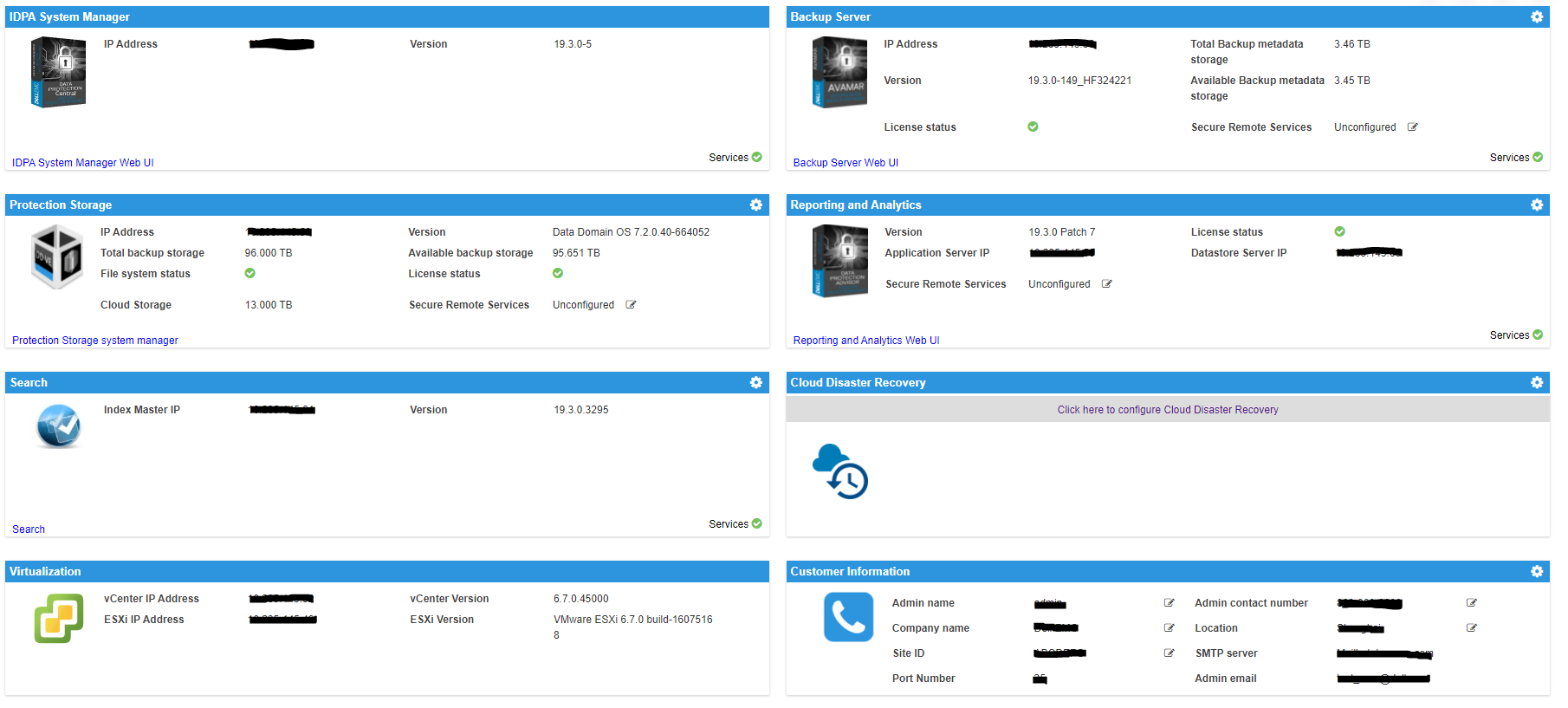
各システムのユーザーは次のとおりです。
ACM:
UI: root
CLI: root
IDPA System Manager (DPC):
UI: administrator@dpc.local: idpauser or AD login if configured
CLI: admin
保護ソフトウェア(Avamar):
UI: MCUser
CLI: admin
保護ストレージ(Data Domain):
UI: sysadmin
CLI: sysadmin
レポート作成と分析(DPA):
UI: administrator
CLI: root
検索:
UI: admin: idpauser or AD login if configured
CLI: root
ハイパーバイザー マネージャー(VCSA):
UI: administrator@vsphere.local: root
CLI: root
ハイパーバイザー(ESXi):
UI: root
CLI: root
IDPA 2.7.1以前のバージョンを使用している場合:
IDPA System ManagerとSearchは、デフォルトでACMサーバーからLightweight Directory Access Protocol (LDAP)を使用して構成されます。ACMからActive Directory (AD)または外部LDAPを設定していない場合、ユーザーは
また、バックアップ サーバー、保護ストレージ、レポート作成と分析用にADまたはLDAPを手動でセットアップして、ADまたはLDAPログインを使用することもできます。
IDPA System ManagerとSearchは、デフォルトでACMサーバーからLightweight Directory Access Protocol (LDAP)を使用して構成されます。ACMからActive Directory (AD)または外部LDAPを設定していない場合、ユーザーは
idpauser これら2つのシステムUIにログインできます。
また、バックアップ サーバー、保護ストレージ、レポート作成と分析用にADまたはLDAPを手動でセットアップして、ADまたはLDAPログインを使用することもできます。
IDPA 2.7.2以降のバージョンを使用している場合、LDAPはすべての製品で構成されています。 idpauser ユーザーは、ACMを含むすべてのシステムで動作します。
ACMでAD/LDAPサーバーを設定すると、IDPA内のすべてのシステムでも構成されます。
Affected Products
Integrated Data Protection Appliance FamilyArticle Properties
Article Number: 000188344
Article Type: How To
Last Modified: 29 Apr 2025
Version: 7
Find answers to your questions from other Dell users
Support Services
Check if your device is covered by Support Services.