SRM Online Update link appears to be broken or not functioning
Summary: When attempting to launch the Online Update via the SRM Centralized-Management > CONFIG > Update System > Manage Online Update link fails.
This article applies to
This article does not apply to
This article is not tied to any specific product.
Not all product versions are identified in this article.
Symptoms
When the connection icon is clicked it shows the "broken" connection symbol and on mouse-over of the icon it notes:
The reason was: Bad Gateway
The reason was: Bad Gateway
Cause
This issue is currently being experienced as the update media location is in transition and the embedded link in the SRM software is not dynamically updated.
Resolution
To resolve this issue perform the following steps:
1. Log into SRM and navigate to Administration > Centralized-Management > CONFIG > Update System > Manage Online Update
2. On the Settings tab make sure your username and password credentials are correct.
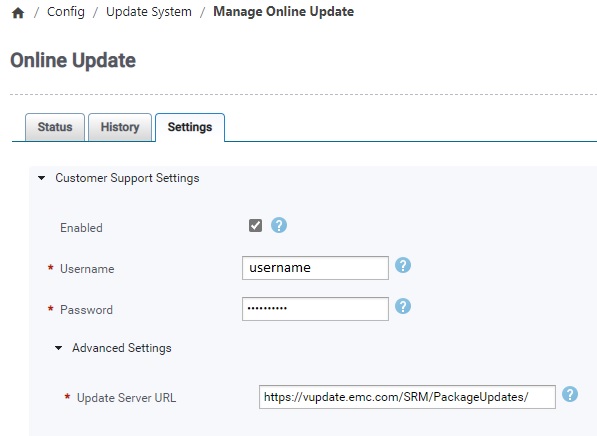
3. Click the Advanced Settings drop-down array and change the Update Server URL - the Update Server URL will show the following:
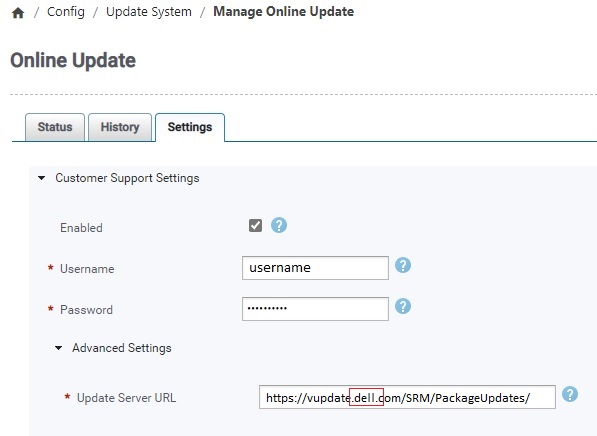
4. Edit the Update Server URL as follows:
5. Click the Connection Icon in the upper right-hand of the window and the test should now be green/good.
6. Save the settings and Online Update for SRM package staging should be available.
1. Log into SRM and navigate to Administration > Centralized-Management > CONFIG > Update System > Manage Online Update
2. On the Settings tab make sure your username and password credentials are correct.
3. Click the Advanced Settings drop-down array and change the Update Server URL - the Update Server URL will show the following:
4. Edit the Update Server URL as follows:
5. Click the Connection Icon in the upper right-hand of the window and the test should now be green/good.
6. Save the settings and Online Update for SRM package staging should be available.
Additional Information
Dell EMC Serviceability and Engineering are aware of this issue and are working to rectify it.
Article Properties
Article Number: 000192621
Article Type: Solution
Last Modified: 12 May 2026
Version: 3
Find answers to your questions from other Dell users
Support Services
Check if your device is covered by Support Services.