RHEL7/CentOS7本地使用命令行获取TSR日志(RACADM/ISM/IPMITOOL)
Summary: 文章介绍了RHEL7/CentOS7通过本地使用命令行获取TSR日志(RACADM/ISM/IPMITOOL)的方法。
This article applies to
This article does not apply to
This article is not tied to any specific product.
Not all product versions are identified in this article.
Instructions
目录:
- 适用场景
- 安装iDRAC Tools使用racadm命令获取TSR日志
- 安装iDRAC Service Module使用Invoke-SupportAssistCollection获取TSR日志 (仅适用于iDRAC9)
- 安装IPMITool使用IPMITool命令获取TSR日志(仅适用于iDRAC9)
适用场景
RHEL7/CentOS7本地使用命令行获取TSR日志的方法,适用于以下场景:iDRAC Web无法访问或无法正常工作;
iDRAC未配置,未连接iDRAC电缆;
iDRAC已连接并配置,但客户不知道用户名密码;
NOTE:
- 文中涉及的iDRAC Tools 或 iDRAC Service Module均需要使用管理员权限在系统中安装,安装过程中请务必认真阅读软件安装说明;
- racadm保存TSR日志到本地时候,iDRAC会短暂的给操作系统插入一个USB存储介质用于传输TSR日志文件;
- 安装ISM会默认启用USB NIC的OS to iDRAC Pass-through功能,在系统中会多出一个USB iDRAC Virtual NIC设备用于和iDRAC进行通讯;
- 一般情况下安装iDRAC Tools或iDRAC Service Module对业务环境不会照成影响,如无法评估相关风险或不想对OS产生任何改动,请优先考虑使用iDRAC获取TSR日志。
安装iDRAC Tools使用racadm命令获取TSR日志
下载iDRAC Tools软件包并安装racadm工具。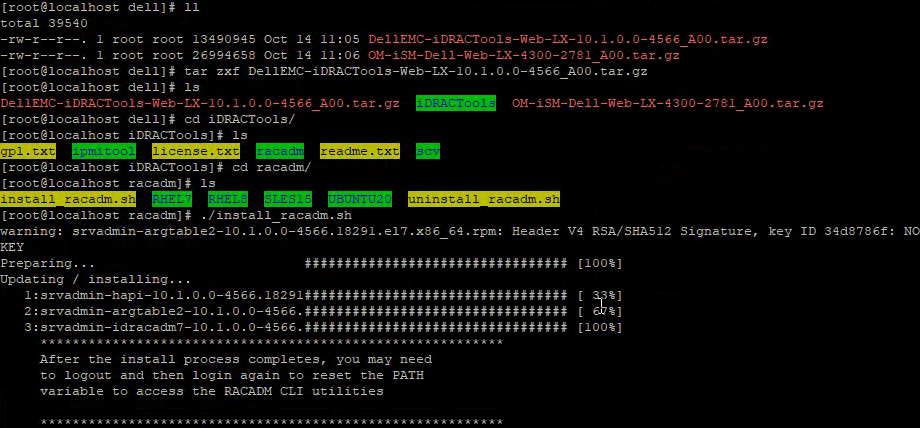
安装完成后请关闭命令行窗口,并重新登录,即可使用racadm命令。
- racadm techsupreport collect(支持iDRAC7,8,9 推荐使用)
racadm techsupreport collect -t sysinfo,ttylog

查看该作业队列进度,并等待至100%。
racadm jobqueue view -i JID_657173236225
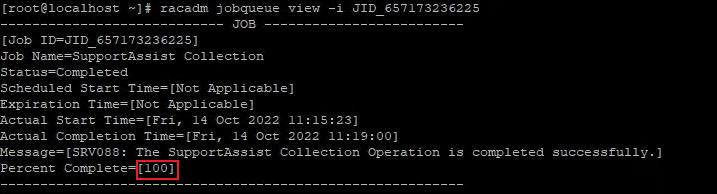
导出TSR日志到服务器本地指定目录,并命名为TSR.zip。
racadm techsupreport export -f /tmp/TSR.zip

NOTE: 文件保存的过程中iDRAC会短暂的给操作系统插入一个USB存储介质用于传输TSR日志文件。
更多关于racadm techsupreport参数请参考racadm用户手册。
更多关于racadm techsupreport参数请参考racadm用户手册。
- racadm supportassist collect(仅支持iDRAC9)
接受EULA。
racadm supportassist accepteula

使用supportassist创建收集TSR日志作业,包含debug,sysinfo和ttylog。
racadm supportassist collect -t sysinfo,ttylog,debug

查看该作业队列进度,并等待至100%。
racadm jobqueue view -i JID_657178574755

导出TSR日志,命令为tsrlog.zip并保存至指定目录。
racadm supportassist exportlastcollection -f /tmp/tsrlog.zip
 更多关于racadm supportassist参数请参考iDRAC9 racadm 手册 第170页。
安装iDRAC Service Module使用Invoke-SupportAssistCollection获取TSR日志 (仅适用于iDRAC9)
下载ISM软件包,并执行默认安装(全部默认选项安装即可,安装完ISM会默认启用USB NIC的OS to iDRAC Pass-through功能)。
阅读软件安装说明,按空格键翻页,最后按y接受EULA。

自动进入安装选项界面,这里以默认选项演示,直接按i开始安装,安装结束后提示按y启动ISM服务。

如果没有在安装结束后按到y启动服务,需要手动开启服务,并检查服务状态。
systemctl start dcismeng.service
systemctl status dcismeng.service
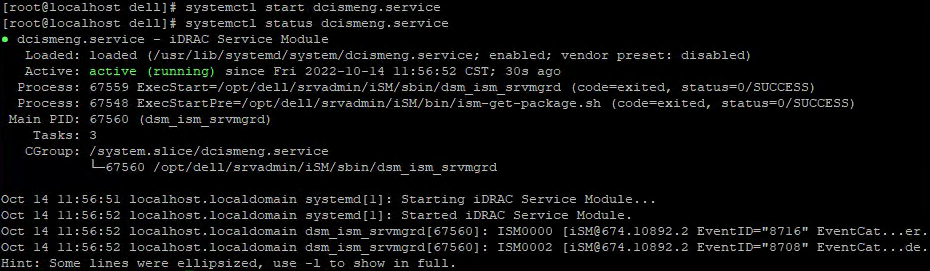
输入cd /opt/dell/srvadmin/iSM/bin/ 切换目录,执行Invoke-SupportAssistCollection程序。

TSR日志文件默认保存在对应用户的home目录。
安装IPMITool使用IPMITool命令获取TSR日志(仅适用于iDRAC9)
从iDRAC Tools软件包中找到IPMITool并进行安装。
ipmitool raw 0x30 0xa8 0x06 0x00 0x00 启动TSR日志收集,并稍等片刻
ipmitool raw 0x30 0xa8 0x07 0x00 0x00 查看状态,返回00 00 00表示成功

返回值解释:
0x00 – Success
0x01 – Failure
0x02 – Pending
完成日志收集后,通过内核日志中可以看到,iDRAC会给操作系统插入一个只读的USB介质,并且盘符为/dev/sdb,我们需要在Linux中手动挂载这个盘。
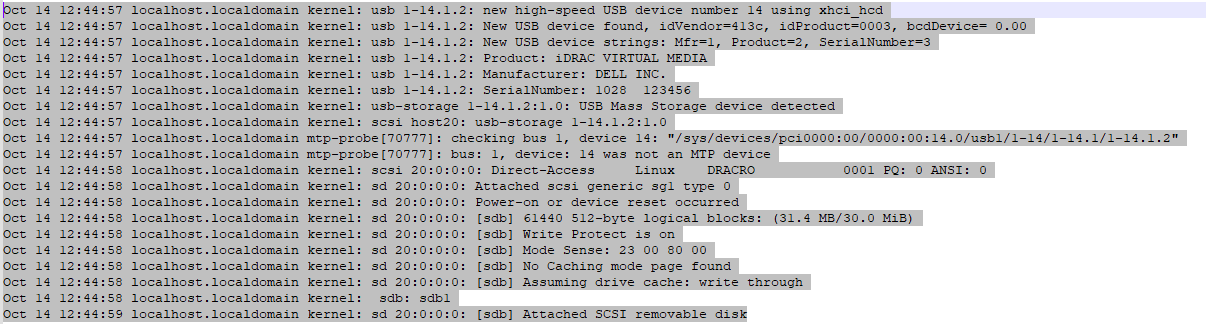
创建挂载目录并进行挂载,请使用cp命令将TSR日志复制到其他目录保存。

关闭日志收集并推出iDRAC USB介质。
ipmitool raw 0x30 0xa8 0x08 0x00 0x00 关闭日志收集,并推出iDRAC USB介质。
ipmitool raw 0x30 0xa8 0x07 0x00 0x00 查看状态,返回00 00 00即表示成功。

在日志收集的过程中如需取消,请使用 ipmitool raw 0x30 0xa8 0x09 0x00 0x00,并用ipmitool raw 0x30 0xa8 0x07 0x00 0x00查看状态。
Additional Information
Affected Products
PowerEdge, Enterprise Systems ManagementArticle Properties
Article Number: 000204251
Article Type: How To
Last Modified: 13 Dec 2022
Version: 3
Find answers to your questions from other Dell users
Support Services
Check if your device is covered by Support Services.