Windows 11のタスクバーの配置を変更する方法
Résumé: Windows 11でデフォルトの中央揃えのタスクバーを左揃えに変更する方法について説明します。このガイドに従って、Windows 11のタスクバーの配置をカスタマイズします。
Cet article concerne
Cet article ne concerne pas
Cet article n’est associé à aucun produit spécifique.
Toutes les versions du produit ne sont pas identifiées dans cet article.
Instructions
Windows 11のタスクバーはデフォルトで中央揃えですが、タスクバーの配置は変更できます。この記事では、Windows 11のタスクバーを左揃えに移動する手順について説明します。
影響を受けるオペレーティング システム:
- Windows 11
- Windows 11のデスクトップで、タスクバーの任意の余白を右クリックし、[ タスクバーの設定]を選択します。

- 右ペインで、[Taskbar behaviors]をクリックします。

- [タスクバーの配置]ドロップダウンを選択し、[中央]から[左]に変更します。

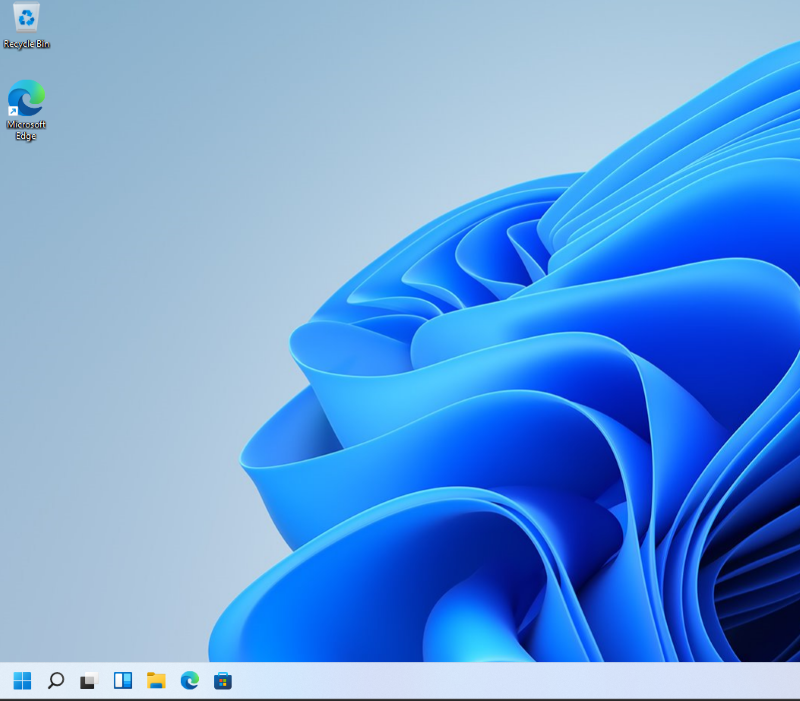
- これで、タスクバーが左揃えになりました。
Produits concernés
Alienware, Dell All-in-One, Dell Pro All-in-One, Dell Pro Max Micro, Dell Pro Max Slim, Dell Pro Max Tower, Dell Pro Micro, Dell Pro Slim, Dell Pro Tower, Dell Slim, Dell Tower, Inspiron, OptiPlex, Vostro, XPS, G Series, G Series, Alienware
, Dell Plus, Dell Pro, Dell Pro Max, Dell Pro Plus, Dell Pro Premium, Inspiron, Latitude, Dell Pro Rugged, Vostro, XPS, Fixed Workstations, Mobile Workstations, Dell Pro Max Micro XE FCM2250, Dell Pro Max Slim XE FCS1250, Dell Pro Max Tower T2 XE FCT2250, Dell Pro Max 16 XE MC16250, Dell Pro Micro Plus XE QBM1250, Dell Pro Slim Plus XE5 QBS1250, Dell Pro Tower Plus XE5 QBT1250
...
Propriétés de l’article
Numéro d’article: 000192071
Type d’article: How To
Dernière modification: 12 May 2026
Version: 8
Trouvez des réponses à vos questions auprès d’autres utilisateurs Dell
Services de support
Vérifiez si votre appareil est couvert par les services de support.