如何匯出 Windows 事件記錄
Summary: 瞭解如何在 Windows 11、10、8 和 7 中匯出事件檢視器記錄。本指南說明如何使用事件查看器保存日誌、檢查系統日誌和查看應用程式日誌。非常適合進行故障排除和系統診斷。
This article applies to
This article does not apply to
This article is not tied to any specific product.
Not all product versions are identified in this article.
Instructions
Windows 事件記錄
- Windows 事件檢視器:
- 在 Windows 7 中:按一下 開始 , 然後輸入:
eventvwr.msc
- 在 Windows 11、10、8.1 或 8 中:
- 按下 Window 鍵
- 類型:事件檢視器
- 選取檢視事件記錄
- 在 Windows 7 中:按一下 開始 , 然後輸入:
- 選取您必須匯出的記錄類型:
- Windows 11、10、8.1、8 或 7:
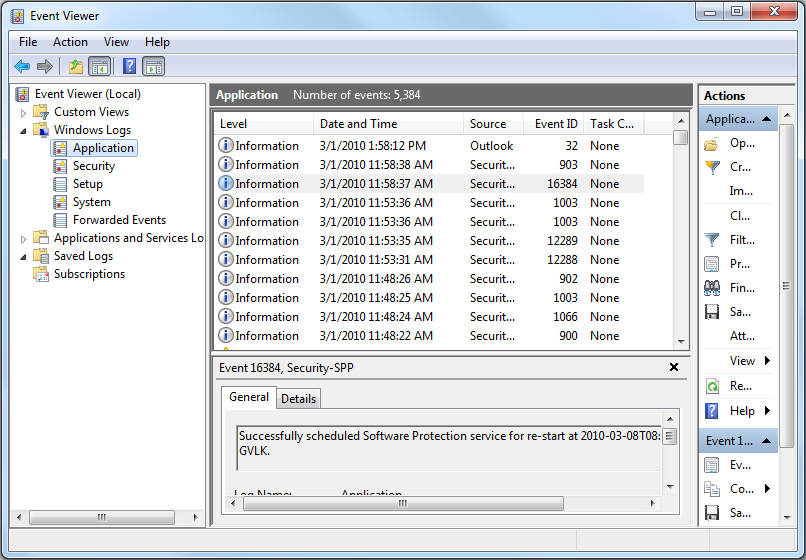
- Windows 11、10、8.1、8 或 7:
- 儲存記錄:
- Windows 11、10、8.1、8 或 7:動作 - >將所有事件另存為...。
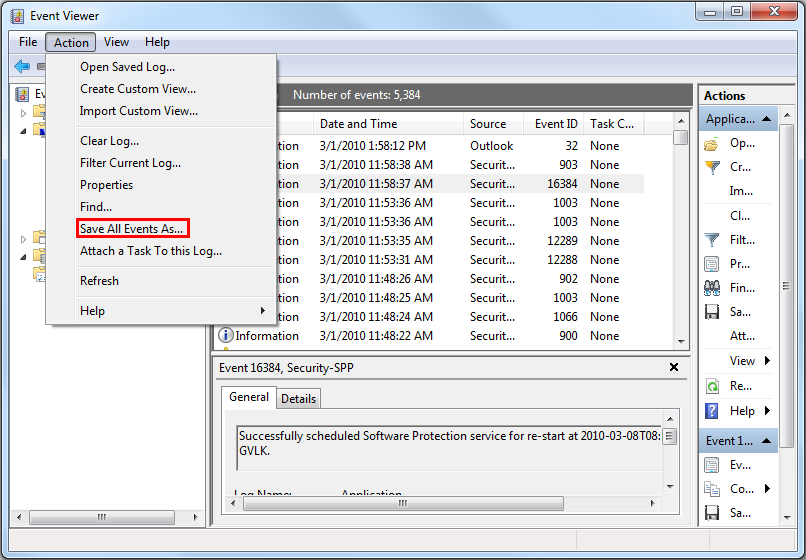
- Windows 11、10、8.1、8 或 7:動作 - >將所有事件另存為...。
如需更多資訊,請參閱以下連結:如何儲存事件記錄

如需有關 Dell 筆記本電腦 BIOS 事件記錄的資訊,請參閱 KB 文章 Dell 筆記本電腦上的 BIOS 事件記錄和診斷記錄
Additional Information
Affected Products
Alienware, Dell All-in-One, Dell Pro All-in-One, Dell Pro Max Micro, Dell Pro Max Slim, Dell Pro Max Tower, Dell Pro Micro, Dell Pro Slim, Dell Pro Tower, Dell Slim, Dell Tower, Inspiron, Legacy Desktop Models, OptiPlex, Vostro, XPS, G Series
, G Series, Alienware, Dell Plus, Dell Pro, Dell Pro Max, Dell Pro Plus, Dell Pro Premium, Inspiron, Latitude, Dell Pro Rugged, Vostro, XPS, Legacy Laptop Models, Fixed Workstations, Mobile Workstations, Dell Pro Max Micro XE FCM2250, Dell Pro Max Slim XE FCS1250, Dell Pro Max Tower T2 XE FCT2250, Dell Pro Max 16 XE MC16250, Dell Pro Micro Plus XE QBM1250, Dell Pro Slim Plus XE5 QBS1250, Dell Pro Tower Plus XE5 QBT1250
...
Article Properties
Article Number: 000124382
Article Type: How To
Last Modified: 21 Jul 2025
Version: 7
Find answers to your questions from other Dell users
Support Services
Check if your device is covered by Support Services.