Troubleshooting Wireless Networking Issues
Summary: This article provides helpful information and links for basic wireless network troubleshooting. More specifically, this article focuses on 802.11a, b, g, n, or ac networks. This article does not cover Mobile Broadband (cellular-based wireless) or Bluetooth (also known as WPAN). ...
Instructions
Table of Contents
Background Information
The primary pieces of information needed for Wireless network troubleshooting are listed below.
- SSID
- Security Type
- Security Key or Passphrase
- Distance from the Access Point or Router
- Line of Site
- Channel Signal Overlap
SSID: The Service Set Identifier This is the name of the network that you are interested in joining. Wireless networks can be configured to broadcast this SSID or to hide the SSID. If the SSID is broadcast, it is listed in the "Wireless networks available." If the SSID is NOT broadcast, you must know exactly how it is spelled and capitalized in order to join the network.
Security Type: This is the type of encryption used on the network to keep data secure. Windows may figure this out for you. This also controls what type of security key and passphrase that you can use. The common options for security are listed below in order of their security level. No security is the least secure, and WPA2 is the most secure.
-
No security (also known as open)
-
Wired Equivalent Privacy (WEP) 64-bit
-
Wired Equivalent Privacy (WEP) 128-bit
-
Wi-Fi Protected Access (WPA) options include AES and TKIP
-
Wi-Fi Protected Access version 2 (WPA2) also includes AES and TKIP
Security Key or Passphrase: This is the key used to encrypt the data. Without this key or phrase being correct, it is not possible to understand the data flowing across the network. This is like the secret knock or "open sesame" secret phrase.
Distance from the Access Point or router: The range of acceptable signal strength varies between Wi-Fi types, but a general guideline is 120 ft indoors and 300 ft outdoors.
Line of Site: Anything between the access point and the device reduces signal strength and range. Some materials have more impact than others. Dense wood (such as oak) and metal have the most impact. Sheetrock and cloth have a minimal impact. Utility closets, wood cabinets, metal piping, and restrooms between the access point and the device reduce signal strength.
Channel Signal Overlap: A Wi-Fi signal occupies five channels in the 2.4 GHz band; any two channels whose channel numbers differ by five or more, such as 2 and 7, do not overlap. The oft-repeated adage that channels 1, 6 and 11 are the only nonoverlapping channels is not accurate; channels 1, 6, and 11 are the only group of three nonoverlapping channels in the U.S. Other Wi-Fi networks in the area on overlapping networks may be interfering.
Wireless Standards
IEEE 802.11 a/b/g/n/ac are the accepted industry standards. The features and strengths compared with weaknesses' of these standards are shown here.
| Standard | Name | Release Date | Frequency Range | Max Speed | Realistic Speed | Indoor Range | Outdoor Range |
|---|---|---|---|---|---|---|---|
| 802.11a | Wi-Fi 1 | 1999 | 5 GHz | 54 Mbps | 23-28 Mbps | 20 m | 120 m |
| 802.11b | Wi-Fi 2 | 1999 | 2.4 GHz | 11 Mbps | 5.9 Mbps | 35 m | 120 m |
| 802.11 g | Wi-Fi 3 | 2003 | 2.4 GHz | 54 Mbps | 22 Mbps | 38 m | 140 m |
| 802.11n | Wi-Fi 4 | 2009 | 2.4 GHz & 5 GHz | 300 Mbps | 130-150 Mbps | 70 m | 250 m |
| 802.11ac | Wi-Fi 5 | 2013 | 2.4 GHz & 5 GHz | 1300 Mbps | 35 m | ||
| 802.11ax | Wi-Fi 6 | 2019 | 2.4 GHz & 5 GHz | 10..53 Gbps |
The effective range varies dramatically based on the Line of Sight and the materials through which the material must pass.
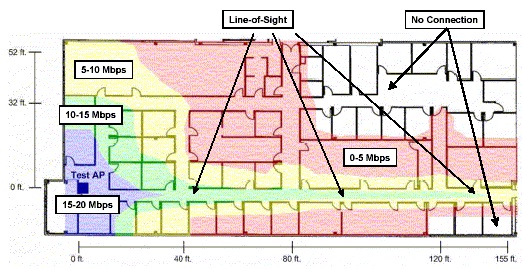
(Figure 1 - 802.11a Signal Range)
802.11a Signal Range Example Notice how even a few walls absorb the signal.
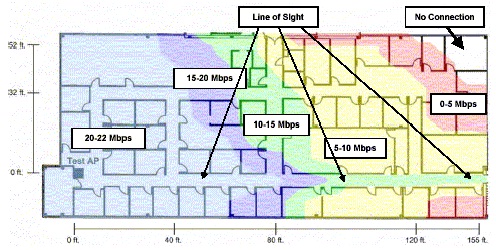
(Figure 2 - 802.11 g Signal Range)
802.11 g Signal Range Example Notice how the walls have dramatically less effect on the range.
Troubleshooting
How to Troubleshoot Wi-Fi in Windows 11
Duration: 00:03:45 (hh:mm:ss)
When available, closed caption (subtitles) language settings can be chosen using the CC icon on this video player.
Find below some troubleshooting steps for the following scenarios:
| Scenario | Troubleshooting Steps |
|---|---|
SSID is visible but cannot connect to it.. |
|
No SSIDs are visible.WIFI not detected.. |
|
Some SSIDs are visible, but the specific ones you require.. |
|
Can connect to the correct SSID but cannot obtain an IP Address.. |
|
Can connect to the network but cannot retrieve data.
- Verify SSID, Security type, and Encryption Key or Passphrase
- Delete the Network Profile and reconnect
- Verify that the Access Point or Router is within the realistic indoor range for the wireless standard it uses and that the client supports that wireless standard. For example, verify that both devices support the 802.11n standard.
- If possible, update the Access Point or Router to the current firmware version
- Update client device firmware or drivers
- Reboot both the client device and the Access Point or Router
- Check if the client device can connect and transfer traffic to other networks.
- If possible, Disable firewalls for troubleshooting purposes only.
Device Disconnecting from the Network Intermittently
- Update firmware and drivers on both the client device and the Access Point or Router
- Move the client and Access Point or Router closer together
- If possible, change the channel setting on the router. Channels 1, 6 and 11 are usually the best options.
- Verify that there is not a secondary program trying to manage the wireless adapter.
- Adjust the antennas on the Access Point or Router to be perpendicular to the direction of the client (not pointing toward or away from the client)
- Check if this problem happens on other wireless networks.
- Log in to the router and check the "Uptime." If the uptime is always short, the router may be rebooting and dropping all clients.
- Reseat the wireless adapter on the client device.
Make sure the disconnects do not coincide with the use of other devices in the same frequency band. Examples include:
- Microwave Ovens
- Bluetooth devices
- Baby monitors
- Cordless telephones
Slow Connection Speed
- Try moving the client's device to another location. The goal is to change the Line of Sight obstacles between the router and the client.
- Try moving the router to another location. The goal is to change the Line of Sight obstacles between the router and the client.
- If possible, change the channel setting on the router. Channels 1, 6 and 11 are usually the best options.
- Update firmware and drivers on both the client device and the Access Point or Router
- Adjust the antennas on the Access Point or Router to be perpendicular to the direction of the client (not pointing toward or away from the client)
Eliminate other devices in the vicinity that use the same frequency band. Examples include:
- Microwave Ovens
- Bluetooth devices
- Baby monitors
- Cordless telephones
Dell laptops may experience wireless performance issues and some package loss when using the system with the LCD in the closed position. For most laptops, the Wi-Fi antennas are located in the upper portion of the lid towards the corners, and they are designed to operate in the vertical orientation (LCD lid open). Closing the LCD might cause signal degradation and possible network package loss.
If you experience wireless connection issues with the LCD closed on your Dell laptop, it is recommended you use a wired connection (either through a direct connection or through an attached docking station) if the laptop needs a network connection with the LCD closed.
External Articles
For more information about Wireless Networking and Protocols, see the links below:
- Wikipedia: Wireless Networking

- Wikipedia: IEEE 802.11

- Wikipedia: IEEE 802.11a

- Wikipedia: IEEE 802.11b

- Wikipedia: IEEE 802.11 g

- Wikipedia: IEEE 802.11n

- Microsoft: Wireless Deployment Recommendations and Best Practices

- BrightHub: Why should not you disable SSID Broadcasting

- Intel: Wireless Networking Resources

- Broadcom: Wireless LAN Resources

- Troubleshooting Internet Connectivity Issues on Your Dell Computer
- How to Identify and Reduce Wireless Signal Interference
- Which Wireless Networking Adapter is Installed in Your Dell Computer
- Connect Laptop or Desktop to Wi-Fi and Troubleshoot Connection Issues
- Network Controller (network adapter) Troubleshooting and Usage