How to Get Email Alerts for Dell Driver Updates
Summary: Learn how to subscribe to email alerts for Dell driver updates. Get notified when new drivers are available for your Dell computer. Easy setup and management.
Instructions
Stay Updated with Dell Driver Notifications
Keeping your Dell devices running smoothly is easier when you're always in the loop. With Dell Driver Notifications, you can receive timely email alerts whenever new or updated drivers are available for your Dell products. These updates help ensure your system stays secure, compatible, and performing at its best.
Why Subscribe to Driver Alerts?
Drivers are essential software components that allow your operating system to communicate with your hardware. When drivers are outdated, you might experience performance issues, hardware malfunctions, or security vulnerabilities. Subscribing to driver notifications means you’ll never miss an important update.
How to Subscribe to Driver Notifications
Getting started is simple. Just follow these steps:
- Go to the Driver Subscriptions page.
- Sign in with your Dell Account. If you don’t have one, you’ll need to create a Dell Account.
- Click Create Subscription.
- Select your product:
- Choose the product family (e.g., Inspiron, XPS, Alienware).
- Select the specific model.
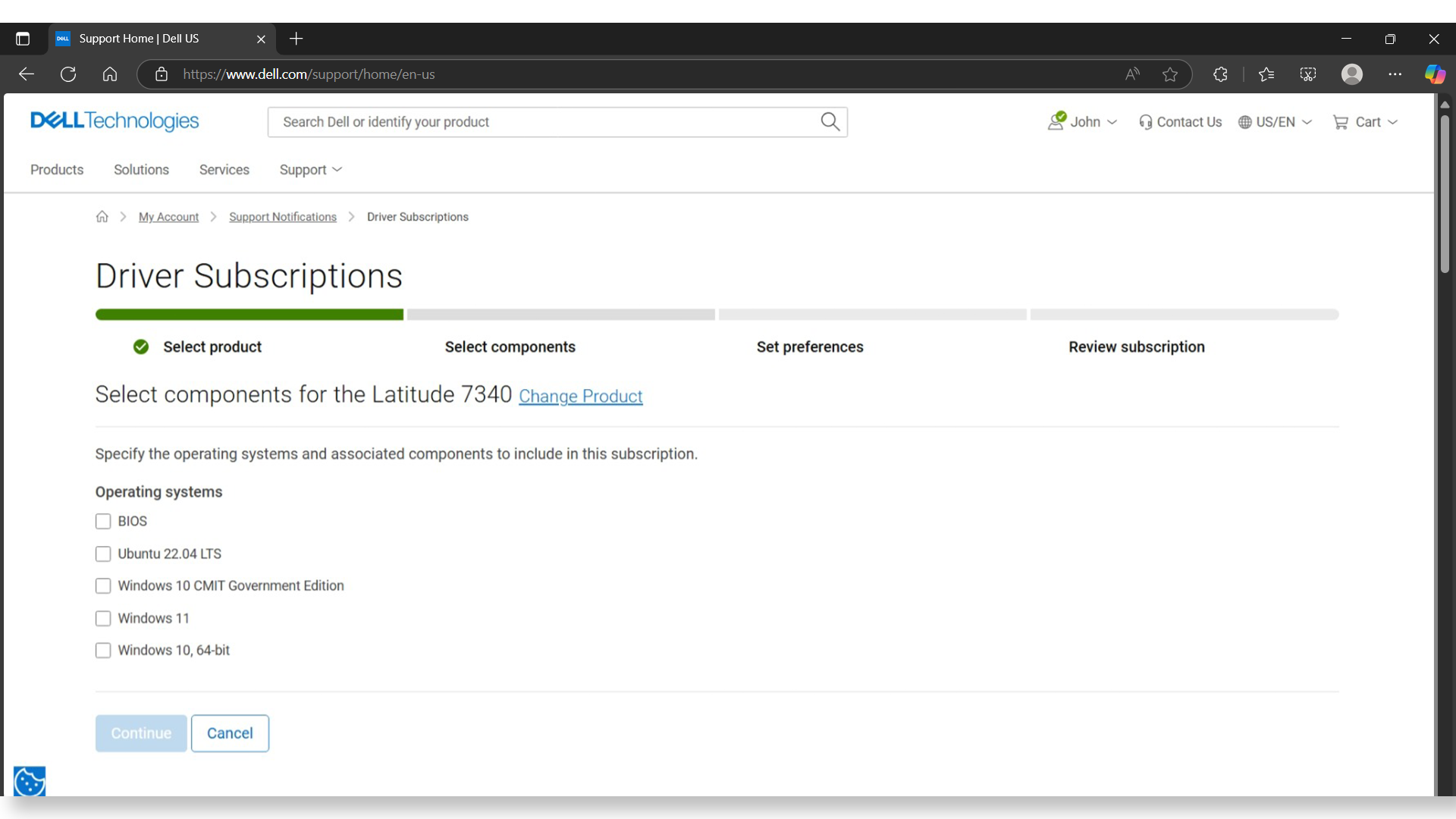
- Choose the operating system installed on your device.
- Choose the components you want to monitor for updates. You can select individual components or click Select all to get updates for everything.
- Name your subscription so you can easily identify it later.
- Verify your email address. This is where your notifications will be sent.
- Set your preferences:
- Choose how often you want to receive updates (e.g., immediately, daily, weekly).
- Select the type of notifications you prefer.
- Review your subscription details. If everything looks good, click Save.
That’s it! You’ll now receive email alerts whenever there’s a new or updated driver for your selected Dell product.
Managing Your Subscriptions
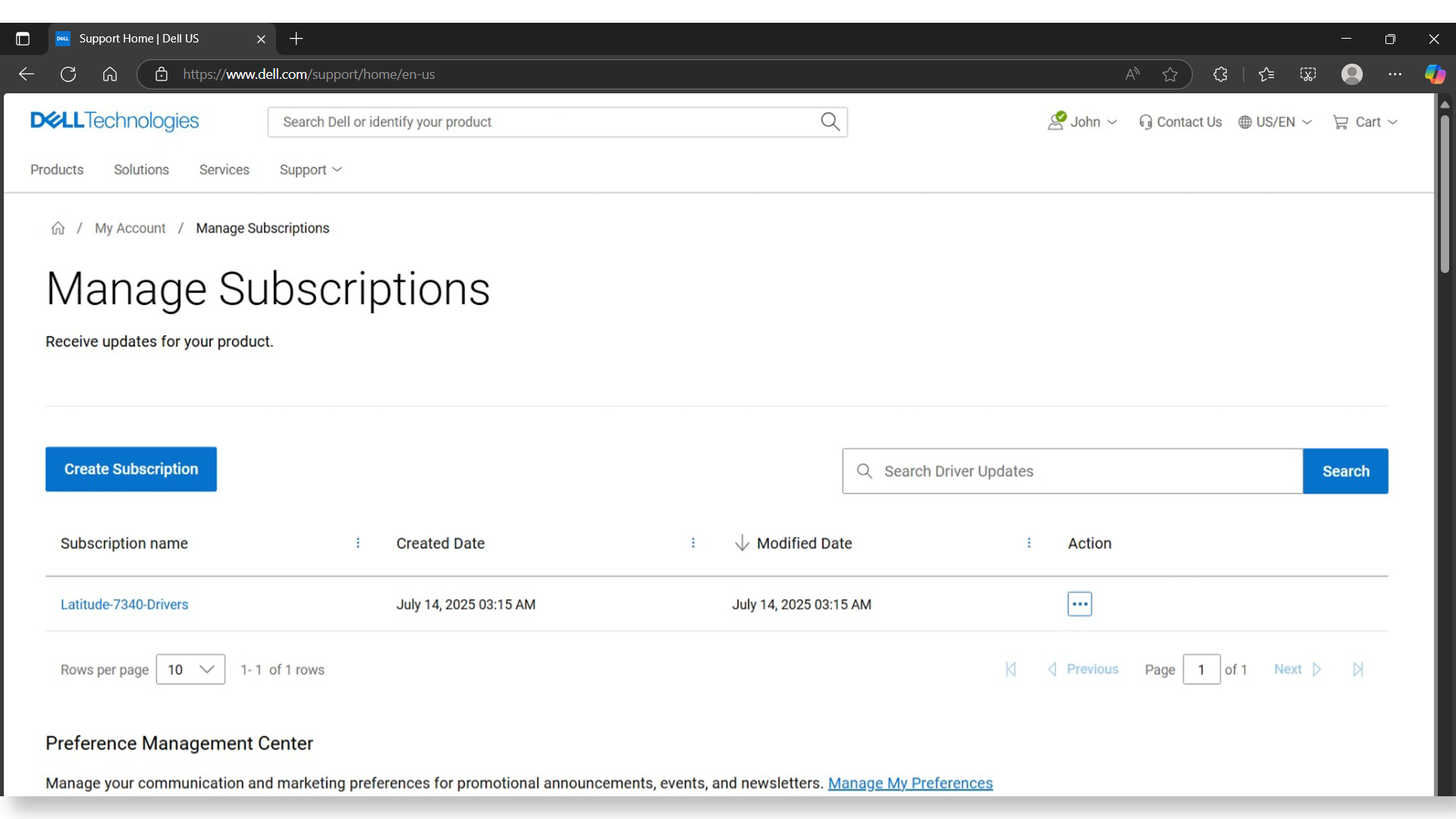
You can view, edit, or delete your driver notification subscriptions anytime:
- Go to the Driver Subscriptions page.
- Sign in with your Dell Account.
- Under Action, click the three dots and select Modify next to the subscription you want to update.
- Make your changes and click Save.
Need to Update Your Email?
You can add or update the email addresses that receive notifications:
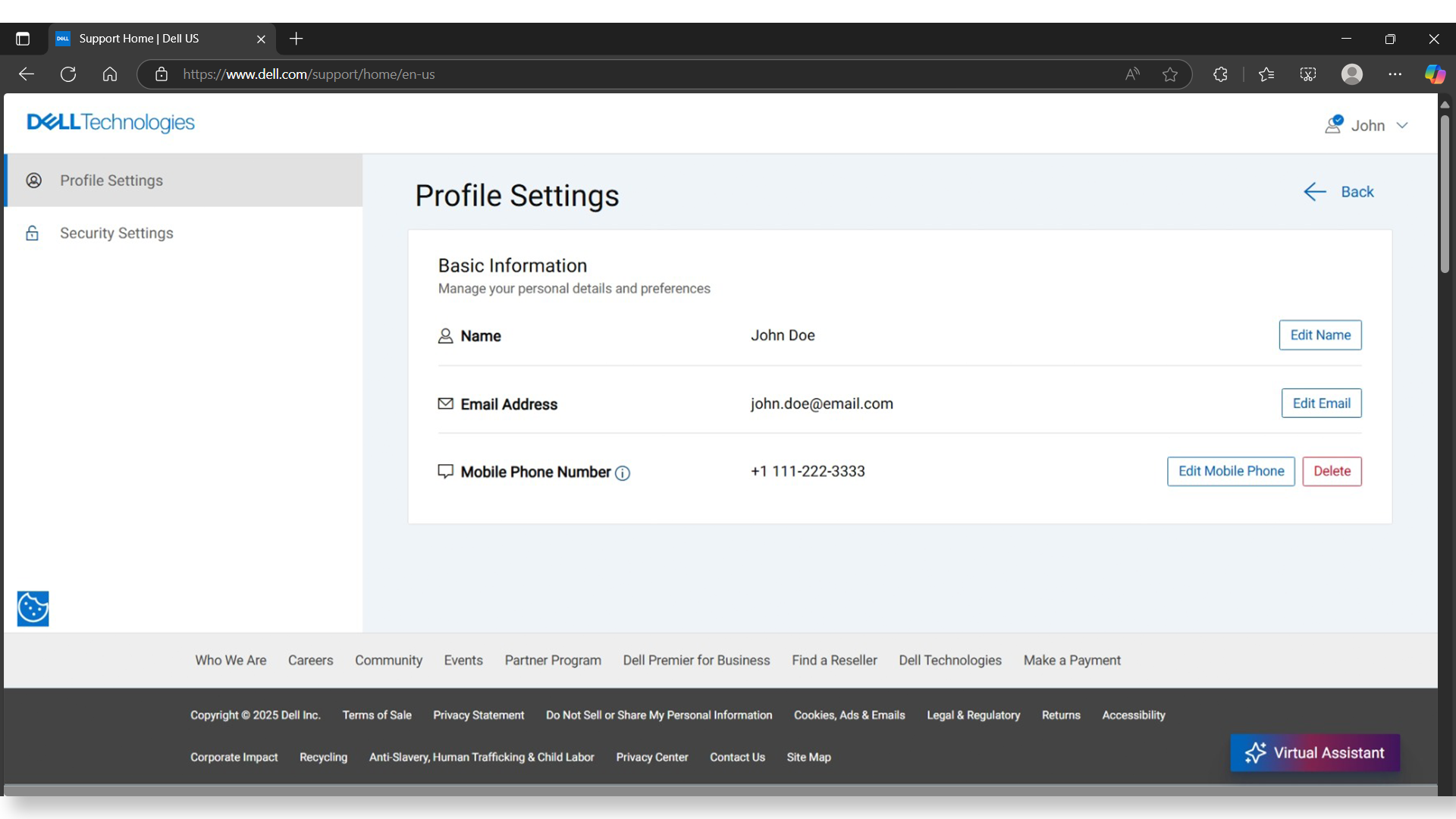
- From the Driver Subscriptions page, go to Manage My Preferences.
- Click Edit Email to update your new email address.