Sådan ændres Windows 11 proceslinjejustering
Summary: Få mere at vide om, hvordan du ændrer den centerjusterede standardproceslinje i Windows 11, så den er venstrejusteret. Følg denne vejledning for at tilpasse placeringen af proceslinjen i Windows 11. ...
This article applies to
This article does not apply to
This article is not tied to any specific product.
Not all product versions are identified in this article.
Instructions
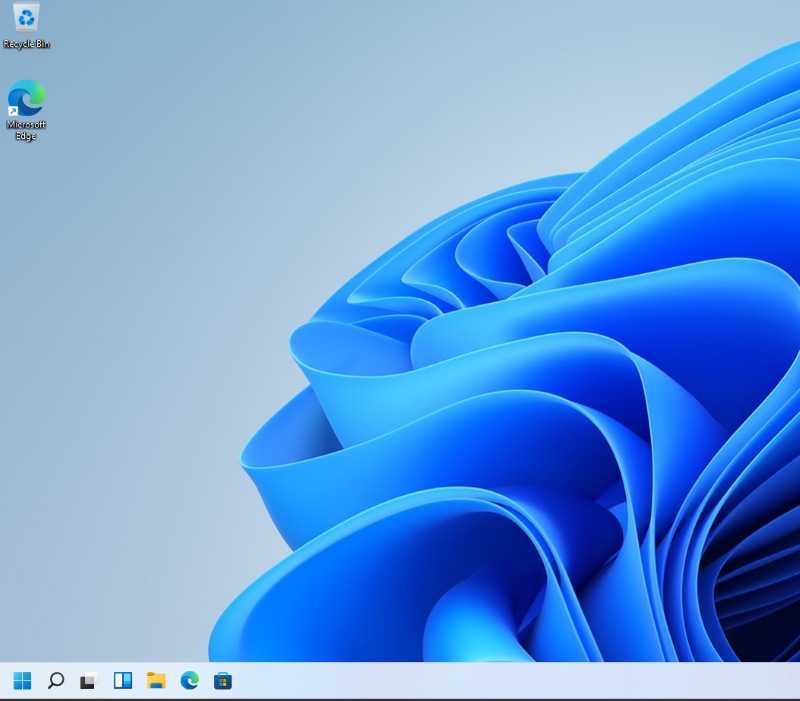
Windows 11-proceslinjen er som standard centerjusteret, men du kan ændre proceslinjens placering. Denne artikel fører dig gennem trinnene til at flytte proceslinjen i Windows 11 til at være venstrejusteret.
Berørt operativsystem:
- Windows 11
- Fra Windows 11-skrivebordet skal du højreklikke på et tomt rum på proceslinjen og derefter vælge Indstillinger for proceslinjen.

- Klik på Proceslinjens funktionsmåder i højre rude.

- Vælg rullelisten Linjeføring på proceslinjen , og skift den derefter fra Center til Venstre.

- Proceslinjen er nu venstrejusteret.
Affected Products
Alienware, Dell All-in-One, Dell Pro All-in-One, Dell Pro Max Micro, Dell Pro Max Slim, Dell Pro Max Tower, Dell Pro Micro, Dell Pro Slim, Dell Pro Tower, Dell Slim, Dell Tower, Inspiron, OptiPlex, Vostro, XPS, G Series, G Series, Alienware
, Dell Plus, Dell Pro, Dell Pro Max, Dell Pro Plus, Dell Pro Premium, Inspiron, Latitude, Dell Pro Rugged, Vostro, XPS, Fixed Workstations, Mobile Workstations, Dell Pro Max Micro XE FCM2250, Dell Pro Max Slim XE FCS1250, Dell Pro Max Tower T2 XE FCT2250, Dell Pro Max 16 XE MC16250, Dell Pro Micro Plus XE QBM1250, Dell Pro Slim Plus XE5 QBS1250, Dell Pro Tower Plus XE5 QBT1250
...
Article Properties
Article Number: 000192071
Article Type: How To
Last Modified: 12 May 2026
Version: 8
Find answers to your questions from other Dell users
Support Services
Check if your device is covered by Support Services.