Common FAQs related to PowerScale Licensing
Summary: This is an FAQ article on common PowerScale Licensing scenarios during the activation process.
Instructions
How do I generate or retrieve activation files from Isilon cluster GUI?
- Click Cluster Management > Licensing.
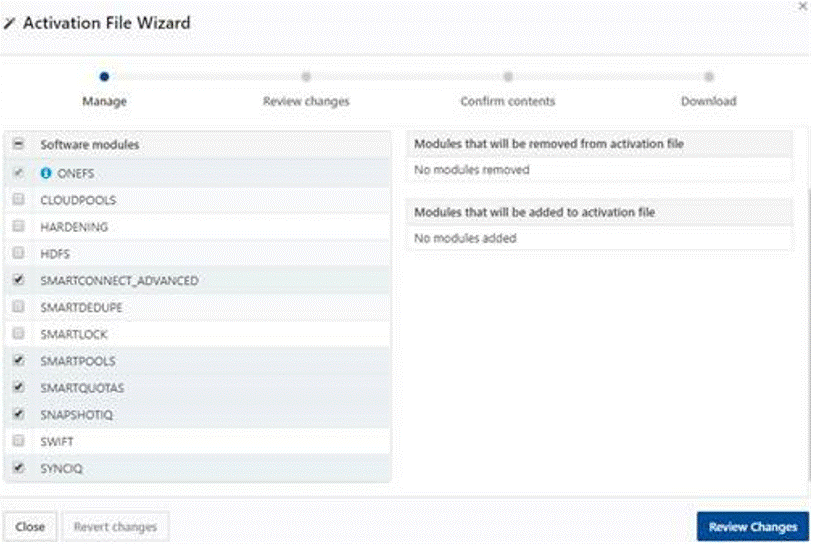
- In the OneFS License Management area, click Open Activation File Wizard.
- Click the checkboxes next to the software modules to select or de-select the contents of your activation file.
Modules that are pre-selected are currently included in your license file. You can de-select a module to remove the license.
To undo changes, you've made to the list, click Revert changes at the bottom of the page.
- Click Review Changes.
- Review the changes you are planning to make to the activation file.
The Contents of activation file contains a list of all licenses that will be included in the activation file.
This page also lists licenses that you selected to remove from the activation file, as well as licenses that you have selected to add.
- Click Create file.
- Review the full contents of the activation file.
Your OneFS license and a summary of your hardware tiers are also displayed on this summary page.
- Click Accept.
- Click Download activation file.
Save the activation file to your local machine.
- Click Complete process.
What steps should I follow to get a permanent Isilon Gen6 license for a Dark Site?
To obtain your license:
Step 1: Activate Using Dell Digital Locker
- Retrieve your License Activation Code (LAC) from Dell Digital Locker.
- Click the Activation hyperlink, which will take you to the activation page.
- Follow the on-screen steps to complete the activation process.
Step 2: If Activation Cannot Be Completed
- Raise a Service Request with the Dell Licensing team.
- Include the following details in your request:
- Sales Order or License Activation Code (LAC)
- GUID/Cluster ID
- Node Serial Numbers
- Features and Capacity to be activated
How can I request an evaluation license for PowerScale (Isilon)?
Isilon evaluation licenses allow customers to test features before purchase to ensure compatibility with their environment. You have multiple options to request an evaluation license:
Option 1: Through OneFS
1. Click Cluster Management > Licensing.
2. In the Manage trial versions of software modules area, click Manage Trials.
3. Click the check box next to the software modules you want to evaluate.
4. Click Start Trial.
Option 2: Through Sales
- Contact your Sales Account Manager and request an order for the required features.
- This option is useful if you prefer not to use the Manage Trial section in OneFS.
Option 3: Through Dell Licensing Team
- Raise a Service Request with the Dell Licensing team.
- Provide a copy of the Activation File with your request.
Note: Temporary licenses provided by Dell Licensing representatives typically have a 90-day duration.
How Do I Generate PowerScale / Isilon Licenses Using a TLA Order?
Generating PowerScale (Isilon) licenses with a TLA order involves four steps using the License Activation by File Wizard:
Step 1: Upload Activation File
- Upload the Activation XML file via the License Activation by File Wizard in MyAccount
Step 2: Apply LAC
- Enter the TLA License Activation Code (TLA LAC#) in the Apply LAC section.
Step 3: Review Products
- Verify the products and features listed for activation.
Step 4: Activate Licenses
- Complete the activation process by following the on-screen instructions.
What should I do if the OneFS License Status shows ‘Under-Licensed’?
OneFS may report certain Licensable Features as under-licensed, if or when the affected Feature are licensed only on some and not all Nodes on the Cluster. Or, when the Nodes on the Cluster are partly licensed with Permanent Entitlements and partly with Evaluation Entitlements.
If relevant Licenses have been procured for all the affected Nodes on the Cluster. Then this can be remedied by reprocessing the Activation-by-File and Applying the LAC with the corresponding Licensing Entitlement during the Activation Process. Or you can engage Licensing Support to validate and advise accordingly.
What should I do if my Activation-by-Fail Transaction Fails.
Activation-by-Fail Transaction may fail due to multiple reasons – Such as Site or Company Mismatch. Or, when the Activation Wizard is unable to identify corresponding Licensing Entitlements for the Nodes (Serial Number / Service Tags) listed in the Activation File. Or, the Transaction may also be affected due to failed Rehosts, IT Issues, etc. So, if a Transaction Fails or if you do not receive the updated License File for the Transaction then it is recommended that you make note of the Transaction ID to report back to the Licensing Support Team to have it analyzed or investigated further.
What should I do if I receive the following Message / Error: “You cannot activate this cluster, because your Secure Remote Services gateway is associated with a different company”?
This Message / Error typically suggests that it could be a Site or Company Mismatch / Discrepancy with the Licensing Entitlements and the Software ID associated with the Transaction. This will need attention from Licensing Support to validate and correct any Account Hierarchy or Site mismatches before reattempting the Activation process.