Data Domain: How to power-off and move a DD system
Summary: This article describes how to correctly power off and move a Data Domain System.
Instructions
How to correctly power off and move a Data Domain System.
Applies to:
- All Data Domain systems
- All Software Releases
System and attached storage must be shut down gracefully before being moved to a new location.
Using the DD-CLI as an Admin user; follow the procedure below to move a Data Domain system, including expansion shelves, to another location.
-
Check for and address any outstanding Alerts
# alerts show current
-
Disable replication
# replication disable all
-
Disable any Remote Logging
# log host disable
-
Issue the following CLI command. This gracefully shuts down the filesystem and powers off the system controller.
# system power-off
Wait for the controller to power off completely
-
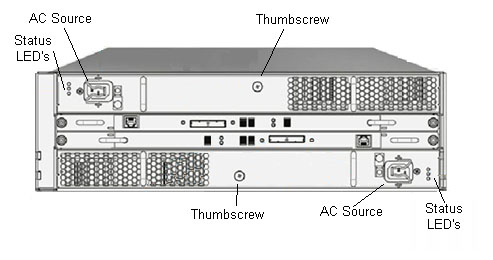
Power off each expansion shelf by removing the AC Power cables.
-
Remove the system, storage, and cabling from the rack
-
Move the system to the new location and rerack all the components.
-
Power on each shelf by connecting the AC power cables.
-
Wait 2 minutes after the final shelf was powered on, then restart the system (controller) by pressing the power button on the front panel.
-
Verify the shelf connectivity. After the system boots up, run the following command, ensuring all the connected enclosures are reported by DD OS.
# enclosure show all
-
Verify that the Filesystem is 'Enabled and Running'
# filesys status
-
Once the new IP address is configured in the system, test connectivity to and from the partner DDR by using the following command from both systems.
# net ping < hostname-partner>
Additional network configuration may be required in the new location (beyond the scope of this KB article).
-
Enable replication from the partner system using the following command
# replication enable all
-
Enable Host logging if needed
# log host enable