How to Download the Secureworks Taegis XDR Agent
Summary: Learn about how to download the Secureworks Taegis XDR Agent.
This article applies to
This article does not apply to
This article is not tied to any specific product.
Not all product versions are identified in this article.
Instructions
This article provides the steps to download the Secureworks Taegis XDR Agent. The Secureworks Taegis XDR Endpoint Agent collects a rich set of endpoint telemetry that is analyzed to identify threats and their associated behaviors in your environment.
Affected Products:
- Secureworks Taegis XDR
- Secureworks Taegis ManagedXDR
- Secureworks Red Cloak Threat Detection and Response
- Secureworks Red Cloak Managed Detection and Response
Affected Operating Systems:
- Windows
- Linux
- macOS
The process to download the installer differs based on the operating system. Select the appropriate operating system for more information.
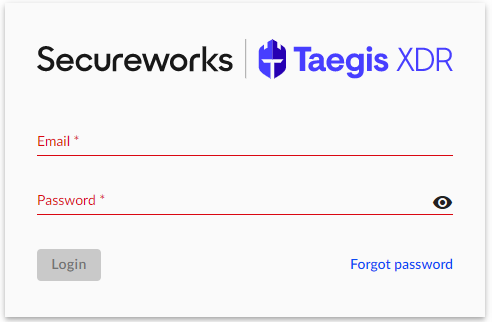
- In a web browser, go to https://ctpx.secureworks.com/login
.
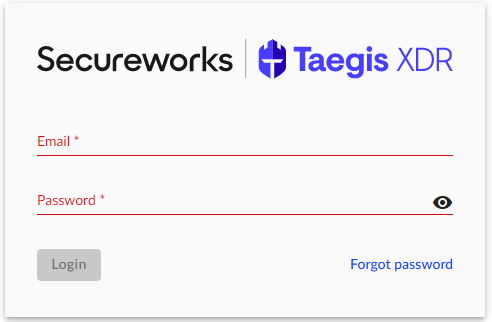
- Log in to the Secureworks Taegis XDR web console.
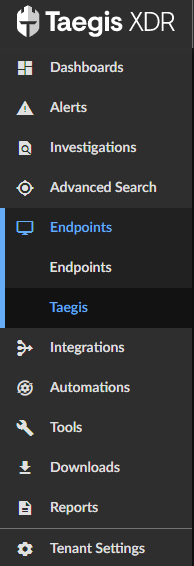
- From the left pane, select Endpoints and then click Taegis.
- From the Endpoint Management screen, click the Agent Downloads tab.
 Note: If you do not see the Agent Downloads tab, ensure that you are logged in as a user with the Tenant Admin role. If you are logged in as a Tenant Admin and this option is still missing, reference How to Get Support for Secureworks Taegis XDR.
 - From the Agent Downloads page, download the latest version by clicking the MSI button.
 Note:
Note:- If you require a previous version of the Secureworks Taegis XDR Agent, you can find it by clicking the View older packages link.
- If your version of Windows has no available packages that are listed, submit a support request to create a new or customized installation package.

Note:
- If you require a previous version of the Secureworks Taegis XDR Agent, you can find it by clicking the View older packages link.
- If your version of Linux has no available packages that are listed, submit a support request to create a new or customized installation package.
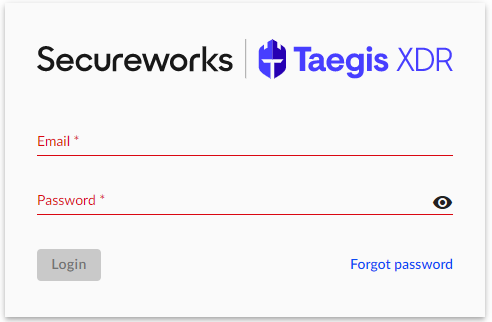
- In a web browser, go to https://ctpx.secureworks.com/login
- Log in to the Secureworks Taegis XDR web console.
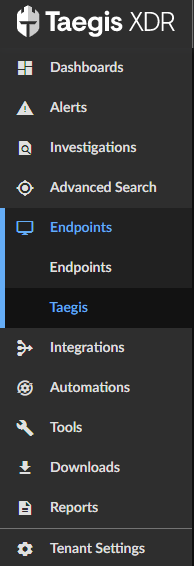
- From the left pane, select Endpoints and then click Taegis.
- From the Endpoint Management screen, click the Agent Downloads tab.
 Note: If you do not see the Agent Downloads tab, ensure that you are logged in as a user with the Tenant Admin role. If you are logged in as a Tenant Admin and this option is still missing, reference How to Get Support for Secureworks Taegis XDR.
 - From the Agent Downloads page:
- Click either RPM or DEB file.
- Click GPG Key to download the GPG key used during installation.
- In a web browser, go to https://ctpx.secureworks.com/login
- Log in to the Secureworks Taegis XDR web console.
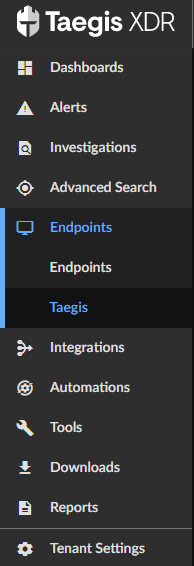
- From the left pane, select Endpoints and then click Taegis.
- From the Endpoint Management screen, click the Agent Downloads tab.
 Note: If you do not see the Agent Downloads tab, ensure that you are logged in as a user with the Tenant Admin role. If you are logged in as a Tenant Admin and this option is still missing, reference How to Get Support for Secureworks Taegis XDR.
 - From the Agent Downloads page, download the latest version by clicking the PKG button.
 Note:
Note:- If you require a previous version of the Secureworks Taegis XDR Agent, you can find it by clicking the View older packages link.
- If your version of Linux has no available packages that are listed, submit a support request to create a new or customized installation package.
To contact support, reference Dell Data Security International Support Phone Numbers.
Go to TechDirect to generate a technical support request online.
For additional insights and resources, join the Dell Security Community Forum.
Affected Products
SecureworksArticle Properties
Article Number: 000188129
Article Type: How To
Last Modified: 30 Aug 2024
Version: 12
Find answers to your questions from other Dell users
Support Services
Check if your device is covered by Support Services.