Dell Unity: You may have provided invalid EMC support credentials
Summary: Dell Unity: You may have provided invalid EMC support credentials. Verify that at 'Settings -> Support Configuration -> EMC Support Credentials' in Unisphere, or using uemcli '/sys/support/account' command. (Error Code:0x6400b82) (User Correctable) ...
Symptoms
- The user tries to enter the password for the EMC Support Credentials in Unity Unisphere
- The user changed the login for https://support.emc.com and tries to update the password in Unity Unisphere
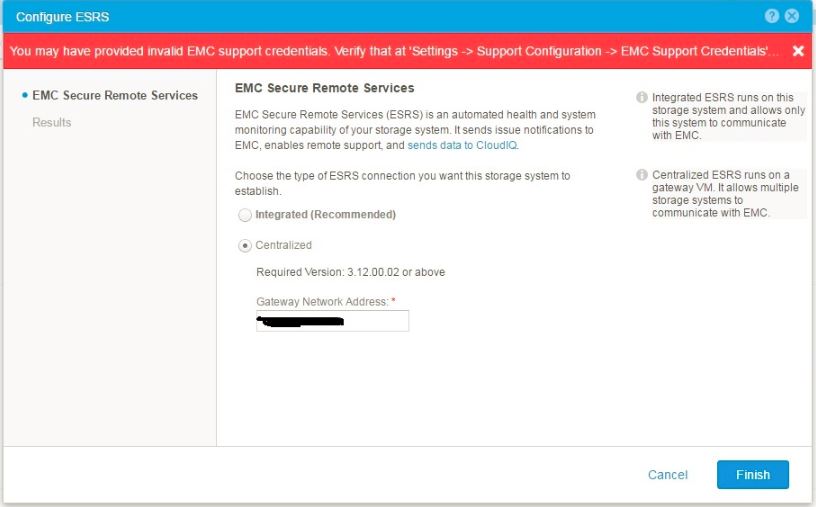
- The user was trying to configure ESRS through Unity Unisphere and received the following alert:
You may have provided invalid EMC support credentials. Verify that at 'Settings -> Support Configuration -> EMC Support Credentials' in Unisphere, or using uemcli '/sys/support/account' command. (Error Code:0x6400b82)
Cause
The user had entered incorrect login credentials which were stored under Unisphere (EMC support credentials).
This can also happen if the support password contains special characters. The password may work in Unisphere, but once it hits the authentication Dell Technologies servers, it may fail.
Also copy and paste the password could cause incorrect character translation and cause verification to fail.
Resolution
Update valid user credentials from Unisphere and to do that follow the below steps:
- Go to system settings
- Support configuration tab
- EMC support credentials
If the user cannot be updated:
- Verify that the credentials are working on https://www.dell.com/support/home
- Do not copy and paste the password, try typing it
- If still failing, add the user account using uemcli:
For users who had the account registered before it is required to remove the Dell Technologies support credentials first:
uemcli -d 10.0.0.1 -u Local/joe -p MyPassword456! /sys/support/account delete
Now add the user to the system:
uemcli -d 10.0.0.1 -u Local/joe -p MyPassword456! /sys/support/account set -user user1 -passwd Password123
If required, continue with ESRS configuration now:
Run the following command to check access/rights.
uemcli -u admin -securepassword /sys/support/esrsc set -enable yes -address esrsc.cust.com -port 9443
Command may give an error and in the UI, the error ask to verify credentials. This is due to entered user account unable to reach and gives "centralized ESRS network connectivity check failed."
uemcli -u admin -securepassword /sys/support/esrsc set -enable yes -address esrsc.cust.com -port 9443
Password:
Operation failed. Error code: 0x6400be7
The centralized ESRS network connectivity check failed. Please check your firew
all configuration. (Error Code:0x6400be7)
Page#18 - it says to update valid credentials else it does not allow to configure ESRS through Unisphere UI.
Once updated, Retry to configure ESRS from Unisphere.
If your support password contains special characters, in order to rule this out, change the support password to something simple without special characters and try again.