Data Domain: BMC/iDRAC Reset Procedure
Summary: This article provides instructions for manually resetting the Baseboard Management Controller (BMC) or Integrated Dell Remote Access Controller (iDRAC) on Data Domain and PowerProtect DD systems. While DDOS may automatically attempt a reset when known issues are detected, manual intervention may be required if alerts persist. ...
This article applies to
This article does not apply to
This article is not tied to any specific product.
Not all product versions are identified in this article.
Symptoms
Applies to:
- All Data Domain systems
Possible Symptoms:
- BMC becomes unresponsive.
- iDRAC is offline or unreachable.
- False or transient alerts related to:
- Fans
- Power supplies
- Temperature sensors
- Multiple head unit sensors report as "Unavailable", "Absent", or "Failed".
- Posted alert
-
EVT-ENVIRONMENT-00039: BMC failure has been detected. File system is unchanged.
-
Cause
The BMC or iDRAC may stop responding due to internal faults or excessive traffic, resulting in stale or erroneous alerts. A reset clears these conditions and restores sensor functionality.
Resolution
All DD systems BMC/iDRAC reset procedure:
- Power off the Data Domain system by issuing the DD-CLI Command:
-
#system poweroff
-
- Wait for the DD system to gracefully shut down.
- Remove all AC Power cables from DD Head unit/Controller.
- Wait for 2 minutes.
- Plug all the power supplies back in and boot the system by pressing the power button on the front panel.
- If the system is still experiencing BMC issues, contact your support provider.
NOTE: Dell PowerEdge 'Flea Drain' procedure:
Data Domain: DD3300/DD6900/ DD9400/DD9900 Platform Flea Drain (BMC Reset) Procedure .
Data Domain: DD3300/DD6900/ DD9400/DD9900 Platform Flea Drain (BMC Reset) Procedure .
Alternative 'Soft Reset' option for PowerProtect DD Systems:
The Graphical User Interface (user interface) of the iDRAC provides an option to perform a soft reset:
- Connect to iDRAC.
- Log in to the interface by entering the username and password.
- Select: Maintenance > Diagnostics > Reset iDRAC
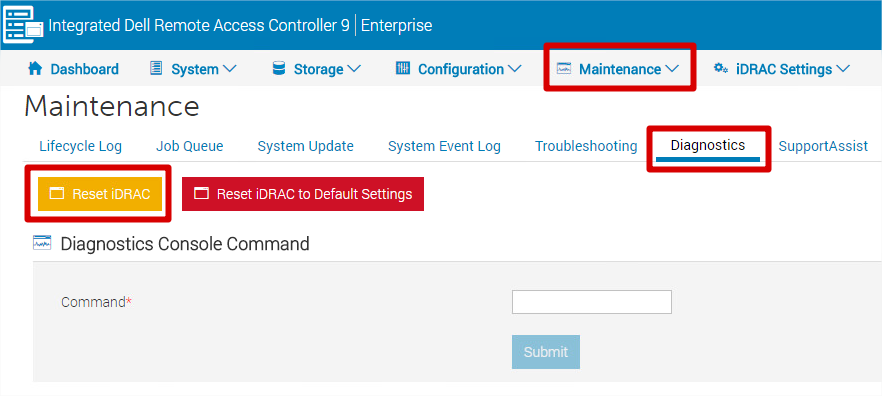
- The iDRAC is not reachable for few minutes - system performance is not affected.
Attention: Do not select "Reset iDRAC to Default Settings" unless you intend to restore all settings (including IP, username, and password) to factory defaults.
Affected Products
Data Domain, DD OS, DD2200 Appliance, DD2500 ApplianceArticle Properties
Article Number: 000079739
Article Type: Solution
Last Modified: 18 Apr 2026
Version: 7
Find answers to your questions from other Dell users
Support Services
Check if your device is covered by Support Services.