IDPA: DP4400 no boot device found
Summary: The Integrated Data Protection Appliance (IDPA) DP4400 fails to boot if the BOSS (Boot Optimized Server Storage) card or its associated M.2 drives are not properly installed or configured. ...
Symptoms
Applies to:
- DP4400
Symptoms:
- System fails to boot and displays error:
"No boot device found" or "Boot device unavailable"- Error observed using system console (Serial, KVM, or iDRAC)
- No fault LEDs illuminated on the chassis or visible disks
- Note: The BOSS card itself does not have fault LEDs
Cause
- BOSS card is not fully inserted into PCIe slot (Slot 3 on PCI Riser 1)
- M.2 drives are not properly seated on the BOSS card (gold fingers may be visible)
- BIOS boot order is incorrect - the AHCI Controller is not set as the primary boot device
The BOSS card contains two 240GB M.2 drives in a RAID 1 configuration and hosts the operating system and boot partition. Improper installation or configuration prevents the system from locating the boot device.
Resolution
1. Power Down the System
- Shut down the DP4400 appliance
- Disconnect AC power cables
2. Inspect and Reseat Hardware.
- Locate PCI Riser 1 and verify that the BOSS card is fully inserted into Slot 3
- Check both M.2 drives on the BOSS card:
- Ensure that they are properly seated
- No gold fingers should be visible — this indicates a misaligned or loose connection
3. Verify BIOS Boot Settings.
- Access the system BIOS
- Confirm that the AHCI Controller is selected as the Primary Boot Device
4. Power On and Test
- Reconnect AC power and power on the system
- Monitor boot process using console (Serial, KVM, or iDRAC)
5. Escalation
- If the issue persists after reseating and BIOS verification, contact your support provider and raise a Service Request
Example:
No gold fingers should be visible when the Drive is correctly inserted.
The image below shows a correctly installed Drive in slot 1.
Slot 0 has 'gold fingers' showing and is NOT fully seated.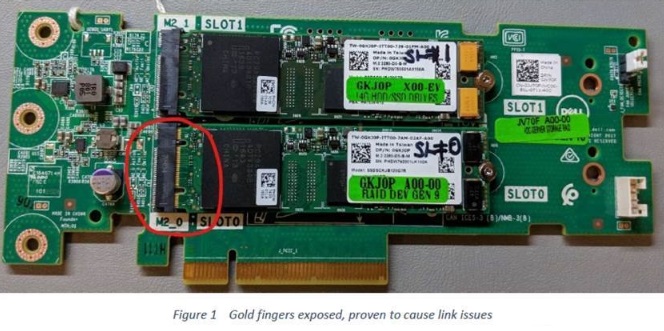
Additional Information
DP4400 - BOSS Card M2 Module Replacement - This video demonstrates the replacement of the BOSS card M2 module in a DP4400.
> This Video serves as a guide to locating and checking the BOSS card.
Part information for the M.2 SSD Card is below:
- Note: 120GB & 240GB variants of this part are available, order accordingly.
120GB PN = GKJ0P
240GB PN = TC2RP
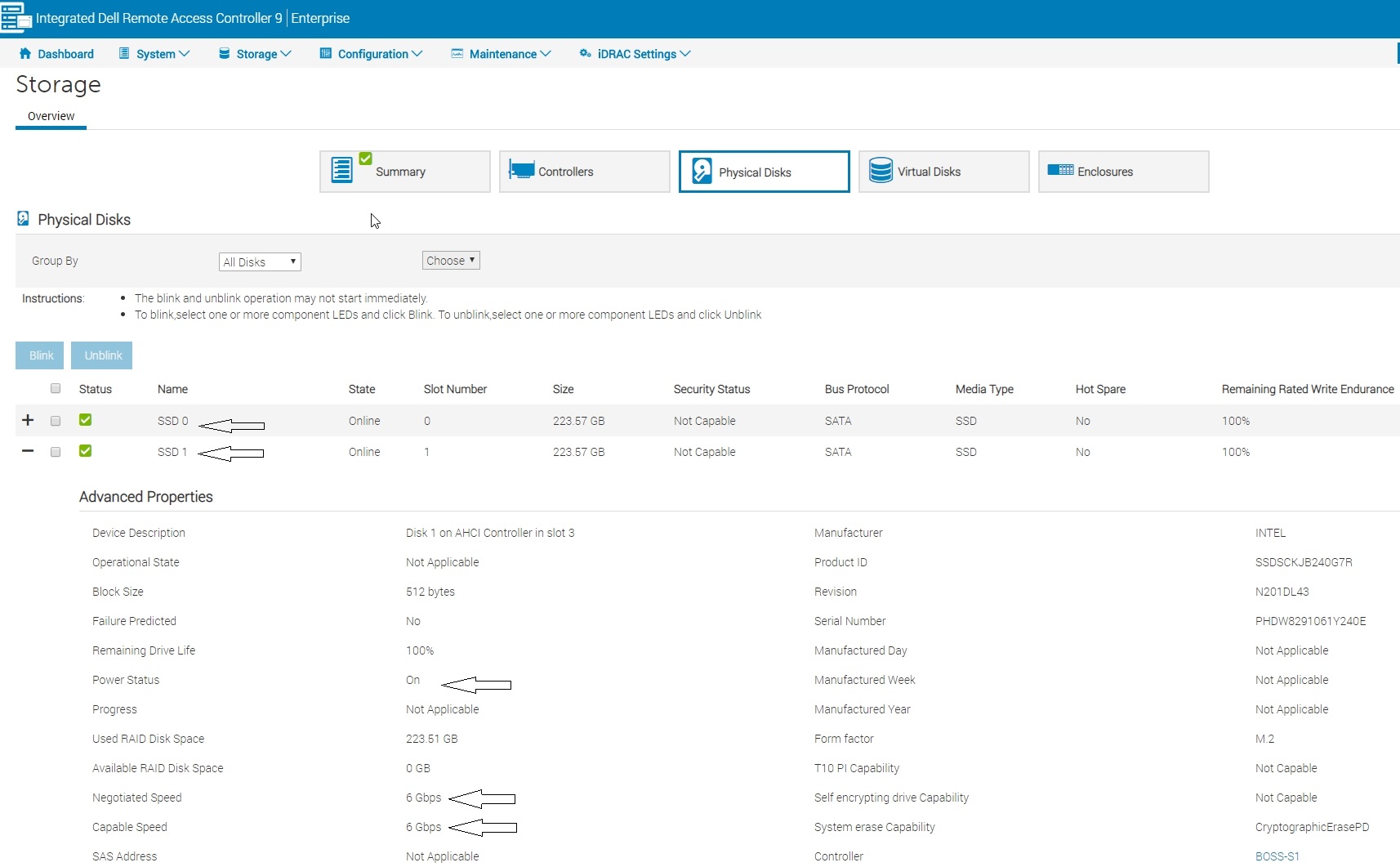
Both SSD disks should be visible from within iDRAC:
- Storage > Physical Disks > + SSD0/1
- Both disks should be powered ON and negotiated to 6Gbps connection speed.