GNSS Device is not Working on Dell Laptops
Summary: Learn more about the Global Navigation Satellite System (GNSS) not working and GPS setup guidance on Dell laptops.
This article applies to
This article does not apply to
This article is not tied to any specific product.
Not all product versions are identified in this article.
Symptoms
Note: Dell Pro Rugged 13 RA13250 and 14 RB14250 laptops do not support the National Marine Electronics Association (NMEA) over Wireless Wide Area Network (WWAN). However, they do support GNSS using the location sensor driver.
This is reported with the following WWAN cards:
- DW5826e Cellular Network Card: 4G
4G reports the following in Device Manager:Generic SuperSpeed USB Hub DW5826e Qualcomm Snapdragon X12 Global LTE-A (Fastboot mode)
- DW5932e Cellular Network Card: 5G
5G reports the following in Device Manager:PCI Express Port DW5932e-eSIM Snapdragon X62 5G MHI DW5932e-eSIM Snapdragon X62 5G QMUX
Note: DW5932e does not display Communication (COM) ports in Device Manager on the Latitude 7350 Detachable laptop:- Microsoft has introduced a new location sensor for GNSS
- There is no longer support for COM ports
The NMEA port is not in the Devices Advanced property window. There is no access to the NMEA data using these devices.
Affected Platforms:
- Dell Pro Rugged 13 RA13250
- Dell Pro Rugged 14 RB14250
- Latitude 7350 Detachable
Cause
- The NMEA port does not directly support the GNSS features in Windows 10 and Windows 11. Microsoft is updating to a new location sensor architecture. Windows (MAP) applications use the update now instead of the NMEA port for GNSS functions. The WWAN 4G and 5G designs support GNSS using the location sensor driver but do not support the NMEA port. For more information, reference: Windows location service and privacy
- The GNSS module enters power-saving mode where NMEA data cannot be received.
Resolution
Note:
Without GPS Module:
The WWAN cards are operating as designed. The cards and the laptops use the latest applications from Microsoft on Windows 10 and Windows 11. There is no harm to your laptop or cellular network, GNSS is working using the Location sensor driver.
With GPS Module:
Table of Contents
- GNSS Connection
- COM port connection
- Verify GNSS positioning function by u-center
- How to split multiple COM ports
- If there is no data displayed
Note: The following workarounds require using a third-party GPS application along with a discrete GPS device that they can obtain NMEA data:
- Configure the Future Technology Devices International Ltd (FTDI) USB Serial Port on a discrete GPS device to use a third-party GPS application. (For example: The Rugged Control Center, or U-center.)
Following the steps below:
- Prevents the GNSS device from going to sleep and to get full GPS functionality
- How to enable the COM port to receive NMEA data
GNSS Connection
- Ensure that the GNSS device and the u-blox GNSS Communication driver are installed:
- Check in the Device Manager that the u-blox Universal GNSS device is listed under the Sensors category
- Download u-blox GNSS Communication Driver from the Dell support website and follow the instructions for installation (The file is downloadable from the Drivers & Downloads page of the computer)
- Install GPS Maps+ from the Microsoft Store:
- Open Microsoft Store and type gps map in the search bar and select GPS Map+
- Disconnect from the network.
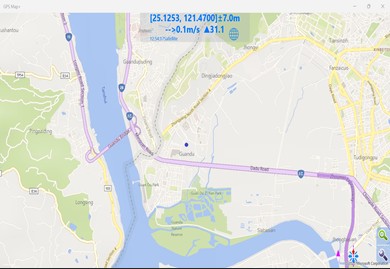
- Open the GPS Map+ application (search gps and click GPS Maps+), the device can receive position data.
COM port connection
- Ensure that the USB Serial Port device and FTDI USB Serial Port Driver is installed:
- Download the FTDI USB Serial Port Driver from the Drivers & Downloads for the computer and follow the instructions for installation
- After Installation done, go to the Device Manager:
- Ensure the u-blox Universal GNSS device is listed under the Sensors category
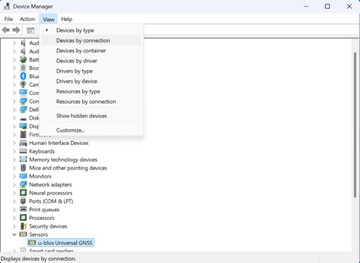
- Find u-blox Universal GNSS device, click View > Devices by connection, theUSB Serial Converter is under u-blox Universal GNSS:
- Expand USB Serial Converter, ensure GPS USB Serial port (COMxx) device listed
 Note: In this screenshot, the GPS USB Serial port device is COM5, it may be different in your environment.
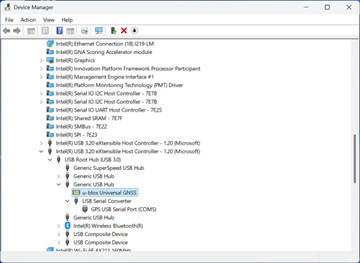
- Expand USB Serial Converter, ensure GPS USB Serial port (COMxx) device listed
- Right-click the u-blox Universal GNSS device:
- Select Properties
- Go to the Power Management tab
- Clear the option Allow the computer to turn off this device to save power
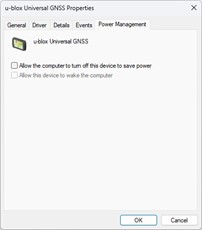 Note: This prevents u-blox Universal GNSS device from entering power-saving mode and allows the COM port to receive NMEA data.
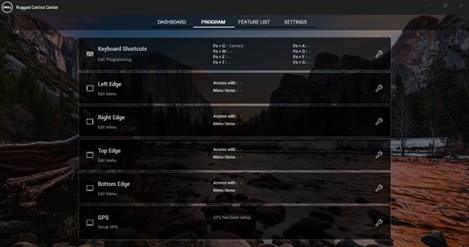
- Open Dell Rugged Control Center (RCC).
- Go to the GPS page: Program > GPS
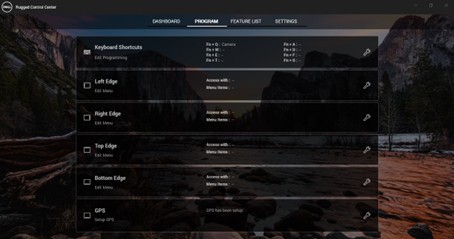
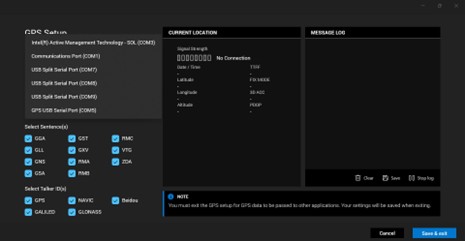
- Turn off Connect before selecting the correct COM Port from the Device Manager (step 3) and the baud rate:
- There are several options in baud rate setting, select 38400 for GNSS device. It is recommended to select all Talkers (Satellites) for optimal positioning performance.
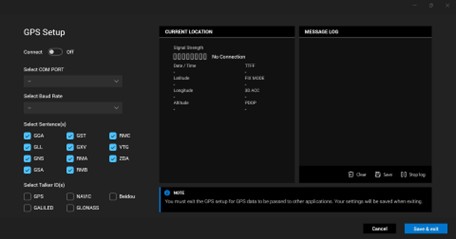
- There are several options in baud rate setting, select 38400 for GNSS device. It is recommended to select all Talkers (Satellites) for optimal positioning performance.
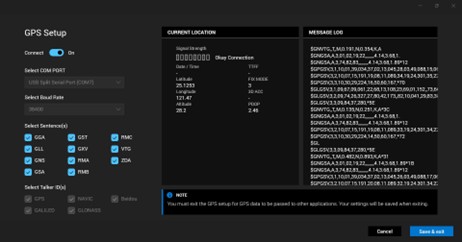
- Turn on Connect, and NMEA data is displayed on the MESSAGE LOG page.
- Click Save and exit to leave the GPS page and the configuration of GPS Setup is saved.
Verify GNSS positioning function by u-center
- Download and install the following two x86 Visual C++ Redistributable Packages:
- Download: U-center
and install it:
- U-center from u-blox is a free software tool for configuring u-blox GNSS receivers under Windows

- U-center from u-blox is a free software tool for configuring u-blox GNSS receivers under Windows
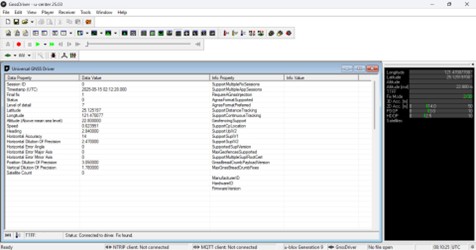
- Open u-center, select Universal GNSS Driver (Win 10) as the receiver.
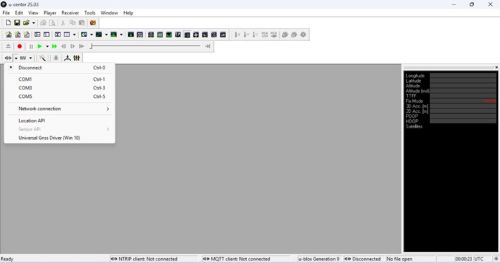
- Open GNSS Driver View: View > GNSS Driver View
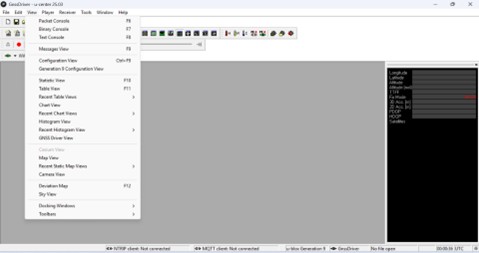
- Wait for a moment. (The time depends on signal and satellites) The status turns to Fix found. That means the GPS module has acquired sufficient satellite signals and finished computing a valid location data.
How to split multiple COM ports
Note: Splitting a physical port into multiple COM ports is a new feature for Dell Pro Rugged 14 RB14250 and Dell Pro Rugged 13 RA13250. The physical port device can be divided into several virtual COM ports which can be opened simultaneously to receive NMEA data.
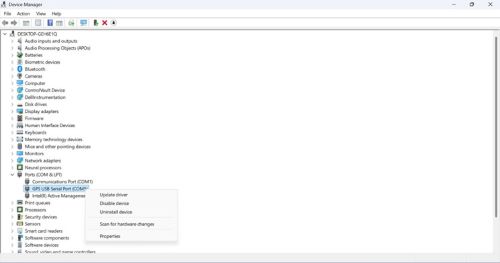
- Go to the COM port entry in the Device Manger that is found in the previous steps, right click and choose Properties.
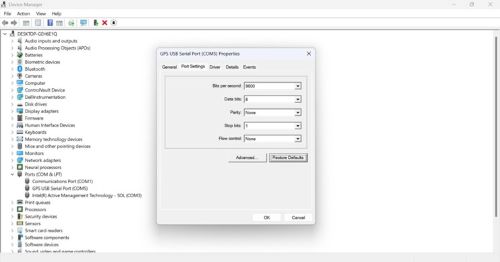
- Go to: Port Settings > Advanced
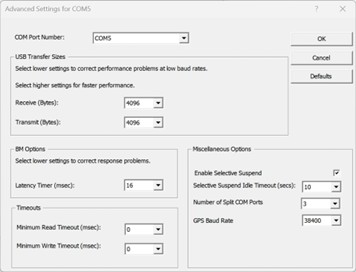
- Select the number of Split COM Ports (Up to 5). And ensure that the GPS Baud Rate is 38400.
- Restart the computer.
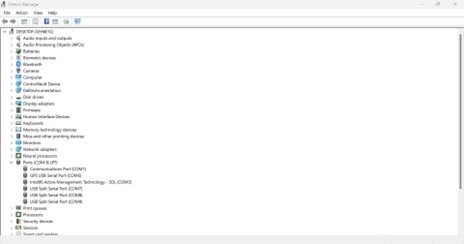
- In the Device Manager, the split ports are called USB Split Serial Port (COMxx).
Note: The original COM5 has been occupied and not able to be used when the splitting ports generated.
- Open RCC and go to the GPS page: PROGRAM > GPS
- Select a split COM port, any baud rate, and all Talkers (satellites) for GPS setup.
Note: Split COM ports can be configured with any baud rate, the physical port continues to communicate at a fixed rate of 38400.
- Turn on Connect, and NMEA data is shown in the MESSAGE LOG page.
- Click Save and exit to leave the GPS page and the configuration of GPS Setup is saved.
If there is no data displayed
- Possible incorrect COM Port is selected:
- There is no data displayed in MESSAGE LOG
- The power-saving option is not cleared:
- There is no data displayed in MESSAGE LOG
Affected Products
Dell Pro Rugged 13 RA13250, Dell Pro Rugged 14 RB14250, Latitude 7350 DetachableArticle Properties
Article Number: 000323109
Article Type: Solution
Last Modified: 08 Jun 2026
Version: 6
Find answers to your questions from other Dell users
Support Services
Check if your device is covered by Support Services.