PowerEdge: MX7000: How to Gather Chassis Logs
Summary: This article explains how to gather MX7000 chassis logs prebaseline 2.00.00, and postbaseline 2.00.00.
Instructions
Dell Enterprise Support Video:
MX7000: How to Gather Chassis Logs
Duration: 00:05:05 (hh:mm:ss)
When available, closed caption (subtitles) language settings can be chosen using the CC icon on this video player.
How to gather MX7000 chassis logs - Baseline 2.00.00 and later:
-
Log in to the lead chassis with an account that has Chassis Administrator privileges.
-
On the Home page, select Devices > All Devices.
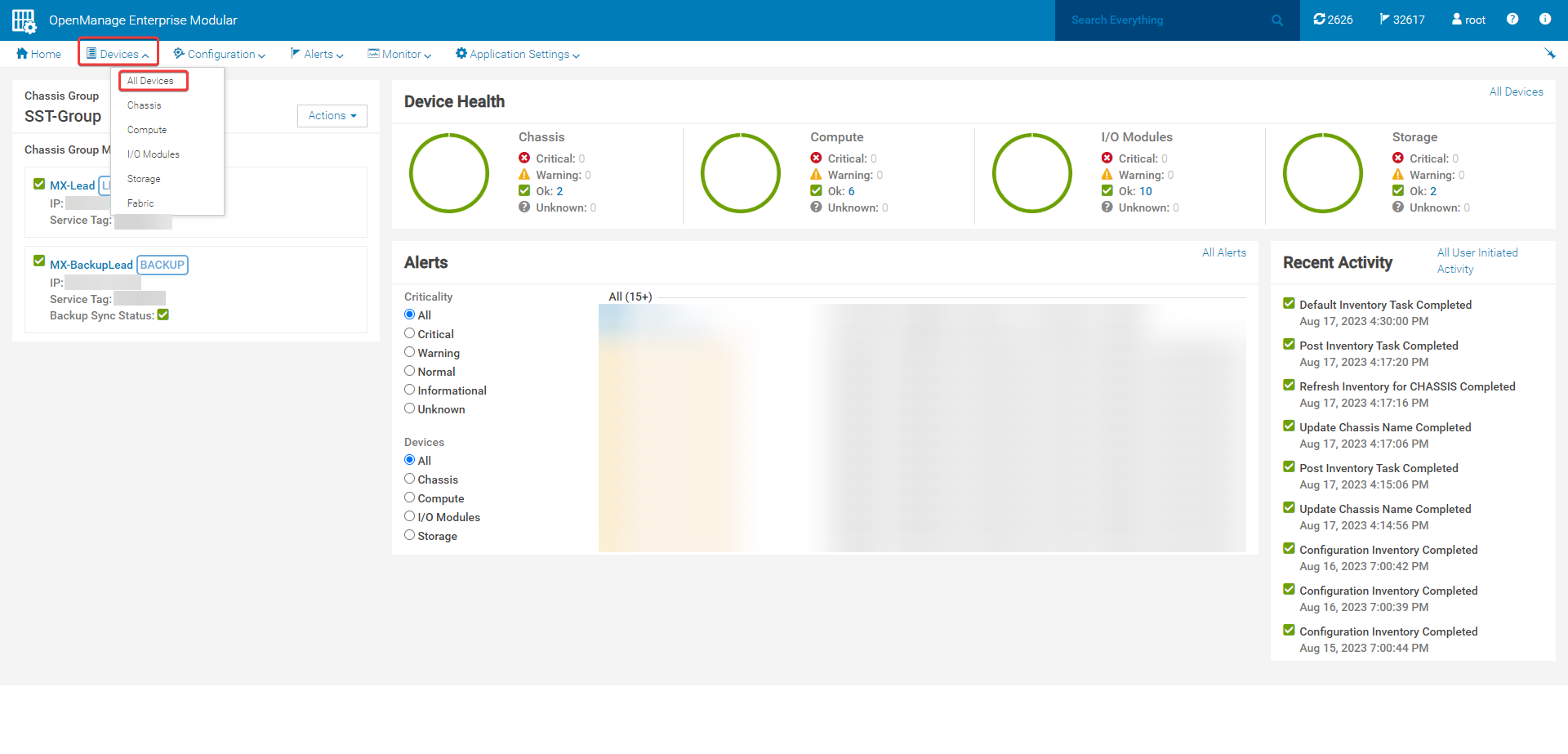
Figure 1: All Devices tab -
The All Devices page allows for extraction of logs for the following devices:
- MX7000 chassis dump logs
- Compute sled SupportAssist Collections
- MX5000s Storage I/O Module (IOM) logs
*Storage sled logs and other Fabric A, B, and C IOM logs cannot be gathered using this method (that is MX9116n, MX5108n, and MXG610s).
-
Select the checkbox for the devices to gather logs from. Then, select Extract Logs.

Figure 2: Extract Logs from All Devices page. -
The logs can be saved to a CIFS share, NFS share, or Locally to device. This article covers the Locally to device option. When gathering compute sled logs, it is recommended to select the checkbox for Debug Logs in order to provide support with granular information. The Storage Logs option should be checked if PERC logs or NVMe drive logs are needed. Select Save to begin the log export job.
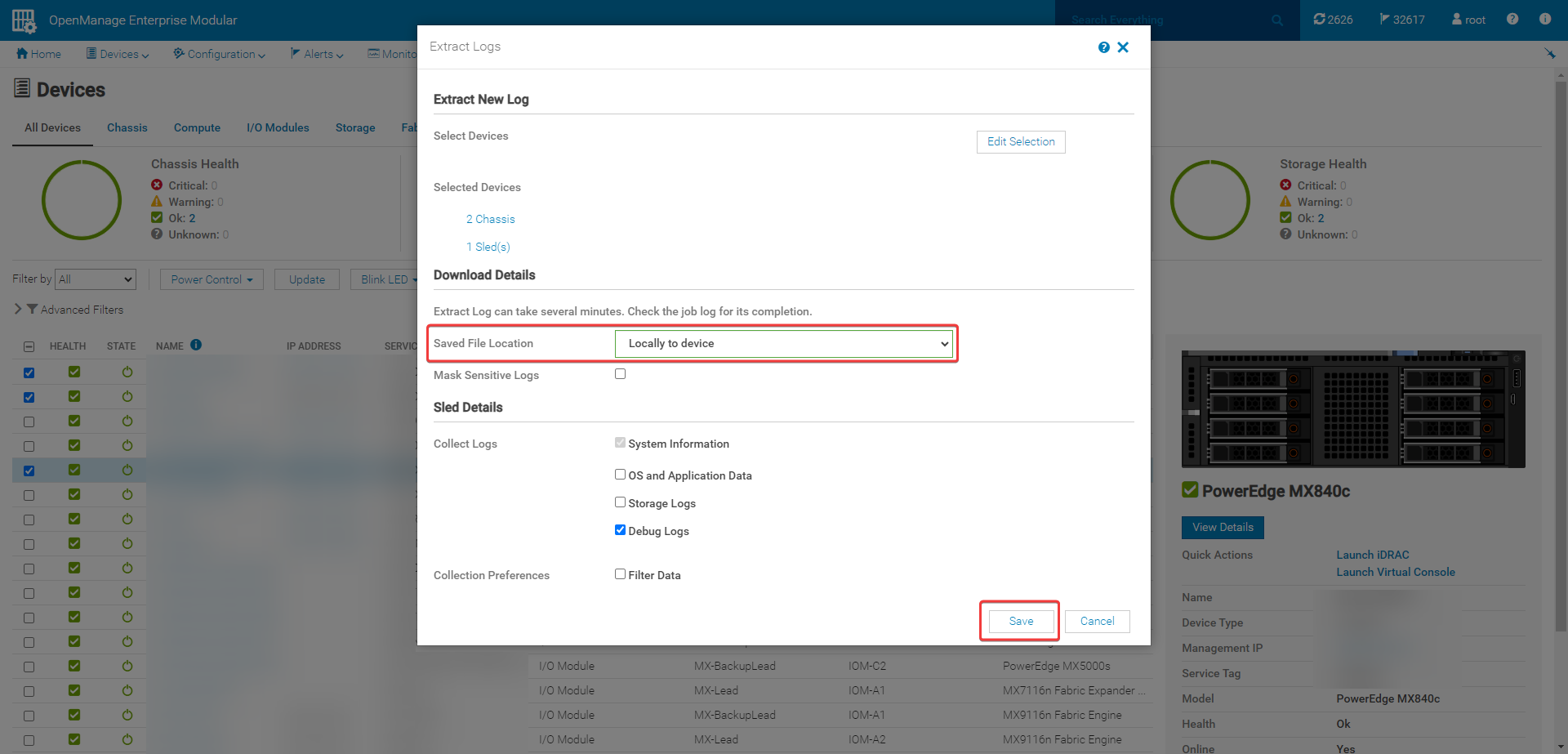
Figure 3: Extract Logs page -
Select Monitor > Jobs to watch the progress of the log extraction job.

Figure 4: Monitor Jobs tab Devices. -
Select the Extract Log job and click View Details.

Figure 5: Monitor the Jobs page. -
On the Job Details page, monitor the job for completion.

Figure 6: Job Details -
Once the job is complete, select Download Extract Log.

Figure 7: Download Extract Log -
A .zip file downloads from your local browser to your default Downloads folder.
How to gather MX7000 chassis logs - Baseline 1.40.20 and below:
-
Log in to the lead chassis with an account that has Chassis Administrator privileges.
-
Go to Devices > Chassis.

Figure 8: Chassis device tab -
Select the name of the chassis to gather logs from to open the chassis' page (prior to baseline 2.00.00, chassis logs can only be gathered from the chassis you are logged into).

Figure 9: Chassis device page -
Select Troubleshoot > Extract Log. The logs can be saved to a CIFS share, NFS share, or Locally to device. This article covers the Locally to device option. The Locally to device option was not available prior to OpenManage Enterprise Modular (OME-M) version 1.10.00.
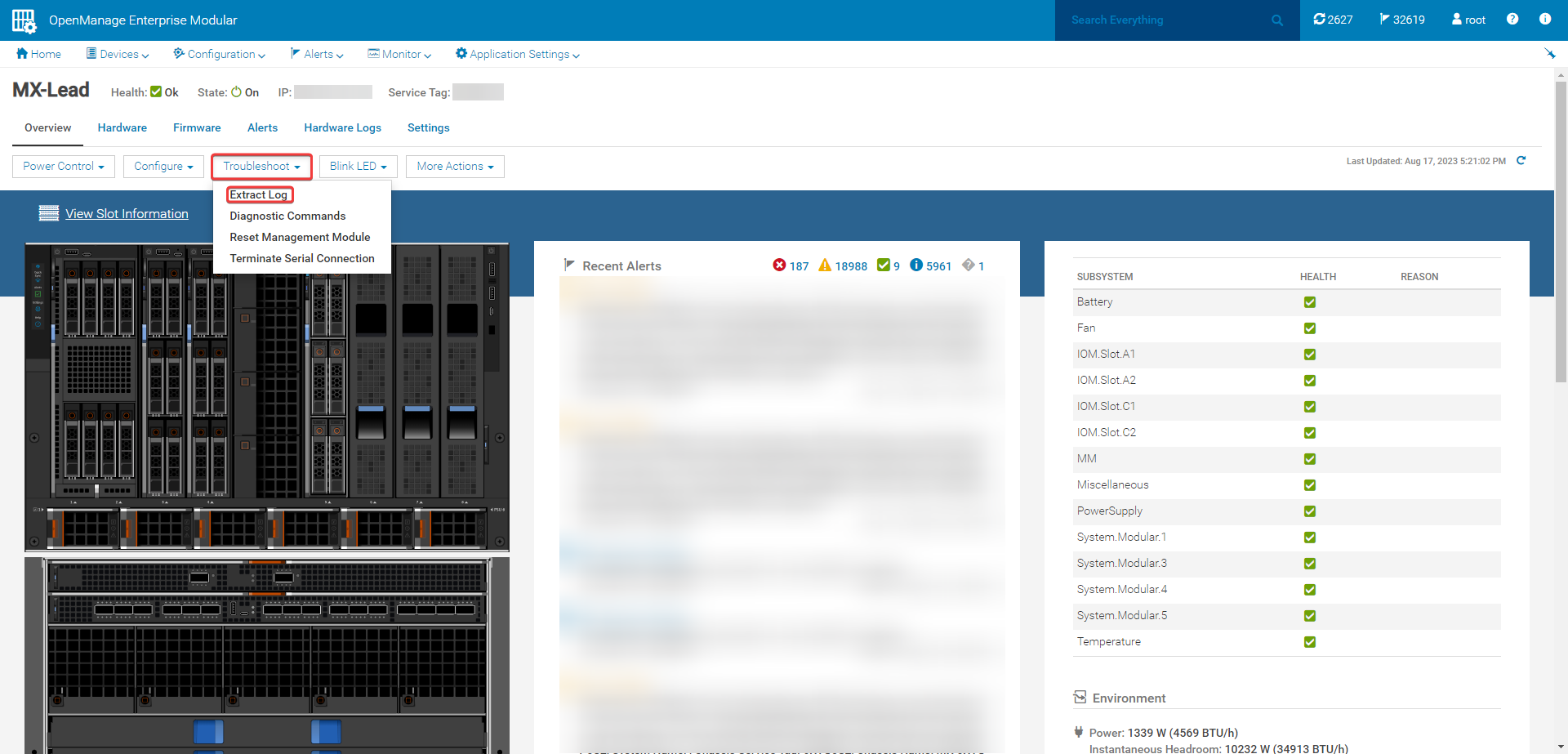
Figure 10: Extract Log -
Select the Saved File Location, and then select Save to start the log extract job.

Figure 11: Save Extract Log -
Go to Monitor > Jobs to watch the progress of the log extraction job.
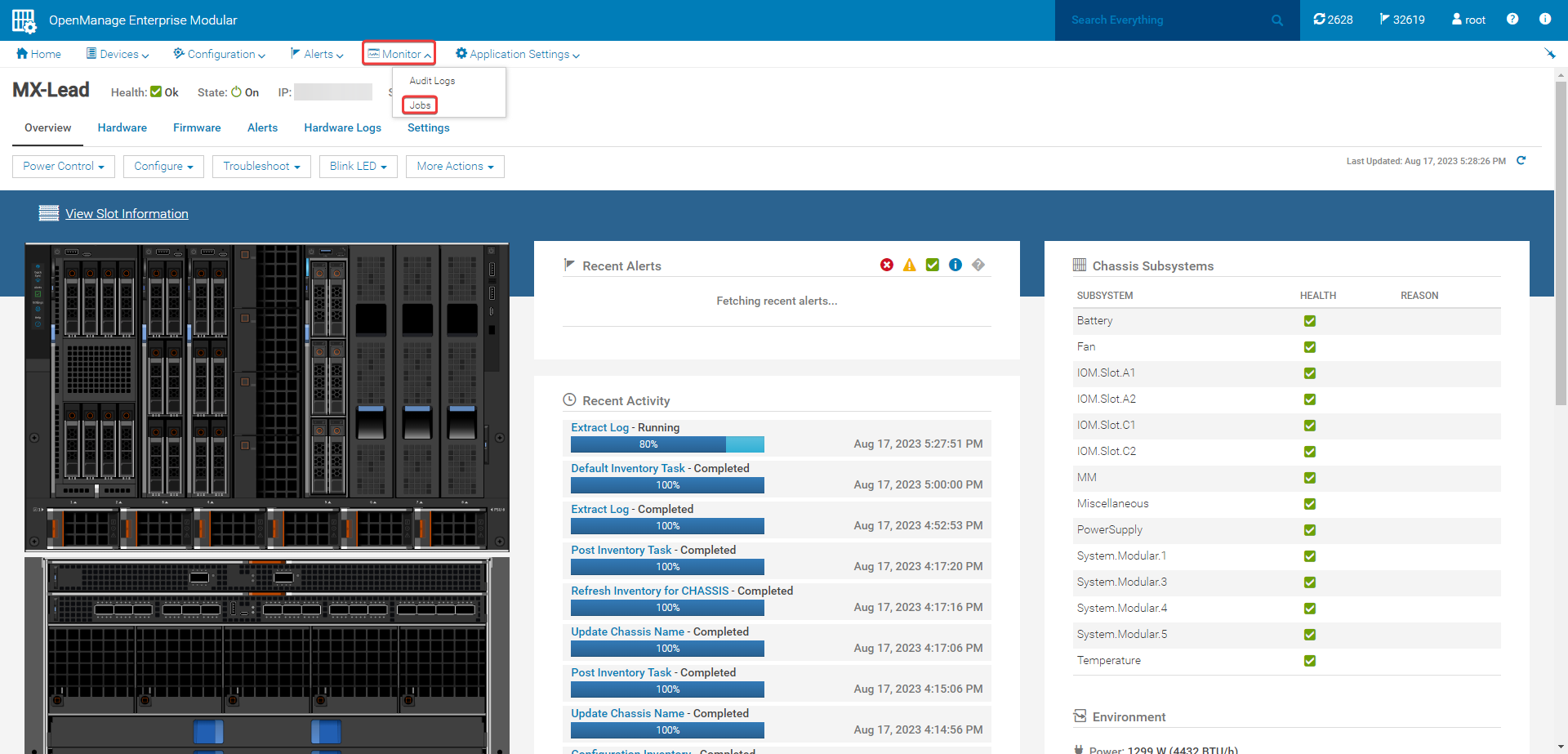
Figure 12: Monitor Jobs -
Select the Extract Log job and click View Details.

Figure 13: Select Extract Log job.
Figure 14: Extract Log Job Details -
Navigate back to the chassis page that logs were gathered from. Select Troubleshoot > Extract Log. A Download option is available to download the log bundle from your browser to your default Downloads folder.
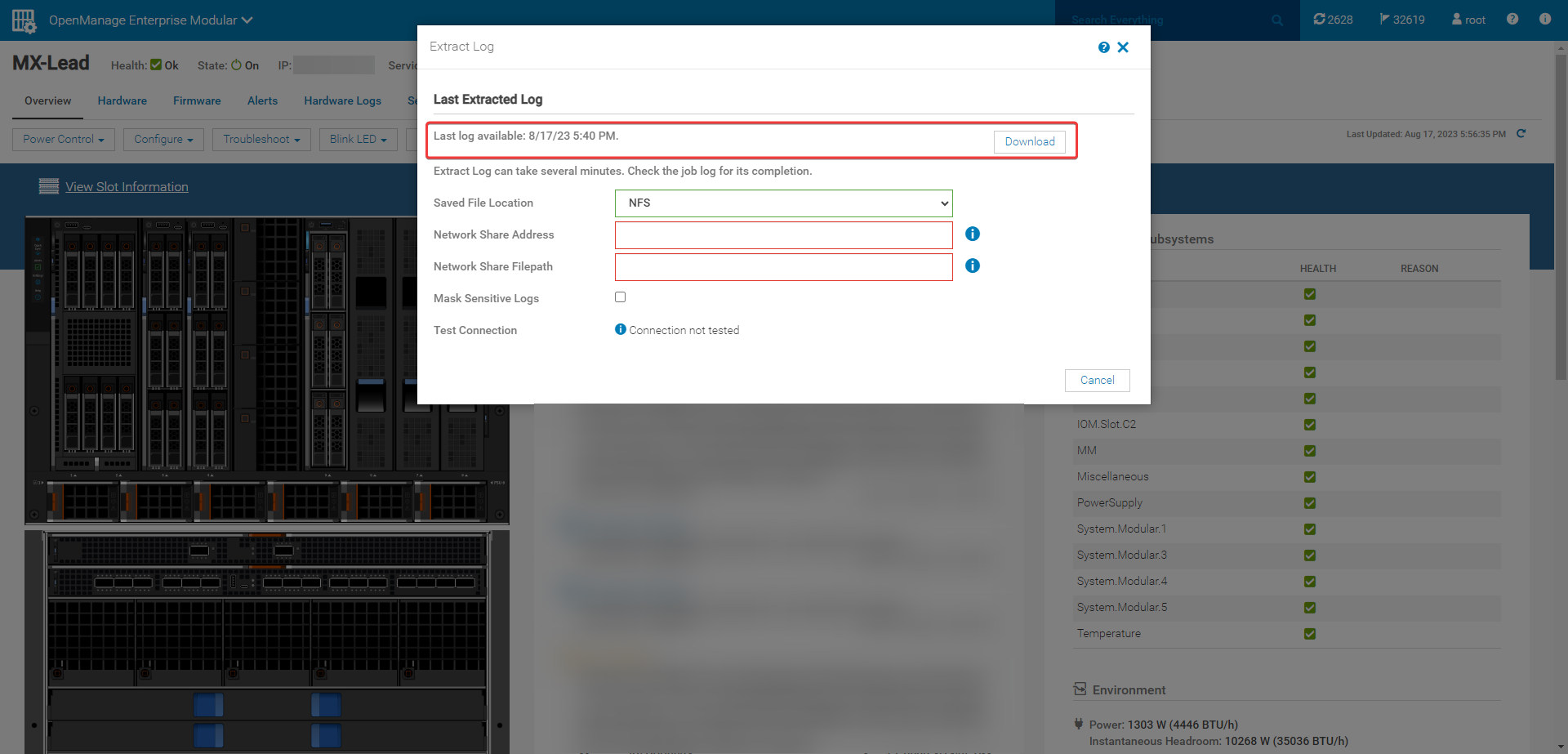
Figure 15: Download the log bundle.Important! If the chassis logs gathered are from a member in a chassis group, logs may only be collected from the lead chassis UI using a CIFS or NFS share. This must be accomplished by logging into the member chassis using its IP in a separate browser tab to gather the logs locally. Below is the error seen if an attempt is made to gather member chassis logs locally from the lead chassis UI:
Figure 16: Member chassis