NetWorker with Data Domain Cloud Tier: Triage and Troubleshooting Guide
Summary: This article is intended to assist Support and NetWorker administrators triage and troubleshoot issues regarding Data Domain Cloud Tier operations.
Instructions
How NetWorker with Data Domain Cloud Tier works:
NetWorker can be used to send backup data to the cloud using DD Cloud Tier for long-term retention. It clones NetWorker save sets to a dedicated cloud tier pool. The Data Domain data‑movement process then moves the data to cloud storage. Data Domain Cloud Tier is managed using a single Data Domain namespace. There is no separate cloud gateway or virtual appliance required. Cloud storage acts as an additional Data Domain Cloud Tier, and the system moves data between tiers as required. File system metadata associated with the data stored in the cloud is maintained in local storage, and it is also mirrored to the cloud.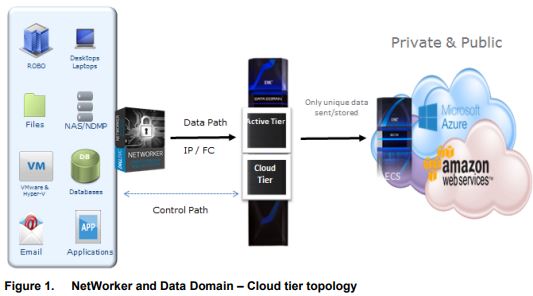
Defining the Issue
ISSUE DETAILS
In order to generate a complete problem description, address the following questions:
- What operation is being attempted which is not working?
- Does this operation work when DD Cloud Tier is removed from the operation (clone to DD Boost device for example)?
- Is the issue consistent or intermittent?
- If intermittent, is there a known trigger?
- Did this work better before?
- When did the issue first occur (what changed)?
- Does the issue happen only at times of heavy load on the backup environment?
- What is the scope of the issue (all operations of this type, or only some)?
- What has been tried so far to fix and what conclusions have been drawn from this?
ENVIRONMENT DETAILS
- NetWorker and Storage Node server version and platform: NetWorker: Methods for Identifying NetWorker Software version
- DD and DDOS versions. This can be seen in the NetWorker Management Console (NMC) or NetWorker Web User Interface (NWUI), under Devices -> Data Domain Systems. Alternatively, you can get these details from the PowerProtect DD System Manager.
- Details of Cloud Storage technology being used.
Troubleshooting
Initial Configuration Issues
Refer to this article for detailed instructions on how to implement this solution: How to Implement NetWorker with Data Domain Cloud Tier
Identify at which step in this process the issue is occurring, checking particularly that.
- The system and licensing requirements have been met
- All elements of the environment are compatible with each other. See E-Lab Interoperability Navigator 2.0-HOME (Requires Dell Support Account Sign-In)
- There is enough disk space available on the Data Domain: This can be checked in the PowerProtect DD System Manager -> Data Management -> File System -> Summary
- A cloud tier device has been created in NetWorker and has an available DD Cloud Tier volume. NetWorker Management Console -> Media -> Disk Volumes
Clone and Data Movement Issues
To identify at which stage in the below process there is an issue. This is the process for NetWorker writing data to the DD Cloud Tier:
NetWorker client data is backed up to a NetWorker backup pool.
There are no direct backups from NetWorker to DD Cloud Tier. The NetWorker client data must first be backed up to a standard NetWorker DD Boost device on the DD Active Tier. See the following article to troubleshoot the backup failure:
How to Debug a Failed NetWorker Backup
NetWorker cloning operation creates a copy of the backup save set on the DD Cloud Tier, by cloning to a NetWorker cloud tier pool.
From a DD perspective, the movement of data from the DD Active Tier to the DD Cloud Tier is an application defined policy for data movement. The application (NetWorker) controls which data is moved from the DD Active Tier to the Cloud Tier. NetWorker cloning is configured in the normal way. There are several options on how to configure cloning in NetWorker. The NetWorker Administration Guide provides full details. NetWorker documentation is available through: Support for NetWorker | Manuals & Documents
NetWorker does not monitor the space usage on the active tier. Which save sets are to clone or expire on the active tier is controlled by the cloning configuration and standard NetWorker expiration rules. Cloning of a save set is not supported from a non-Data Domain device to a DD Cloud Tier device.
To troubleshoot the NetWorker cloning operation, refer to the following articles:
Save set instances are in the Cloud Tier and have not yet been moved to the cloud storage. They have a clone flag 'T'.
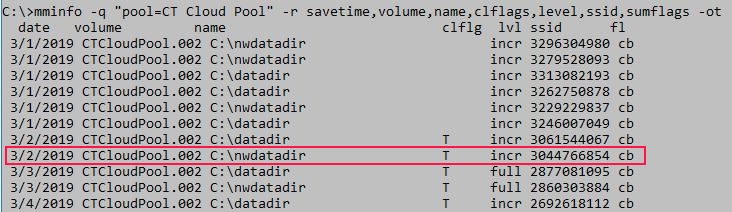
The 'T' flag means that the save set is on the DD Cloud Tier, but has not yet been moved to the Cloud Storage. Those without the 'T' flag have already been moved to the Cloud Storage.
DD data movement moves all data from the Cloud Tier to the Cloud Storage as per the schedule defined in Data Domain.
PowerProtect DD System Manager -> Data Management -> File System -> Settings -> Data Movement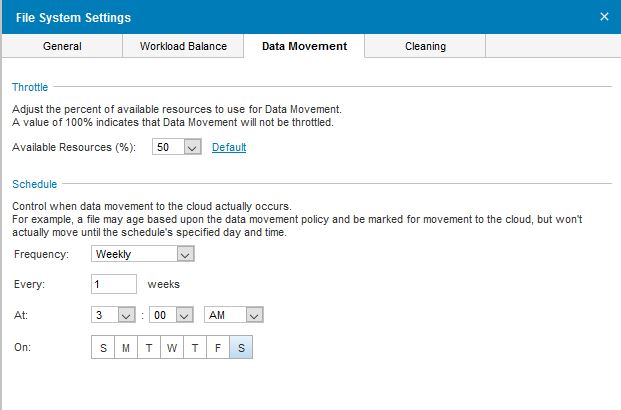
Here is an example from the DD messages log file of a scheduled data movement operation:
Mar  2 03:00:01 ddve ddsh: NOTICE: MSG-DDSH-00009: (tty=<>, session=24274) root: command "data-movement start scheduled"
Mar  2 03:01:32 ddve ddfs[20988]: NOTICE: MSG-FMIG-00001: Data-movement completed (cloud) on cloud cps: 0:01:31 elapsed, 12 of files migrated, 102572 of total bytes migrated
The data movement setup and last run status can be checked from the DD command line also: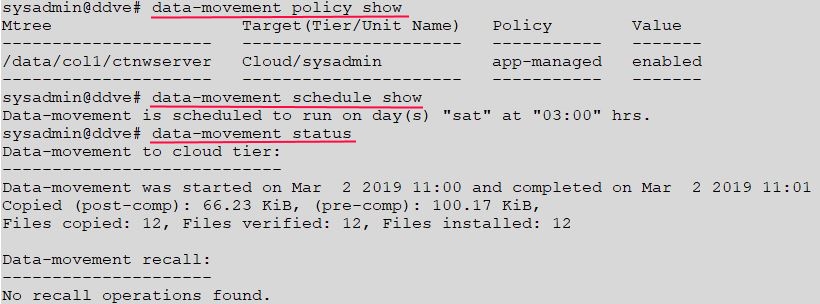
The data movement can also be started manually in order to test if it is working as expected:# data-movement start mtrees [mtree name]# data-movement start mtrees /data/col1/ctnwserver# data-movement watch
NetWorker save set instances in the Cloud Tier now show no 'T' clone flag. These save sets are no longer on the Data Domain. They are in the cloud.
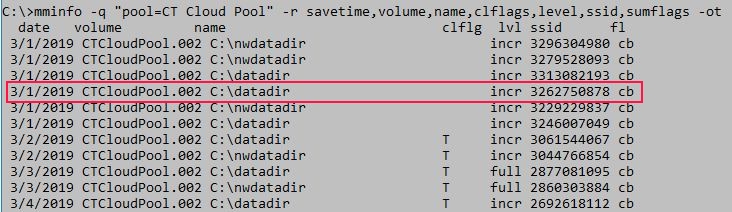
Use Cloud Storage provider tools to validate that data is being correctly written to the Cloud Storage. A test restore in NetWorker is also advisable.
We can also check on the Data Domain to see where each NetWorker save set is and when it was put there:
Example 1: Save set on Cloud Tier but not yet moved to Cloud Storage.
On the NetWorker server, check the long-form SSID number and the volume:
C:\>mminfo -q "ssid=4287710238" -r "name,ssid(60),volume,clflags" -otR
 name                          ssid                                                        volume         clflg
C:\nwdatadir                   86c8a202-00000006-ff91441e-5c91441e-00025000-cc1b0156       DDPool1.003
C:\nwdatadir                   86c8a202-00000006-ff91441e-5c91441e-00025000-cc1b0156       CTCloudPool.002 T
Here, the save set in 'ctcloud2' is not in the 'sysadmin' cloud unit. It will be moved there at the time of the next data movement.
sysadmin@ddve# filesys report generate file-location path "/data/col1/ctnwserver"
--------------------------------      ----------------------      ---------------------------
File Name                             Location(Unit Name)         Placement Time
--------------------------------      ----------------------      ---------------------------
...
/data/col1/ctnwserver/ctdev03/06/34/86c8a202-00000006-ff91441e-5c91441e-00025000-cc1b0156                    Active  Tue Mar 19 12:51:56 2019
/data/col1/ctnwserver/ctcloud2/06/34/86c8a202-00000006-ff91441e-5c91441e-00025000-cc1b0156                   Active  Tue Mar 19 12:51:56 2019
...
Example 2: Save set in Cloud Storage.
On the NetWorker server, check the long-form ssid number and the volume:
C:\>mminfo -q "ssid=3229229837" -r "name,ssid(60),volume,clflags" -otR
 name                          ssid                                                        volume         clflg
C:\nwdatadir                   761c80ce-00000006-c07a230d-5c7a230d-00425000-cc1b0156       CTCloudPool.002
There is no 'clflags' value, so this data is in the Cloud Storage. The DD shows that this file is in the cloud unit called 'sysadmin' and its placement time is also given.
sysadmin@ddve# filesys report generate file-location path "/data/col1/ctnwserver/ctcloud2"
--------------------------------      ----------------------      ---------------------------
File Name                             Location(Unit Name)         Placement Time
--------------------------------      ----------------------      ---------------------------
...
/data/col1/ctnwserver/ctcloud2/05/99/761c80ce-00000006-c07a230d-5c7a230d-00425000-cc1b0156      sysadmin        Sat Mar  2 11:01:02 2019
NetWorker save sets will be retained until their retention time has been reached (clretent value in mminfo).

Consult the below articles for details of NetWorker data retention:
- How volume retention and save set retention are calculated in NetWorker?
- NetWorker: How to Schedule the NetWorker Online File and Media Index Maintenance Operations
- NetWorker: Reclaiming space from Data Domain devices triage guide
- Data Domain: How to resolve issues with high space utilization or a lack of available capacity on Data Domain Restorers (DDRs)
Recovery Issues:
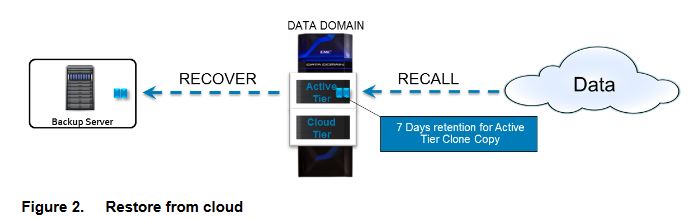
- Data recoveries from a DD Cloud Tier device require a mounted Data Domain device on the same storage unit as the DD Cloud Tier device.
- When you recover file system data from a DD Cloud Tier device, the recovery process clones the data from the DD Cloud Tier device to a Data Domain device, and then recovers the data from the Data Domain device.
- NetWorker removes the clone data from the Data Domain device 7 days later.
- Before you perform a VMware or Block-Based Backup (BBB) recovery of data that resides on a DD Cloud Tier device, review the NetWorker Data Domain Boost Integration Guide for your version to check on supported operations. NetWorker documentation is available through: Support for NetWorker | Manuals & Documents
To troubleshoot recovery issues: - NetWorker: How to debug recover job failures from NMC?
- Recovery from Cloud Tier Device fails: 'unable to find a destination pool with a data domain device on the data domain host'
Log Collection
- The Data Domain system provides a mechanism to create a Support Bundle, which is a zipped file that contains several log files that Support uses to troubleshoot issues.
PowerProtect DD System Manager -> Maintenance -> Support -> Support Bundles -> Generate Support Bundle.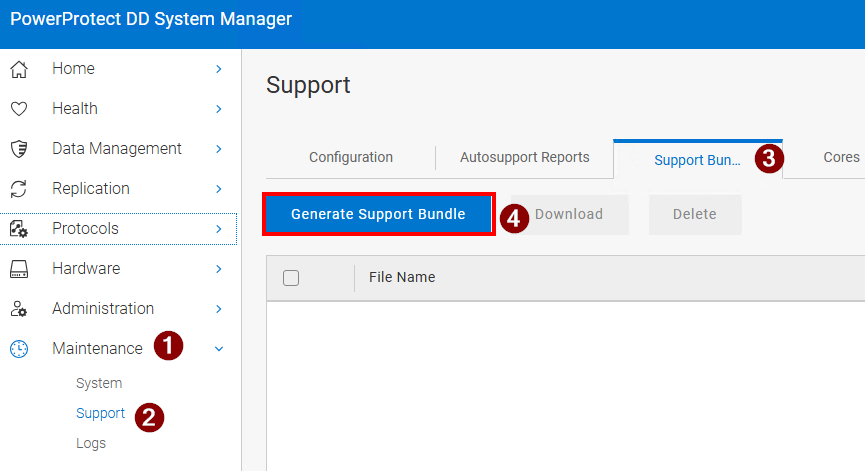
- For NetWorker log data, use NSRGET: NetWorker: How to Use the NSRGet NetWorker Data Collection Tool
Additional Information
Data Domain Restorer (DDR) and Long-Term Retention (LTR) to the Cloud Frequently Asked Questions (FAQ / FAQs)
See also the NetWorker Administration and DDBoost Integration Guides. NetWorker documentation is available through: Support for NetWorker | Manuals & Documents