SYSVOL Replication Failing on Domain Controller with DFSR Errors 4612, 5002, and 5008
Summary: Resolve SYSVOL replication issues on domain controller (DC) with Distributed File System Replication (DFSR) errors 4612, 5002, and 5008. Guide for fixing replication failures and reconfiguring DC for SYSVOL data sync. Applicable for Windows Server 2016, 2019, 2022, and more ...
Symptoms
The affected DC may have no SYSVOL or NETLOGON share listed in the output of the net share command.
The DFSR event log for the affected DC contains DFSR error 4612:
The DFS Replication service initialized SYSVOL at local path [path] and is waiting to perform initial replication. The replicated folder will remain in the initial synchronization state until it has replicated with its partner [partner].
If the server was in the process of being promoted to a domain controller, the domain controller will not advertise and function as a domain controller until this issue is resolved. This can occur if the specified partner is also in the initial synchronization state, or if sharing violations are encountered on this server or the sync partner.
If this event occurred during the migration of SYSVOL from File Replication service (FRS) to DFS Replication, changes will not replicate out until this issue is resolved. This can cause the SYSVOL folder on this server to become out of sync with other domain controllers.
It may also contain errors 5002 and 5008.
Error 5002:
The DFS Replication service encountered an error communicating with partner [partner] for replication group Domain System Volume.

Partner DNS Address: [partner FQDN]

Optional data if available:
Partner WINS Address: [partner hostname]
Partner IP Address: [partner address]

The service will retry the connection periodically.
Error 5008:
The DFS Replication service failed to communicate with partner [partner] for replication group Domain System Volume. This error can occur if the host is unreachable, or if the DFS Replication service is not running on the server.

Partner DNS Address: [partner FQDN]

Optional data if available:
Partner WINS Address: [partner hostname]
Partner IP Address: [partner address]

The service will retry the connection periodically.
The partner server indicated in the errors is a DC that is no longer available.
Cause
Resolution
Scenario 1: The affected DC is the only one in the domain.
In this scenario, there are no other DCs from which to copy SYSVOL data. Therefore, you must first determine whether SYSVOL data exists on the DC. To do so, browse to %windir%\SYSVOL\domain\Policies in File Explorer. This folder should contain at least two subfolders with long hexadecimal names. Each of those subfolders should in turn contain subfolders named Machine and User, plus a file named GPT.ini. See the screenshot below for an example of valid SYSVOL data:
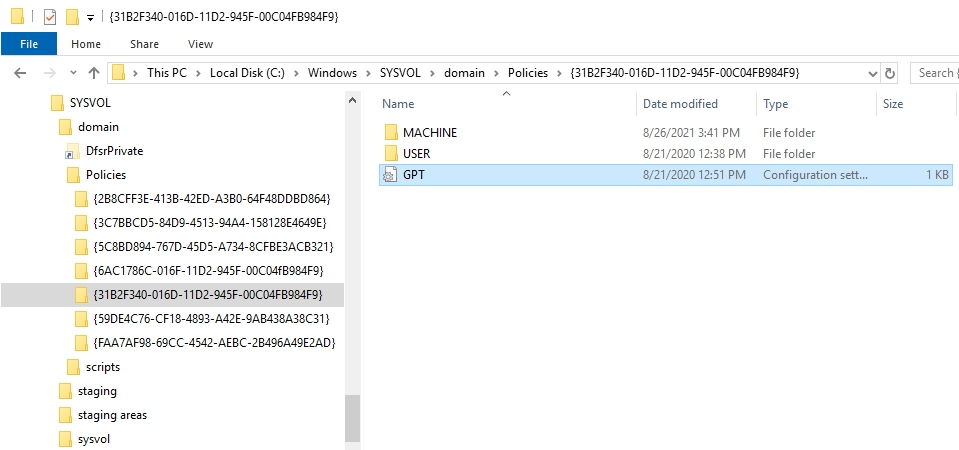
Figure 1: SYSVOL data on a domain controller
If the SYSVOL data is present, an authoritative sync of the data can be performed using the ADSIEdit console. For the steps required, see How to Perform an Authoritative Sync of SYSVOL Data Using Distributed File System Replication (DFSR). Since there is only one DC in the domain, some steps can be skipped.
If the SYSVOL data is not present, it must be obtained from a backup of another DC, if a backup exists. If such a backup can be located, restore the SYSVOL data and perform an authoritative sync.
If no backup of the SYSVOL data exists, the dcgpofix
Scenario 2: There are other DCs in the domain with valid SYSVOL data.
In this scenario, another DC can be used as a source of SYSVOL data. To enable this, perform the following steps on the affected DC:
- Stop the DFSR service.
- Launch the Registry Editor and browse to:
HKEY_LOCAL_MACHINE\SYSTEM\CurrentControlSet\Services\DFSR\Parameters\SysVols\Seeding SysVols\[Domain name].
- Locate the Parent Computer entry inside this key. It is likely set to the name of an unavailable DC. Modify this entry and set its value to the DNS name of a DC which is online and has an up-to-date copy of the SYSVOL data.
- Close the Registry Editor.
- Start the DFSR service.
- Launch Event Viewer and refresh the DFS Replication event log until event 4604 appears, indicating that initial replication has completed and SYSVOL has been initialized.
- Run the
net sharecommand to confirm the presence of SYSVOL and NETLOGON shares.
Additional Information
FAQs:
- What is SYSVOL replication?
The SYSVOL replication process ensures that all DCs have an identical copy of the domain's relevant policies. This is important because clients must access and synchronize these files and folders between DCs for GPOs and logon scripts to function properly.
- How to check my Active Directory (AD) SYSVOL replication status?
repadmin /replsum. This provides a summary of the replication status, including any potential errors or issues with SYSVOL replication across your domain.
See Microsoft article Active Directory Forest Recovery - Verify Replication
for complete details.