Windows 10 更新 KB4343909 後,出現音訊驅動程式問題
Summary: 本文包含如何在安裝 Windows 10 更新KB4343909後修正音訊驅動程式問題的相關資訊。
This article applies to
This article does not apply to
This article is not tied to any specific product.
Not all product versions are identified in this article.
Symptoms

Cause
沒有可用的原因資訊。
Resolution
裝置管理員
下列步驟應可解決此問題。
- 開啟 裝置管理員。同時按下 Windows 標誌鍵和 R 鍵。這應該會開啟一個 執行方塊。
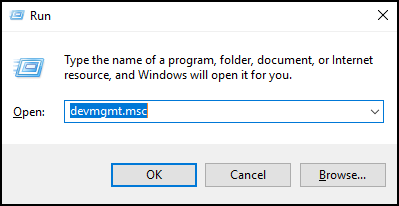
- 在命令前頭輸入
devmgmt.msc,然後按下 確定 或按 Enter 鍵。 - 裝置管理員隨即開啟。

- 在裝置管理員中,以滑鼠右鍵按一下有問題的驅動程式,然後選取更新驅動程式。
- 選取「瀏覽我的電腦尋找驅動程式軟體」。
- 選取「瀏覽...」,然後選擇位於此處的資料夾:C:\Windows\WinSxS
- 確定已選取「包含子資料夾」方塊,然後按一下 下一步。
- Windows 應可成功安裝驅動程式。
- 重新開機您的系統。
- 現在您可以從以下位置成功重新安裝 Dell 音訊驅動程式:Dell.com/Support/Drivers。
Additional Information
建議的文章
以下是一些與本主題相關的建議文章,您可能會感興趣。
Affected Products
Alienware, Dell All-in-One, Dell Pro All-in-One, Dell Pro Max Micro, Dell Pro Max Slim, Dell Pro Max Tower, Dell Pro Micro, Dell Pro Slim, Dell Pro Tower, Dell Slim, Dell Tower, Inspiron, OptiPlex, Vostro, XPS, G Series, G Series, Alienware
, Dell Laptops, Dell Plus, Dell Pro, Dell Pro Max, Dell Pro Plus, Dell Pro Premium, Inspiron, Latitude, Dell Pro Rugged, Vostro, XPS, Fixed Workstations, Mobile Workstations, Dell Pro Max Micro XE FCM2250, Dell Pro Max Slim XE FCS1250, Dell Pro Max Tower T2 XE FCT2250, Dell Pro Max 16 XE MC16250, Dell Pro Micro Plus XE QBM1250, Dell Pro Slim Plus XE5 QBS1250, Dell Pro Tower Plus XE5 QBT1250
...
Article Properties
Article Number: 000123786
Article Type: Solution
Last Modified: 14 Jul 2025
Version: 9
Find answers to your questions from other Dell users
Support Services
Check if your device is covered by Support Services.