Microprocessor Side-Channel Vulnerabilities "Meltdown" and "Spectre" (CVE-2017: 5715, 5753, 5754): Impact on Dell Data Security Solutions
Summary: Dell Data Security and the Impact of Meltdown and Spectre.
This article applies to
This article does not apply to
This article is not tied to any specific product.
Not all product versions are identified in this article.
Symptoms
The vulnerabilities that are known as Meltdown (CVE-2017-5754) and Spectre (CVE-2017-5715 /CVE-2017-5753) have been discovered in the central processing unit (CPU) performance feature called speculative execution. Systems with microprocessors using speculative execution and indirect branch prediction may allow unauthorized disclosure of information to an attacker with local user access using a side-channel analysis of the data cache. This could lead to access to sensitive information stored in system memory.
The issue is not specific to any one vendor and takes advantage of techniques that are commonly used in most of the modern processor architectures. This means that a large range of products are affected from desktops and laptops to servers and storage, even smartphones. All customers should verify whether they are affected by going to the support sites of their hardware manufacturer. For Dell computers, affected computers can be found at: Meltdown/Spectre (CVE-2017-5715, CVE-2017-5753, CVE-2017-5754) impact on Dell Products. More information about these vulnerabilities and responses from other vendors, go to https://meltdownattack.com 
In general, there are two essential components that must be applied to mitigate the above mentioned vulnerabilities.
- Apply the processor microcode update using BIOS update per manufacturer instructions.
- Apply the applicable operating system updates according to the operating system vendor guidance.
All Dell Data Security customers with affected hardware (Dell or non-Dell in origin) must apply the recommended remediation as outlined by their manufacturer. The Dell Data Security software may help prevent exploits from being successful, but is not a substitute for taking the manufacturer’s recommended steps for remediation.
Cause
Not Applicable
Resolution
Click either the Dell Encryption or Dell Threat Protection tab for specific information about product version compatibility.
Instructions for Dell Encryption customers (Dell Encryption Personal and Enterprise or Dell Data Guardian) are below. Select the appropriate operating system for your environment.
Microsoft January 2018 update release contains a series of updates to help mitigate exploitation by the Meltdown/Spectre vulnerabilities. For more information about Microsoft’s response to Meltdown and Spectre, go to https://support.microsoft.com/en-us/help/4073757
Dell Data Security has validated compatibility against the latest set of Microsoft patches from January 2018 with:
- Dell Encryption Enterprise v8.17 or later
- Dell Encryption Personal v8.17 or later
- Dell Encryption External Media v8.17 or later
- Dell Encryption Enterprise for Self-Encrypting Drives (
EMAgent) v8.16.1 or later - Dell Encryption Personal for Self-Encrypting Drives (
EMAgent) v8.16.1 or later - Dell Encryption BitLocker Manager (
EMAgent) v18.16.1 or later - Dell Full Disk Encryption (
EMAgent) v18.16.1 or later - Dell Data Guardian 1.4 or later
Dell Data Security recommends ensuring your clients are on the validated version or later before applying the January 2018 patches.
For information about downloading the latest software version reference:
- Dell Encryption Enterprise Drivers and Downloads
- Dell Encryption Personal Drivers and Downloads
- Dell Data Guardian Drivers and Downloads
If the computer running a Dell Data Security solution also uses a malware prevention software, then Windows requires a registry key to allow updates to pull down automatically for the January 2018 Microsoft updates.
Note: Manual updates do not require the registry modification.
To add the registry key:
Warning: The next step is a Windows Registry edit:
- Back up the Registry before proceeding, reference How to Back Up and Restore the Registry in Windows
- Editing the Registry can cause the computer to become unresponsive on the next reboot.
- Contact Dell Data Security International Support Phone Numbers for assistance if you have concerns about performing this step.
- Right-click the Windows Start Menu and select Command Prompt (Admin).

Figure 1: (English Only) Select Command Prompt (Admin)
- If User Account Control (UAC) is active, click Yes to open command prompt. If UAC is disabled, go to step 3.

Figure 2: (English Only) Click Yes
- In the Administrator Command Prompt, type
reg add HKLMSOFTWAREMicrosoftWindowsCurrentVersionQualityCompat /v cadca5fe-87d3-4b96-b7fb-a231484277cc /t REG_DWORD /d 0 /fand then press Enter.

Figure 3: (English Only) Type reg add HKLMSOFTWAREMicrosoftWindowsCurrentVersionQualityCompat /v cadca5fe-87d3-4b96-b7fb-a231484277cc /t REG_DWORD /d 0 /f and then press Enter
- Right-click the command prompt menu bar and then select Close.
Note:
- Alternatively, registry modifications can be deployed in an enterprise environment using Group Policy Objects (GPO). For more information reference https://technet.microsoft.com/en-us/library/cc753092(v=ws.11).aspx
- Dell ProSupport does not support the creation, management, or deployment of GPOs. For support, contact Microsoft directly.
Apple has released mitigations to address Meltdown in macOS High Sierra 10.13.2.
More information about this patch can be found at https://support.apple.com/en-us/HT208394
Dell Data Security validated against macOS High Sierra 10.13.2 with Dell Encryption Enterprise for Mac 8.16.2.8323. This build is available through Dell Data Security ProSupport.
Dell Data Security has validated compatibility against the latest set of Microsoft patches from January 2018 and the fixes that are contained in Apple macOS High Sierra 10.13.2 with:
- Dell Endpoint Security Suite Enterprise v1441 or later
- Dell Threat Defense v1442 or later
- Dell Endpoint Security Suite Pro v1.6.0 or later (Microsoft Windows only)
For more information about product versioning reference:
- How to Identify the Version of Dell Endpoint Security Suite Enterprise
- How to Identify the Version of Dell Threat Defense
- How to Identify the Version of Dell Endpoint Security Suite Pro
For information about downloading the latest software reference:
For more information about specific system requirements reference:
Microsoft requires a registry modification to any windows computer running malware prevention software (for example: Dell Endpoint Security Suite Enterprise, Dell Threat Defense, or Dell Endpoint Security Suite Pro) before automatically updating for Meltdown or Spectre.
Note: Manual updates do not require the registry modification.
To add the registry key:
Warning: The next step is a Windows Registry edit:
- Back up the Registry before proceeding, reference How to Back Up and Restore the Registry in Windows
- Editing the Registry can cause the computer to become unresponsive on the next reboot.
- Contact Dell Data Security International Support Phone Numbers for assistance if you have concerns about performing this step.
- Right-click the Windows Start Menu and select Command Prompt (Admin).
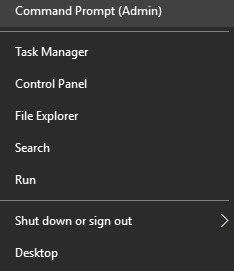
Figure 4: (English Only) Select Command Prompt (Admin)
- If User Account Control (UAC) is active, click Yes to open command prompt. If UAC is disabled go to step 3.

Figure 5: (English Only) Click Yes
- In the Administrator Command Prompt, type
reg add HKLMSOFTWAREMicrosoftWindowsCurrentVersionQualityCompat /v cadca5fe-87d3-4b96-b7fb-a231484277cc /t REG_DWORD /d 0 /fand then press Enter.

Figure 6: (English Only) Type reg add HKLMSOFTWAREMicrosoftWindowsCurrentVersionQualityCompat /v cadca5fe-87d3-4b96-b7fb-a231484277cc /t REG_DWORD /d 0 /f and then press Enter
- Right-click the command prompt menu bar and then select Close.
Note:
- Alternatively, registry modifications can be deployed in an enterprise environment using Group Policy Objects (GPO). For more information reference https://technet.microsoft.com/en-us/library/cc753092(v=ws.11).aspx
- Dell ProSupport does not support the creation, management, or deployment of GPOs. For support, contact Microsoft directly.
To contact support, reference Dell Data Security International Support Phone Numbers.
Go to TechDirect to generate a technical support request online.
For additional insights and resources, join the Dell Security Community Forum.
Affected Products
Dell Data Guardian, Dell Encryption, Dell Protected Workspace, Dell Security Tools, Dell Threat Defense, Dell Endpoint Security Suite Pro, Dell Endpoint Security Suite EnterpriseArticle Properties
Article Number: 000125160
Article Type: Solution
Last Modified: 20 Mar 2025
Version: 12
Find answers to your questions from other Dell users
Support Services
Check if your device is covered by Support Services.