How to Install Dell Endpoint Security Suite Enterprise for Mac
Summary: Learn about how to install Dell Endpoint Security Suite Enterprise for Mac by using either the user interface (UI) or Terminal.
This article applies to
This article does not apply to
This article is not tied to any specific product.
Not all product versions are identified in this article.
Instructions
Note:
- As of May 2022, Dell Endpoint Security Suite Enterprise has reached End of Maintenance. This product and its articles are no longer updated by Dell. For more information, reference Product Life Cycle (End of Support and End of Life) Policy for Dell Data Security. If you have any questions on alternative articles, either reach out to your sales team or contact endpointsecurity@dell.com.
- Reference Endpoint Security for additional information about current products.
This article provides the steps for installing Dell Endpoint Security Suite Enterprise for Mac.
Affected Products:
- Dell Endpoint Security Suite Enterprise for Mac
Affected Operating Systems:
- Mac
Dell Endpoint Security Suite Enterprise for Mac can be installed through the user interface (UI) or through Terminal. Click the appropriate method for more information.
UI
Installation through the UI differs based on the version being installed. Click v1401 and Later or v1391 for specific installation steps.
v1401 and Later
- Double-click the Endpoint Security Suite Enterprise-[VERSION]-Release.dmg to mount the installer.
 Note: [VERSION] represents the installer version variable.
 - Double-click Endpoint Security Suite Enterprise.
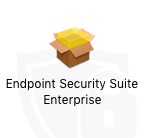
- In the UI, click Continue to validate the endpoint meets all requirements.
 Note: For more information about product system requirements, reference Dell Endpoint Security Suite Enterprise System Requirements.
 - Click Continue.
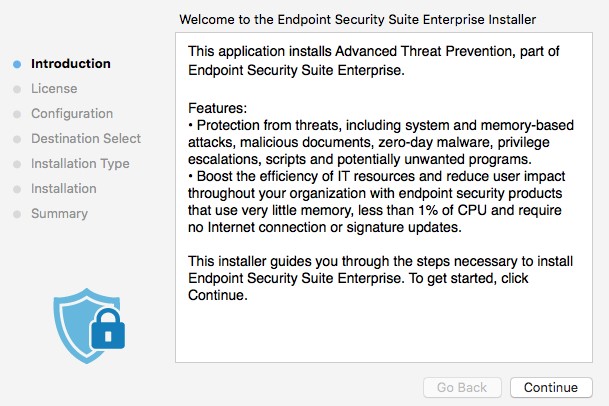
- Click Continue.
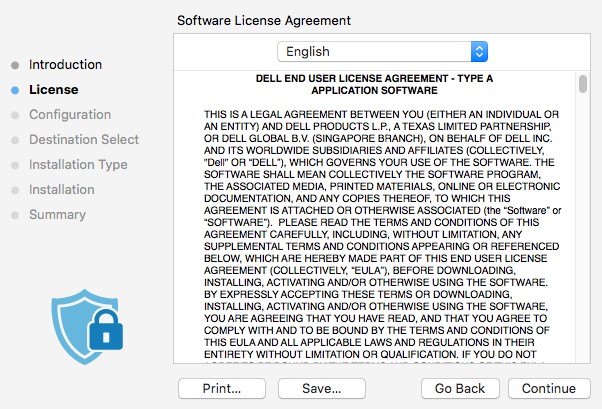
- Agree to the terms of the software license agreement.
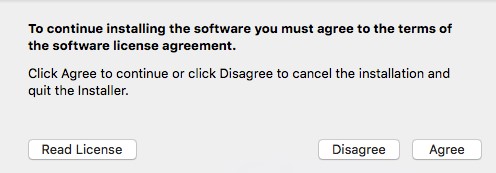
- From the Dell Security Management Server Configuration menu:
- Populate the Server Host.
- Populate the Server Port.
- Click Continue.
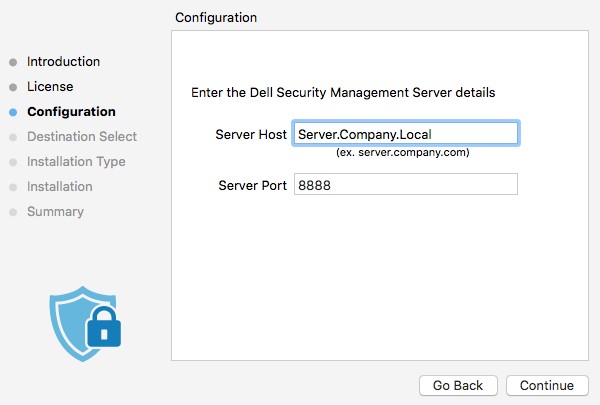 Note:
Note:- The example
Server.Company.Localwill differ from the server fully qualified domain name (FQDN) in your environment. - The default port may differ from the port in your environment.
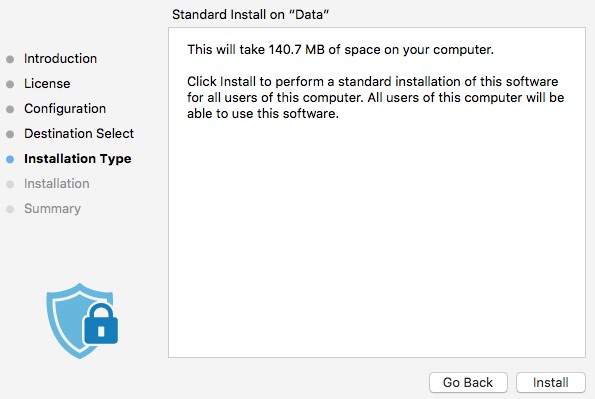
- Click Install.
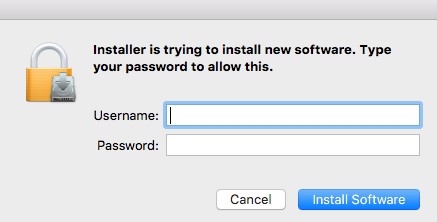
- To confirm installation, populate the Username and Password of a local administrator. Once populated, click Install Software.
- On successful installation, click Close.
 Note: If installation fails, reference How to Collect Logs for Dell Endpoint Security Suite Enterprise.
v1391
- Double-click the Endpoint Security Suite Enterprise-[VERSION]-Release.dmg to mount the installer.
 Note: [VERSION] represents the installer version variable.
 - Double-click Endpoint Security Suite Enterprise.
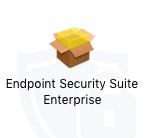
- In the UI, click Continue to validate the endpoint meets all requirements.
 Note: For more information about product system requirements, reference Dell Endpoint Security Suite Enterprise System Requirements.
 - Click Continue.
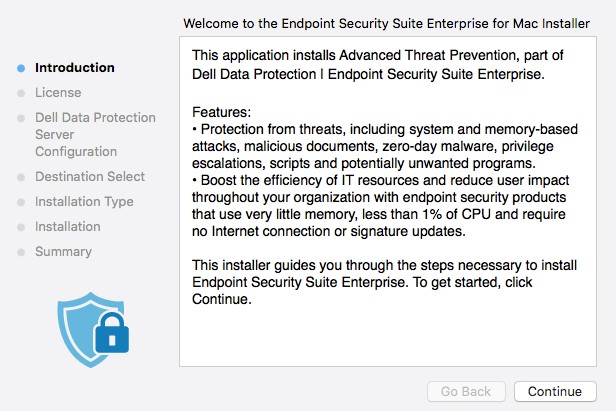
- Click Continue.
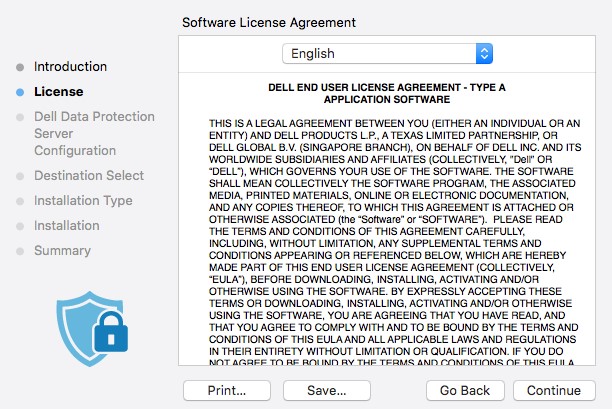
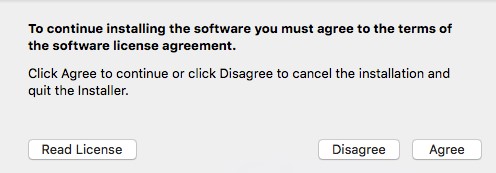
- Agree to the terms of the software license agreement.
- From the Dell Data Protection Server Configuration menu:
- Populate the Server Host.
- Populate the Server Port.
- Click Continue.
 Note:
Note:- The example
Server.Company.Localwill differ from the server fully qualified domain name (FQDN) in your environment. - The default port may differ from the port in your environment.
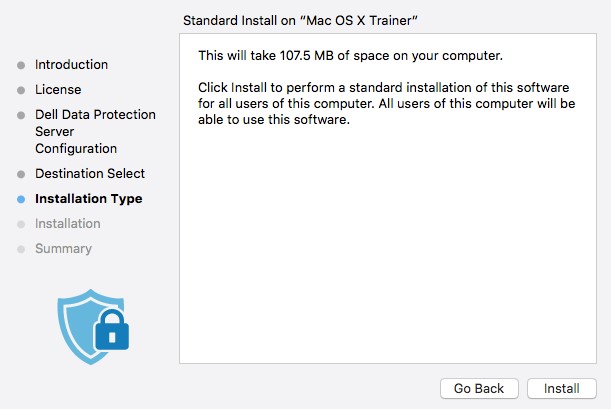
- Click Install.
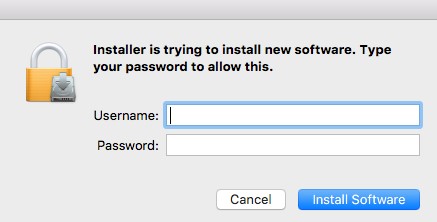
- To confirm installation, populate the Username and Password of a local administrator. Once populated click Install Software.
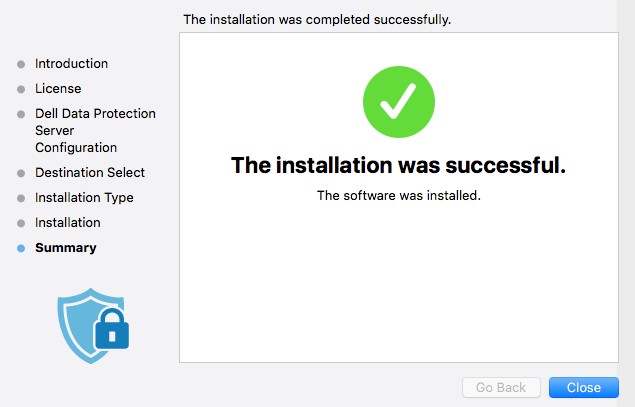
- On successful installation, click Close.
 Note: If installation fails, reference How to Collect Logs for Dell Endpoint Security Suite Enterprise.
Terminal
An administrator must Configure a property list (plist) file before using Terminal for Deployment of Dell Endpoint Security Suite Enterprise for Mac. Click the appropriate process for more information.
Configure
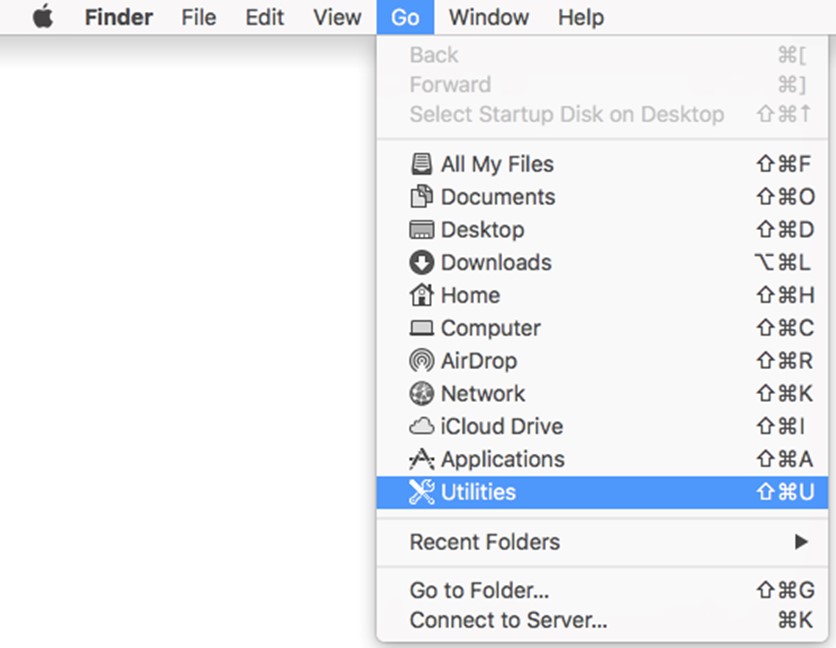
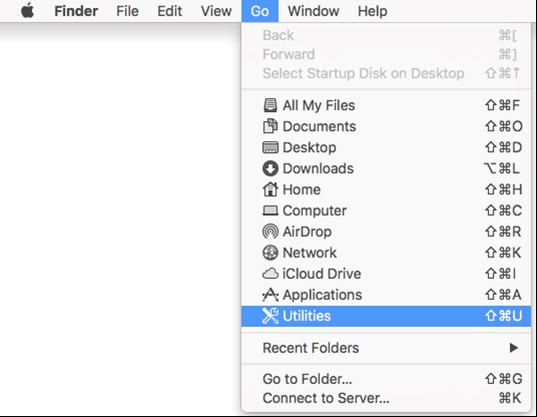
- From the Apple menu, click Go and then select Utilities.
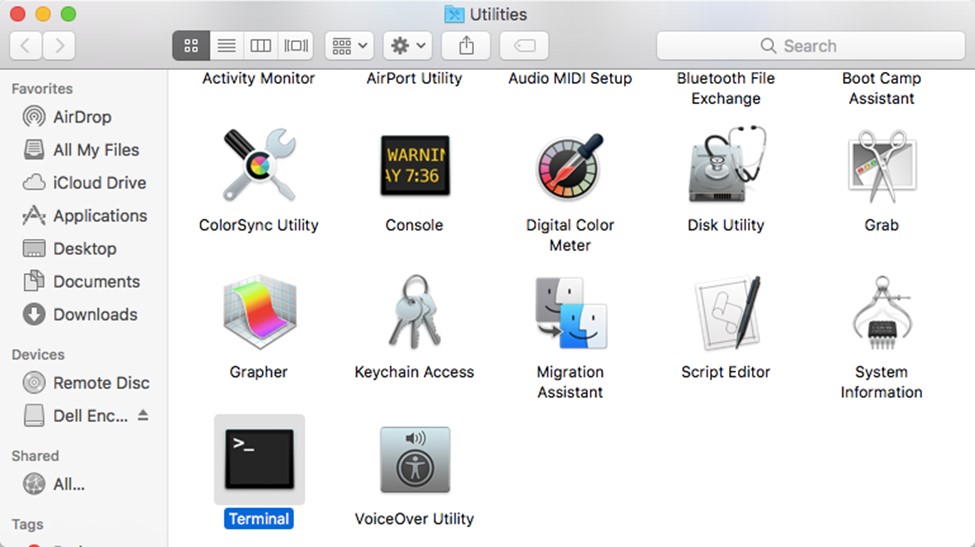
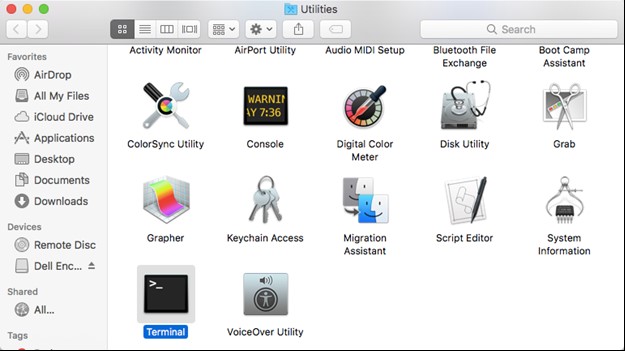
- In the Utilities menu, double-click Terminal.
- In Terminal, type
hdiutil attach -owners on "/Users/test/Desktop/Endpoint Security Suite Enterprise-[VERSION]-Release.dmg" -shadowand then press Enter. Note:
Note:[VERSION]represents the installer version variable.- The path in your environment may differ from the example above.
- Type
sudo nano "/Volumes/Endpoint Security Suite Enterprise for Mac/Utilities/com.dell.esse.plist"and then press Enter. Note: Sudo commands require local administrator credentials to run the operation successfully.
 - Under the
DeviceServerskey, replace:- The string field with the fully qualified domain name (FQDN) of the Dell Security Management Server
- The integer field with the port used for server communication
 Note:
Note:- The example FQDN
server.company.localwill differ in your environment. - Port 8888 is used by default for registration. This port may differ in your environment.
- Press CTRL+X to exit. Upon being prompted to save, press Y to continue.

- Press Enter to save without changing the filename.

- In Terminal, type
sudo cp "/Volumes/Endpoint Security Suite Enterprise for Mac/Utilities/com.dell.esse.plist" /Library/Preferencesand then press Enter. Note:
Note:com.dell.esse.plistmust be saved toLibrary/Preferencesbefore the Terminal deployment of Dell Endpoint Security Suite Enterprise for Mac.- The configured
plistcan be used across an environment deployment of the product.
Deployment
- Double-click Endpoint Security Suite Enterprise-[VERSION]-Release.dmg to mount the installer.
 Note: [VERSION] represents the installer version variable.
 - From the Apple menu, click Go and then select Utilities.
- In the Utilities menu, double-click Terminal.
- In Terminal, type
sudo installer -pkg "/Volumes/Endpoint Security Suite Enterprise for Mac/Endpoint Security Suite.pkg" -target /and then press Enter. Note:
Note:- Sudo commands require local administrator credentials to run the operation successfully.
- If installation fails, reference How to Collect Logs for Dell Endpoint Security Suite Enterprise.
To contact support, reference Dell Data Security International Support Phone Numbers.
Go to TechDirect to generate a technical support request online.
For additional insights and resources, join the Dell Security Community Forum.
Affected Products
Dell Endpoint Security Suite EnterpriseArticle Properties
Article Number: 000125462
Article Type: How To
Last Modified: 12 Mar 2025
Version: 13
Find answers to your questions from other Dell users
Support Services
Check if your device is covered by Support Services.