如何重設系統時鐘以還原您的 Dell 筆記本電腦
摘要: 本文提供如何在 Dell 筆記本電腦上重設即時時鐘(RTC)的相關資訊。RTC 重設可協助將支援的 Dell 筆記型電腦從不能通電、無法開機或無法開機的問題復原。
本文章適用於
本文章不適用於
本文無關於任何特定產品。
本文未識別所有產品版本。
說明
受影響的平台:
- Inspiron
- Latitude
- Precision
- Vostro
- Alienware
- XPS 筆記型電腦
Dell Plus LaptopsDell Pro Plus LaptopsDell Pro Premium LaptopsDell Pro Rugged Laptops
即時時鐘 (RTC) 重設功能可讓您或 Dell 服務技術人員在 Dell Latitude、Inspiron、Precision、Vostro、Alienware 或 XPS 筆記型電腦從無電源、無 POST 或無法開機問題的情況下復原。
RTC 重設會將 BIOS 重設為原廠預設設定、重設電腦日期和時間,並取消佈建 Intel vPro (IT 系統管理員在電腦上的 vPro 帳戶和密碼 將為未佈建。您必須再次完成設定和組態程序,才能將其連線至 vPro 伺服器)。
注意:自 2025 年 6 月起,如果在 BIOS 中已設定管理員密碼,則可停用手動 RTC 重設。如需更多資訊,請參閱 若已設定 BIOS 管理員密碼,則停用 RTC 重設。
注意:即時時鐘 (RTC) 重設僅適用於特定的 Dell Alienware、Inspiron、Latitude、Precision、Vostro 和 XPS 筆記型電腦。請參閱支援 RTC 重設的 Dell 筆記型電腦清單。
若要瞭解如何重設 Dell 桌上型電腦上的 RTC,請參閱 Dell 知識文章 如何重設即時時鐘 (RTC) 以還原您的 Dell 桌上型電腦。
在重設過程中,電腦會重新啟動數次,然後根據其設定方式,您可能會在按住電源按鈕時,以及放開電源按鈕後,看見鍵盤背光或其他 LED 指示燈。重設完成後,電腦應該會重新開機,如果出現 Dell 標誌畫面,便表示系統重設成功。
注意:RTC 重設完成後,電腦可能會保持在無法開機的狀態,直到時間、日期和其他 BIOS 設定 (SATA 磁碟機選項等) 皆已正確設定為開機進入 Windows。重設後無法立即開機,並不表示重設失敗。您必須還原先前的 BIOS 設定,例如將 SATA 作業模式設為 RAID On 或 AHCI 模式,以使電腦能開機進入作業系統。
下列項目不受 RTC 重設的影響:
- 如果 TPM 已開啟 並 啟用,RTC 重設不會受到影響 (將保持 開啟 並 啟用)
- 產品服務編號
- 資產標籤
- 所有權標籤
- 管理員密碼
- 系統密碼
- 硬碟密碼
- 重要資料庫
- 系統記錄
根據自訂 BIOS 設定,下列選項可能會或可能不會重設:
- 開機清單
- 啟用傳統選項 ROM
- 啟用安全開機
- 允許 BIOS 降級
重設即時時鐘
持續時間:00:00:35 (小時:分鐘:秒)
當可用時,您可以使用此影像播放器上的 CC 圖示來選擇隱藏式輔助字幕 (字幕) 語言設定。
如何重設即時時鐘 (RTC)
- 關閉電腦。
- 將 AC 變壓器連接至電腦。
- 按住電源按鈕 (約 30-35 秒),直到電源 LED 閃爍三次。
- 放開電源按鈕。
- 在放開電源按鈕後,便完成 RTC 重設。
注意:
- 即時時鐘 (RTC) 重設僅適用於特定的 Dell Alienware、Inspiron、Latitude、Precision、Vostro 和 XPS 筆記型電腦。請參閱支援 RTC 重設的 Dell 筆記型電腦清單。
- 如果在重設過程中從筆記型電腦拔下 AC 變壓器,或按住電源按鈕少於 25 秒或超過 40 秒,RTC 重設程序便會中止。
如果 RTC 重設成功完成,您可能會看到如下圖所示的訊息。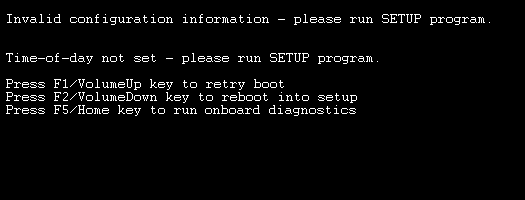
注意:按下 F2 進入 BIOS 重設自訂 BIOS 選項 (如果有)。確認日期和時間正確無誤,並為您的正常組態變更任何其他必要的 BIOS 選單選項,然後重新啟動電腦。
如果您的 Dell 筆記本電腦仍無法開機進入作業系統,請參閱以下 Dell 知識庫文章:
- 如何針對 Dell 筆記型電腦的電源問題進行故障診斷
- 如何針對 Dell 筆記型電腦的無 POST 問題進行故障診斷
- 如何針對 Dell 筆記型電腦 LCD 顯示器的顯示或影像問題進行故障診斷
- Dell 電腦無法開機至 Windows 10
- 如何重設即時時鐘 (RTC) 以還原您的 Dell 桌上型電腦系統
- Dell 電腦無法啟動或開機進入 Windows,並出現無開機裝置等錯誤
- Alienware 電腦無法開啟或進入 Windows
支援 RTC 重設的 Dell Alienware、Inspiron、Latitude、XPS 和 Precision 筆記型電腦
注意:除下列電腦外,所有搭載第 8 代 (Kaby Lake) (2017) 處理器的 Intel 型 Dell 電腦均支援 RTC 重設。
所有採用 Intel 技術的 Dell 電腦第 9 代和更新版本 (Coffee Lake) (2018) 都支援透過電源線進行改良的 RTC 重設 (這是 RTC 重設的附加功能,也會重新開機主機板的內部電源電路)。
所有採用 Intel 技術的 Dell 電腦第 9 代和更新版本 (Coffee Lake) (2018) 都支援透過電源線進行改良的 RTC 重設 (這是 RTC 重設的附加功能,也會重新開機主機板的內部電源電路)。
支援的電腦:
- DELL G3 3579
- DELL G7 7588
- Inspiron 14-3467
- Inspiron 14-5468
- Inspiron 15-3552
- Inspiron 15-3558
- Inspiron 15-3565
- Inspiron 15-3567
- Inspiron 15-3568
- Inspiron 15-3576
- Inspiron 15-5558
- Inspiron 15-5559
- Inspiron 15-5567
- Inspiron 3542
- Inspiron 5370
- Inspiron 5378
- Inspiron 5557
- Inspiron 5570
- Inspiron 5577
- Inspiron 7373
- Inspiron 7460
- Inspiron 7472
- Inspiron 7559
- Inspiron 7560
- Inspiron 7567
- Inspiron 7570
- Inspiron 7572
- Inspiron 7577
- Latitude 11 3180
- Latitude 11 3189
- Latitude 12 5280 Mainstream
- Latitude 12 5285 二合一
- Latitude 12 5289 二合一
- Latitude 12 7212
- Latitude 12 7280 Ultrabook
- Latitude 12 7285 二合一
- Latitude 13 3380
- Latitude 14 3480
- Latitude 14 5480 Mainstream
- Latitude 14 7480 Ultrabook
- Latitude 15 3580
- Latitude 15 5580 Mainstream
- Precision 15 3520
- Precision 15 5520
- Precision 15 7520
- Precision 17 7720
- Precision 5540
- Precision 5550
- Precision 5560
- Precision 5570
- Precision 5760
- Precision 5770
- XPS 13 9360
- XPS 13 9365 二合一
- XPS 15 9560 (Kaby Lake CPU)
- XPS 9320
- XPS 9380
- XPS 9500
- XPS 9510
- XPS 13 7390
- XPS 13 7390 二合一
- XPS 13 9300
- XPS 13 9305
- XPS 13 9310
- XPS 13 9310 二合一
- XPS 13 9315
- XPS 15 7590
- XPS 15 9520
- XPS 17 9710
- XPS 17 9720
- XPS 9315 二合一
- Alienware M15 R5 Ryzen Edition
- Alienware M15 R7 AMD
- Alienware M17 R5 AMD
支援自我修復的 Dell Latitude 筆記型電腦
此外,以下列出的所有 Dell Latitude E1 至 E3 系列筆記型電腦和 E4 至 E7 系列筆記型電腦,都支援自我修復功能。
如何在 Dell 上使用自我康復 Latitude:
持續時間:00:58
當可用時,您可以使用此影片播放器上的設定或 CC 圖示來選擇隱藏式輔助字幕 (字幕) 語言設定。
支援自我修復功能的 Dell Latitude 筆記型電腦
- Latitude 3150
- Latitude 3160
- Latitude 3340
- Latitude 3440
- Latitude 3450
- Latitude 3550
- Latitude 5250
- Latitude 5450
- Latitude 5550
- Latitude 6430U
- Latitude 7350
- Latitude 7370
- Latitude E5250
- Latitude E5270
- Latitude E5440
- Latitude E5540
- Latitude E5550
- Latitude E5570
- Latitude E6230
- Latitude E6330
- Latitude E6430
- Latitude E6430 ATG
- Latitude E6430S
- Latitude E6440
- Latitude E6530
- Latitude E6540
- Latitude E7240
- Latitude E7240X
- Latitude E7250
- Latitude E7270
- Latitude E7440
- Latitude E7450
- Latitude E7470
其他資訊
 您的電腦是否已在保固外?如需保固外的支援,請瀏覽至 Dell.com/support 網站,輸入您的 Dell 產品服務編號以檢視我們提供的內容。
注意:提供的內容僅適用於美國、加拿大、英國、法國、德國和中國的消費者和商業電腦客戶。提供的內容不適用於伺服器和儲存裝置系統。
受影響的產品
Alienware m15 Ryzen Edition R5, Alienware m15 R7 AMD, Alienware m17 R5 AMD, Dell Plus, Dell Pro Plus, Dell Pro Premium, E-Series, Dell Pro Rugged, Dell G3 3579, Dell G7 15 7588, Inspiron 5370, Inspiron 13 5378 2-in-1, Inspiron 7373 2-in-1
, Inspiron 14 3467, Inspiron 14 5468, Inspiron 14 7460, Inspiron 7472, Inspiron 3542, Inspiron 3552, Inspiron 3558, Inspiron 15 3565, Inspiron 15 3567, Inspiron 15 3568, Inspiron 15 3576, Inspiron 3580, Inspiron 5557, Inspiron 5558, Inspiron 5559, Inspiron 15 5567, Inspiron 5570, Inspiron 15 Gaming 5577, Inspiron 15 7559, Inspiron 15 7560, Inspiron 15 Gaming 7567, Inspiron 7570, Inspiron 15 7572, Inspiron 15 Gaming 7577, Latitude 3180, Latitude 3189, Latitude 5280/5288, Latitude 5285 2-in-1, Latitude 5289 2-in-1, Latitude 7212 Rugged Extreme Tablet, Latitude 7280, Latitude 7285 2-in-1, Latitude 3340, Latitude 13 3380, Latitude 7350, Latitude 7370, Latitude 3440, Latitude 3450, Latitude 5450, Latitude 5480/5488, Latitude 7480, Latitude 3550, Latitude 5550, Latitude 5580, Latitude 3150, Latitude 3160, Latitude 6430u, Latitude E5250/5250, Latitude E5270, Latitude E5440, Latitude E5540, Latitude E5550/5550, Latitude E5570, Precision 3520, Precision 5520, Precision 5540, Precision 5550, Precision 5560, Precision 5570, Precision 7520, Precision 5760, Precision 5770, Precision 7720, Latitude 3480 mobile thin client, XPS 13 7390 2-in-1, XPS 13 7390, XPS 13 9300, XPS 13 9305, XPS 13 9310 2-in-1, XPS 13 9310, XPS 13 9315 2-in-1, XPS 13 9315, XPS 13 Plus 9320, XPS 13 9360, XPS 13 9365 2-in-1, XPS 13 9380, XPS 15 7590, XPS 15 9500, XPS 15 9510, XPS 15 9520, XPS 15 9560, XPS 17 9710, XPS 17 9720
...
文章屬性
文章編號: 000125880
文章類型: How To
上次修改時間: 05 Sept 2025
版本: 34
向其他 Dell 使用者尋求您問題的答案
支援服務
檢查您的裝置是否在支援服務的涵蓋範圍內。