Dell Security Management Server Virtual 使用 pgAdmin 访问 Postgres 数据库
Summary: 本文提供了有关如何使用 pgAdmin 访问 Dell Security Management Server Virtual Postgres 数据库的信息。
This article applies to
This article does not apply to
This article is not tied to any specific product.
Not all product versions are identified in this article.
Instructions
受影响的产品:
- Dell Security Management Server Virtual
- Dell Data Protection | Virtual Edition
要更改 Dell Security Management Server Virtual(以前称为 Dell Data Protection |Virtual Edition),您必须访问 Postgres。这可以在命令行中完成,但第三方工具(如 pgAdmin)可以提供更好的体验。
要访问数据库,请执行以下操作:
- 设置 密码。
- 允许远程访问。
提醒:这些选项可在 Dell Security Management Server Virtual 控制台 的高级配置 菜单中找到。
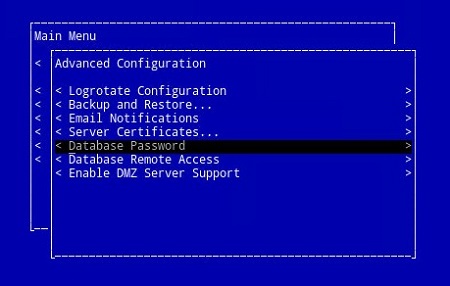

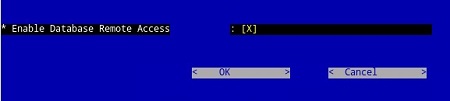
pgAdmin 3
- 现在配置了访问权限, 启动 pgAdmin。从下拉菜单中,选择 文件>添加服务器...。
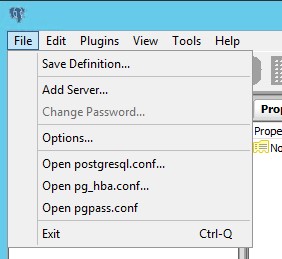
- 在 New Server Registration屏幕中填充必要的字段:
- Name:您想要的服务器的友好名称将显示在 pgAdmin 控制台中。
- 主持人:Dell Data Protection |Virtual Edition Server
- 端口:用于访问数据库的端口号(默认为 5432,应预填充。)
- 用户名:
ddp_admin - 密 码:在 Dell Data Protection |Virtual Edition Server 控制台。

- 输入该信息后,按 OK 完成将服务器添加到 pgAdmin 控制台。
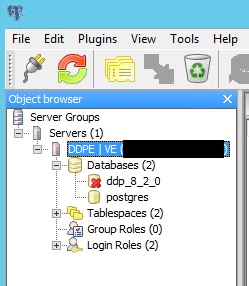
- 选择 ddp_8_2_0 ,红色的 X 应该会消失,并且 SQL 图标应该会变为可用:
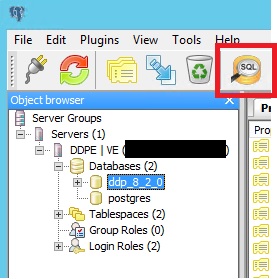
- 单击该图标以打开 查询窗口:

pgAdmin 4
- 现在已配置访问权限,请打开 pgAdmin。从下拉菜单中,选择 Object>Create>Server:
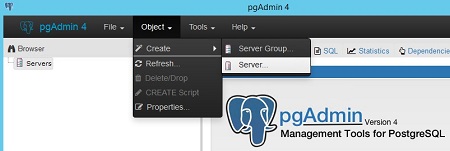
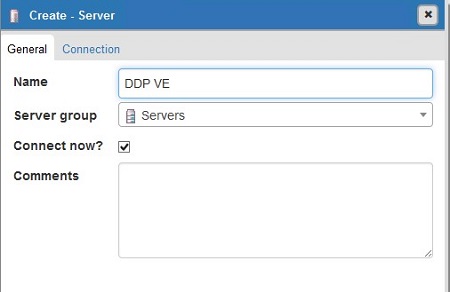
- 给服务器一个 名字 (这是它在pgAdmin浏览器中的显示方式):
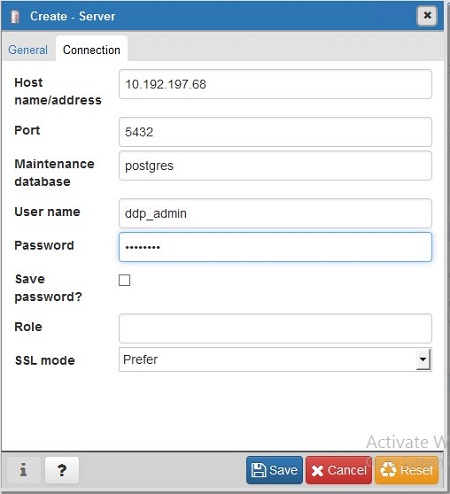
- 单击 连接 选项卡。输入以下字段:
- 主持人:Dell Data Protection |Virtual Edition Server
- 端口:用于访问数据库的端口号(默认为 5432,应预填充。)
- 用户名:
ddp_admin - 密 码:在 Dell Data Protection |Virtual Edition Server 控制台。
- 打开服务器并转到 ddp 数据库:
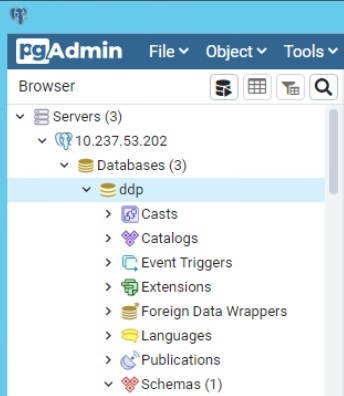
- 右键单击数据库,然后选择 Query Tool...:
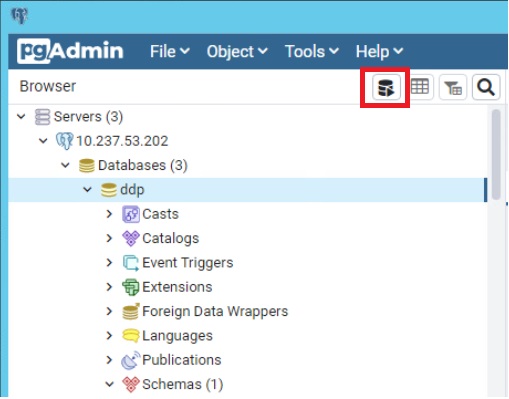
这将打开查询窗口:

要联系支持部门,请参阅 Dell Data Security 国际支持电话号码。
转至 TechDirect,在线生成技术支持请求。
要获得更多见解和资源,请加入戴尔安全社区论坛。
Affected Products
Dell EncryptionArticle Properties
Article Number: 000131368
Article Type: How To
Last Modified: 19 Jun 2026
Version: 13
Find answers to your questions from other Dell users
Support Services
Check if your device is covered by Support Services.