如何取消配置 Dell Encryption Enterprise Self-Encrypting Drive Manager 或 Dell Encryption Personal Self-Encrypting Drive Manager
Summary: Dell Encryption Enterprise 或 Personal Self-Encrypting Drive Manager(以前称为 Dell Data Protection Self-Encrypting Drive Manager)可能需要在执行其他任务之前取消配置驱动器。
This article applies to
This article does not apply to
This article is not tied to any specific product.
Not all product versions are identified in this article.
Instructions
取消配置由 Dell Data Security(以前称为 Dell Data Protection)管理的自加密驱动器必须在以下之前执行:
- 卸载 Dell Data Security 软件
- 准备驱动器以在其他端点中使用
- 重建驱动器映像
警告:未正确取消配置的自加密驱动器可能无法启动。
受影响的产品:
- Dell Encryption Enterprise 自加密驱动器
- Dell Encryption 个人自加密驱动器
- Dell Data Protection Self-Encrypting Drive Manager
- Dell Data Protection Security Tools
受影响的操作系统:
- Windows
单击 Remotely Managed 或 Locally Managed ,了解取消配置自加密驱动器的相应步骤。
远程管理
v9.2.0 和更高版本以及 v8.0.0 到 9.1.0 之间的取消资源调配过程有所不同。选择相应的 Dell Data Security(旧称 Dell Data Protection)服务器版本以查看取消配置步骤。有关更多信息,请参阅如何确定 Dell Data Security 服务器版本。
v9.2.0 和更高版本
- 从网页浏览器通过 https://servername.company.com:8443/webui 转到 Dell Data Security 管理控制台。
提醒:
- 示例 servername.company.com 可能与您的环境中的服务器 DNS 有所不同。
- 端口 8443 可能与环境中的远程管理控制台端口不同。
- 登录到 Dell Data Security 管理控制台。
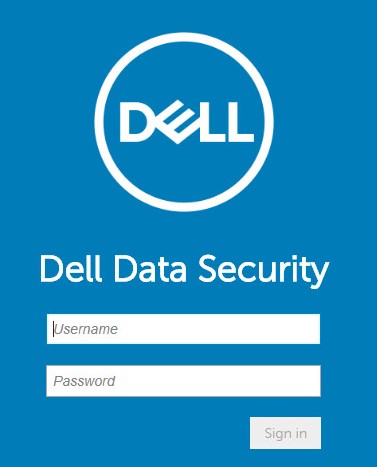
- 在左侧菜单窗格中,依次单击 Populations 和 Endpoints。

- 单击要取消配置的端点。

- 单击 Security Policies。

- 单击 Self-Encrypting Drive (SED)。
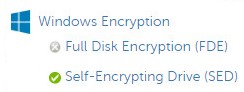
- 将 Self-Encrypting Drive (SED) 切换为 Off ,然后单击 Save。

- 提交策略更改。
提醒:有关提交策略的更多信息,请参阅 如何为 Dell Data Security 服务器提交策略。
- 从要取消设置的端点,检查策略更新。
提醒:
- 有关检查策略更新的更多信息,请参阅 如何为 Dell Data Security 检查策略更新。
- 解除资源调配后,可以卸载该产品。有关详细信息,请参阅如何运行 Dell Data Security Uninstaller(英文版)。
v8.0.0 至 v9.1.0
- 在 Windows 资源管理器中,转至
C:\Program Files\Dell\Enterprise Edition\Console\,然后双击Credant.Console.exe。
- 提交凭据以登录到远程管理控制台。
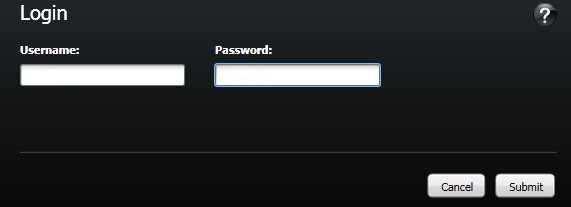
- 在左侧菜单窗格中,单击 Endpoints。

- 搜索 要取消调配的端点,然后单击 Details 图标。

- 单击 Security Policies。

- 从 Policy Category中,选择 Self-Encrypting Drives。

- 展开 SED Administration。

- 将 Enable SED Management 的本地值设置为 False ,然后单击 Save。

- 提交策略更改。
提醒:有关提交策略的更多信息,请参阅 如何为 Dell Data Security 服务器提交策略。
- 从要取消设置的端点,检查策略更新。
提醒:
- 有关检查策略更新的更多信息,请参阅 如何为 Dell Data Security 检查策略更新。
- 解除资源调配后,可以卸载该产品。有关详细信息,请参阅如何运行 Dell Data Security Uninstaller(英文版)。
本地管理
根据软件版本,取消配置自加密驱动器的步骤会有所不同。该过程在 v8.5.0 和更高版本之间以及 v8.0.0 到 8.4.0 之间有所不同。选择相应的版本以了解更多信息。
v8.5.0 和更高版本
- 在 Windows 资源管理器中,转至:
C:\Program Files\DELL\Dell Data Protection\Security Tools,然后双击Dell.SecurityFramework.AdminConsole。
- 填充管理员密码,然后单击 OK。

- 单击 Decrypt。

- 单击 Yes。

- 填充管理员密码,然后单击 OK。
 提醒:解除资源调配后,可以卸载该产品。有关详细信息,请参阅如何运行 Dell Data Security Uninstaller(英文版)。
v8.0.0 至 8.4.0
- 在 Windows 资源管理器中,转至
C:\Program Files\DELL\Dell Data Protection\Security Tools,然后双击Dell.SecurityManager.LocalConsole。
- 填充管理员密码,然后单击 OK。

- 单击 Encryption。

- 单击 Self-Encrypting Drives。

- 将 Self-Encrypting Drive Management 切换为 Off ,然后单击 Apply。

- 单击 OK。
 提醒:解除资源调配后,可以卸载该产品。有关详细信息,请参阅如何运行 Dell Data Security Uninstaller(英文版)。
要联系支持部门,请参阅 Dell Data Security 国际支持电话号码。
转至 TechDirect,在线生成技术支持请求。
要获得更多见解和资源,请加入戴尔安全社区论坛。
Additional Information
Videos
Affected Products
Dell EncryptionArticle Properties
Article Number: 000131805
Article Type: How To
Last Modified: 03 Sept 2025
Version: 12
Find answers to your questions from other Dell users
Support Services
Check if your device is covered by Support Services.