How to Update Graphics Drivers for Maximum Gaming Performance
Summary: Learn what GPU drivers are and how to update them for better gaming performance. Follow this guide for Dell graphics driver updates, including how to update video drivers to boost your system’s performance. ...
This article applies to
This article does not apply to
This article is not tied to any specific product.
Not all product versions are identified in this article.
Instructions
Table of Contents
- Why update the video card driver?
- Identifying the video card on a Dell computer
- Updating the video card driver
Why update the video card (GPU) driver?
The video card or GPU driver allows the operating system and software applications to use the computer's graphics hardware. For optimal graphics performance, it is recommended that the video card (GPU) drivers are updated.
On Windows operating systems, graphics or video card drivers must be installed from the Dell Drivers & Downloads website or through Windows Update.
Updating the video card drivers often helps resolve video or graphics-related issues like flickering, fuzzy image, blurry image, low graphics performance while gaming, jittery video, choppy video while playing games, and so on.
Dell engineers test, and validate the video card drivers available on the Dell Drivers & Downloads website. These graphics or video card drivers are tested for the most stable versions available to ensure that they do not cause video (graphics) issues on your Dell computer.
For Alienware computers, see Dell Knowledge Base article Installing Drivers on your Alienware System.
NOTE: Video card manufacturers like Intel, NVIDIA, or AMD frequently release new video card drivers that often provide performance improvements, particularly for gaming. However, these drivers are not tested or validated by Dell. Dell does not recommend downloading and installing drivers from the GPU manufacturers website.
Identifying the video card on a Dell computer
To identify the video card installed on your Dell computer:
- Press the Windows key + R on the keyboard.
- Type devmgmt.msc in the run dialog box and press Enter.
- In Device Manager, click > or + sign next to Display Adapters.
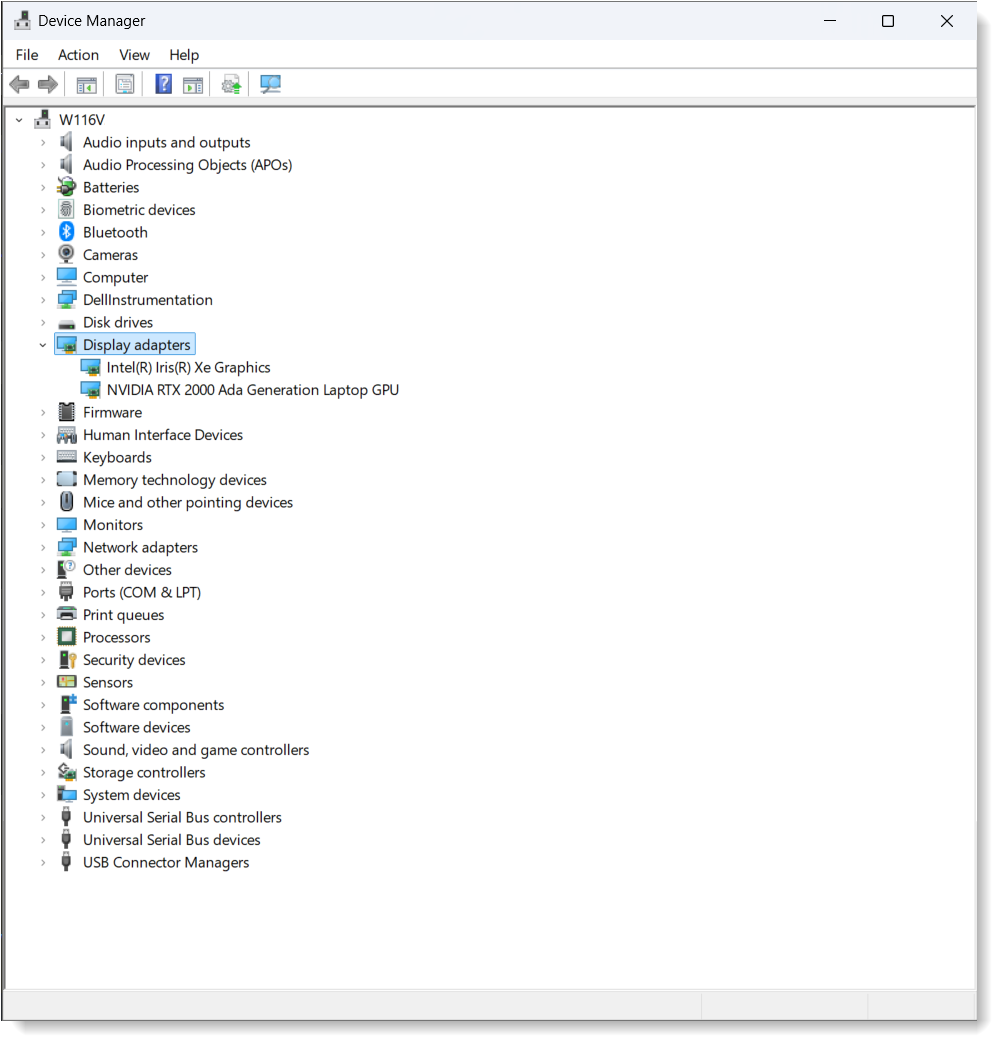
NOTE: The Dell laptop is using NVIDIA's Optimus technology, if you see both Intel and NVIDIA video card in Windows Device Manager. NVIDIA's Optimus technology intelligently switches between the NVIDIA and Intel video cards (GPU) on demand. It provides better graphics performance and increases the battery life.
How to upgrade my video card (GPU) driver
Video card or GPU drivers have a version number. You can determine if the driver is outdated by comparing the version numbers. Video card drivers must be updated by downloading and installing the latest drivers through:
- Windows Updates - Some device drivers get updated through Windows Update. On Microsoft Windows 11 and Windows 10, Windows Update automatically downloads and installs the latest drivers available for you. In Windows Update, install the recommended hardware driver updates to ensure optimal performance.
- Dell Drivers & Downloads - Dell Drivers & Downloads website allows you to download hardware drivers, firmware, and other Dell utilities. To learn more, see the Dell knowledge-base article: Drivers & Downloads FAQs.
Affected Products
Alienware, G Series, G Series, AlienwareArticle Properties
Article Number: 000149321
Article Type: How To
Last Modified: 03 May 2026
Version: 13
Find answers to your questions from other Dell users
Support Services
Check if your device is covered by Support Services.