How to Collect VMware Carbon Black Endpoint Sensor Logs Using Live Response
Summary: Learn about how to collect VMware Carbon Black Endpoint Sensor logs remotely with Live Response on Windows by following these instructions.
This article applies to
This article does not apply to
This article is not tied to any specific product.
Not all product versions are identified in this article.
Instructions
Learn instructions to collect VMware Carbon Black Endpoint and Carbon Black Defense logs remotely using the Live Response Feature in the VMware Carbon Black Cloud Console.
Affected Products:
- VMware Carbon Black Endpoint
Affected Versions:
- v3.4 and Later
Affected Operating Systems:
- Windows
VMware Carbon Black Cloud's Live Response feature is a method to collect sensor logs remotely from Microsoft Windows endpoints to provide to support for troubleshooting.
Ensure that the Live Response policy is enabled for the endpoint. The default setting is Disabled.
To collect logs using Live Response, an administrator must first Enable Policy, Run Live Response, and then Download Logs. Click the appropriate action for more information.
Note: This article focuses on how to collect logs using the Live Response feature. For more information about how to collect logs manually for all operating systems, reference How to Collect Logs for the VMware Carbon Black Cloud Endpoint Sensor.
Enable Policy
- In a web browser, go to <REGION>.conferdeploy.net.
Note: <REGION> = Region of tenant
- Americas = https://defense-prod05.conferdeploy.net/
- Europe = https://defense-eu.conferdeploy.net/
- Asia Pacific = https://defense-prodnrt.conferdeploy.net/
- Australia and New Zealand = https://defense-prodsyd.conferdeploy.net
- Americas = https://defense-prod05.conferdeploy.net/
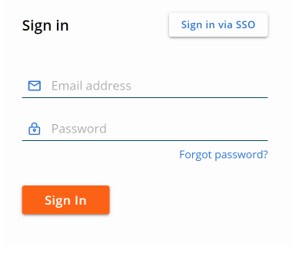
- Sign In to the VMware Carbon Black Cloud.
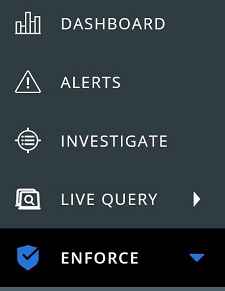
- In the left menu pane, click Enforce.
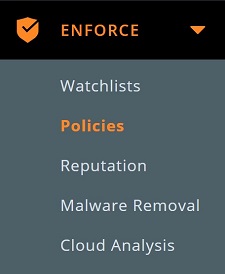
- Click Policies.
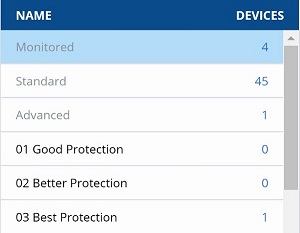
- Select a policy.
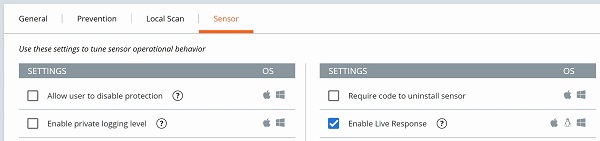
- Click the Sensor tab and verify that Enable Live Response is selected.

Run Live Response
Running Live Response differs based on whether v3.6 and Later or v3.4 to 3.5 is running of VMware Carbon Black Cloud Endpoint Sensor. Click the appropriate version for more information.
Note: For more information about identifying the version, reference How to Identify the VMware Carbon Black Cloud Endpoint Sensor Version.
v3.6 and Later
- In the left menu pane, click Endpoints.
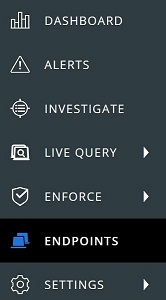
- In the All Sensors user interface (UI):
- Locate the appropriate Device Name.
- Click the drop-down box under Actions.
- Click Live Response.

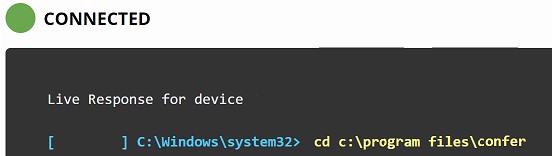
- Once Live Response connects, type
cd c:\program files\conferand then press Enter.
- Type
execfg cmd /c repcli capture "<PATH>"and then press Enter. This runs the RepCLI Utility to capture logging.
 Note:
Note:<PATH>= The absolute path of the log destination folder - Once the capture is complete, a prompt indicates that captured logs are placed in the specified destination folder with a file name of
psc_sensor.zip.Note: This may take several minutes, depending on the network bandwidth for both the endpoint that logs are being captured on and the device receiving the files.
v3.4 to 3.5
- In the left menu pane, click Endpoints.
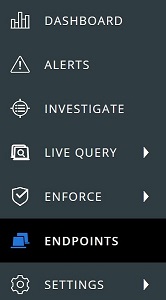
- In the All Esensors user interface (UI):
- Locate the appropriate Device Name.
- Click the drop-down box under Actions.
- Click Live Response.
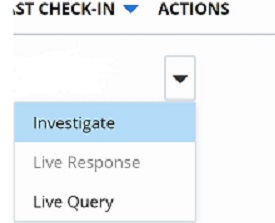
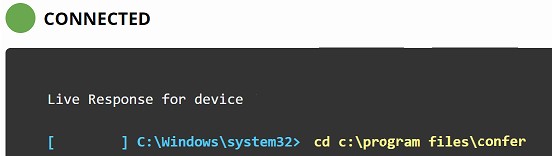
- Once Live Response connects, type
cd c:\program files\conferand then press Enter.
- Type
execfg repcli captureand then press Enter. This runs the RepCLI Utility to capture logging.
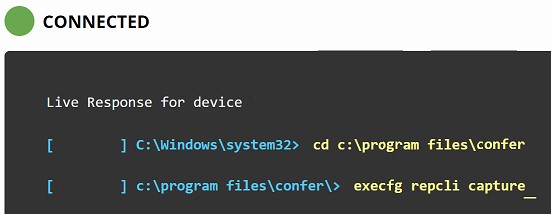
- Once the capture is complete, a prompt indicates that captured logs are placed in
C:\Windows\Temp\cb-tempwith a file name ofpsc_sensor.zip.Note: This may take several minutes, depending on the network bandwidth for both the endpoint that logs are being captured on and the device receiving the files.
Download Logs
- Type
cd C:\Windows\Temp\cb-tempand then press Enter.Note: If only theconfer.logis required, it can be directly collected by browsing toC:\Program Files\Confer, typingget confer.log, and then pressing Enter. - Type
get psc_sensor.zipand then press Enter.

- The file downloads to your local computer with an alphanumeric filename. Rename the file to add a .zip extension.
Note:
- Example alphanumeric filename:
36355d97-18f4-416e-be8f-473bda7c30fb - Example renamed filename:
SensorCapture.zip
- Example alphanumeric filename:
To contact support, reference Dell Data Security International Support Phone Numbers.
Go to TechDirect to generate a technical support request online.
For additional insights and resources, join the Dell Security Community Forum.
Affected Products
VMware Carbon BlackArticle Properties
Article Number: 000175263
Article Type: How To
Last Modified: 05 May 2026
Version: 20
Find answers to your questions from other Dell users
Support Services
Check if your device is covered by Support Services.