How to Enable Windows VBS/HVCI on a Dell Computer
摘要: This article walks you through the process of enabling the Windows Virtualization Based Security (VBS)/Hypervisor Enforced Code Integrity (HVCI) feature on a Dell computer.
本文章適用於
本文章不適用於
本文無關於任何特定產品。
本文未識別所有產品版本。
症狀
No symptoms information is available.
原因
No cause information is available.
解析度
Windows VBS/HVCI
You can confirm whether VBS/HVCI is enabled on your computer by checking either of the following methods:
- Checking the Windows System Information App:
- Windows 10 or Windows 11: Windows System Information App => System Summary => Virtualization-based security Services Configured & Virtualization-based security Services Running (MSINFO32.exe) (Figure 1)

Figure 1: HVCI/VBS enabled shown in Windows System information
- Windows 10 or Windows 11: Windows System Information App => System Summary => Virtualization-based security Services Configured & Virtualization-based security Services Running (MSINFO32.exe) (Figure 1)
- Checking in the Windows Security Settings:
- Windows 10: Windows Settings => Update & Security => Windows Security => Device Security => Core isolation Details (Figure 2)
- Windows 11: Windows Settings => Privacy & Security => Windows Security => Device Security => Core isolation Details (Figure 2)
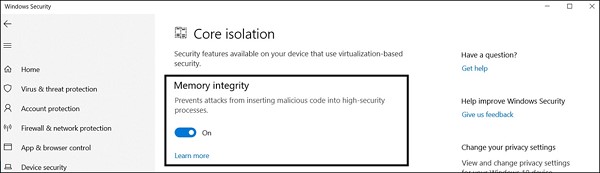
Figure 2: HVCI/VBS enabled shown in Windows Security settings
To enable Virtualization Based Security (VBS)/Hypervisor Enforced Code Integrity (HVCI), follow the steps above to load the Windows Security settings. Click the radio button, under Memory Integrity, to turn the feature on. A reboot may be required.
Additional Resources:

受影響的產品
Alienware, Dell All-in-One, Dell Pro All-in-One, Dell Pro Max Micro, Dell Pro Max Slim, Dell Pro Max Tower, Dell Pro Micro, Dell Pro Slim, Dell Pro Tower, Dell Slim, Dell Tower, Inspiron, Legacy Desktop Models, OptiPlex, Vostro, XPS, G Series
, G Series, Alienware, Dell Plus, Dell Pro, Dell Pro Max, Dell Pro Plus, Dell Pro Premium, Inspiron, Latitude, Dell Pro Rugged, Vostro, XPS, Legacy Laptop Models, Fixed Workstations, Mobile Workstations, Dell Pro Max Micro XE FCM2250, Dell Pro Max Slim XE FCS1250, Dell Pro Max Tower T2 XE FCT2250, Dell Pro Max 16 XE MC16250, Dell Pro Micro Plus XE QBM1250, Dell Pro Slim Plus XE5 QBS1250, Dell Pro Tower Plus XE5 QBT1250
...
文章屬性
文章編號: 000192246
文章類型: Solution
上次修改時間: 21 Jul 2025
版本: 4
向其他 Dell 使用者尋求您問題的答案
支援服務
檢查您的裝置是否在支援服務的涵蓋範圍內。