NVP vProxy: Troubleshooting Network Connectivity For Backup and Restore Operations
Summary: This article provides a general overview for troubleshooting network connectivity between systems that are involved during backup and restore operations of virtual machines (VMs) protected by the NetWorker VMware Protection (NVP) vProxy appliance. ...
This article applies to
This article does not apply to
This article is not tied to any specific product.
Not all product versions are identified in this article.
Instructions
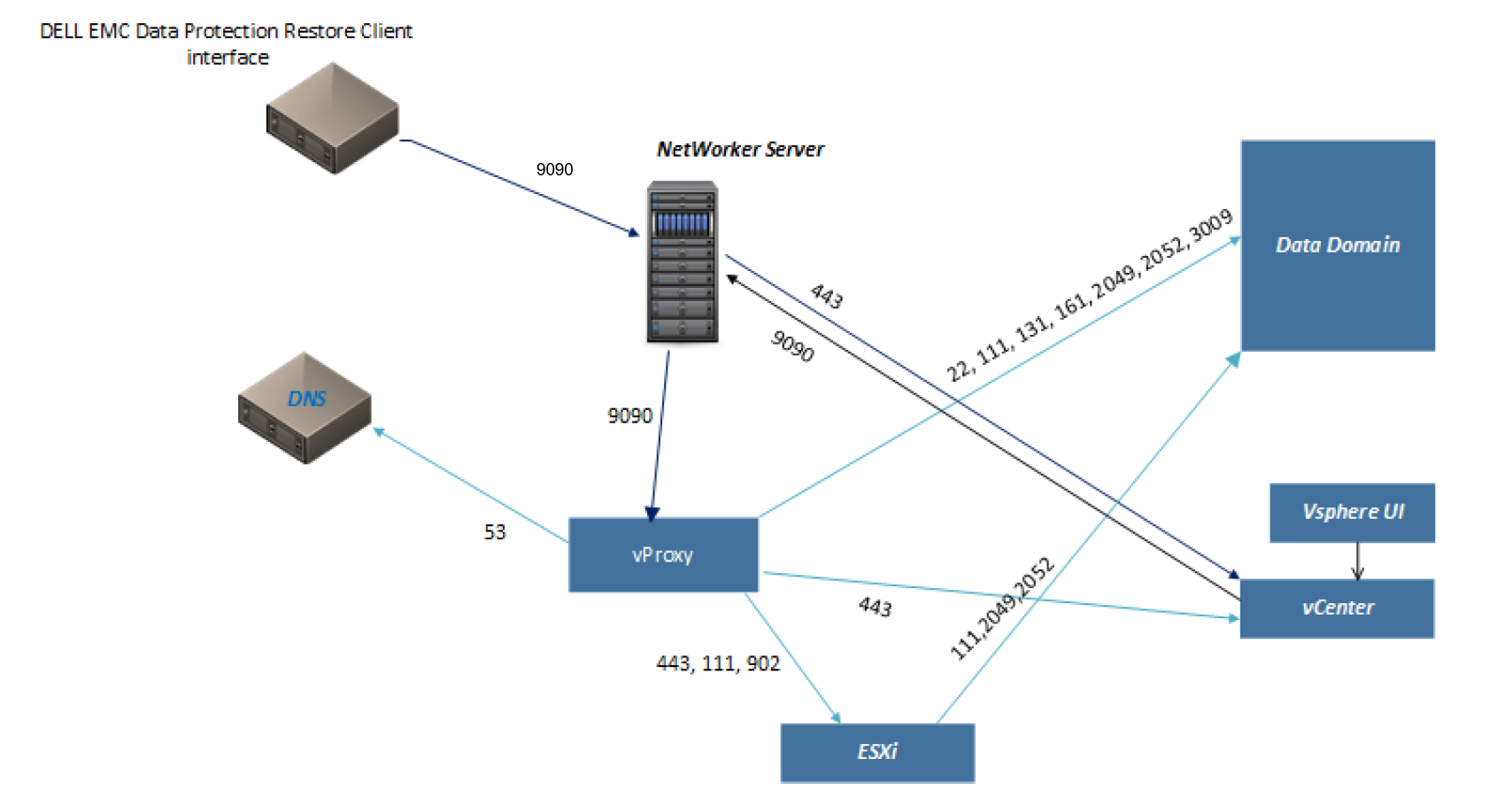
Systems and ports that are involved for VMware Virtual Machine (VM) backup and restore operations.
NOTE: Network connection issues occur outside of NetWorker and the network, firewall, or systems administrator must investigate and resolve.
Per the NetWorker Security Configuration Guide, NetWorker uses a direct socket connection to communicate and move data across the network to the required service with minimal overhead. While NetWorker opens some ports for TCP and UDP, NetWorker only requires TCP ports. UDP ports are optional, except for SNMP which uses UDP port 161 and 162.
The port table and network topology that is displayed in this KB was pulled directly from the NetWorker VMware Integration Guide. The VMware Integration and Security Configuration Guides can be found on the Dell Support NetWorker Product page.
Port Requirements
| From | To (target_system) | Port | Purpose | TLS Handshake Required? |
| NetWorker Server | vProxy Appliance | 9090 | NetWorker VMware Protection web service calls to initiate and monitor backups, image recoveries, granular recovers. | Yes |
| NetWorker Server | vCenter Server | 443 | VMware View in the NetWorker Management Console | Yes |
| NetWorker Server | ESXi Server | 443 | Emergency Restore, vProxy redeployment | Yes |
| vCenter Server | NetWorker Server | 9090 | vSphere Client's Dell NetWorker plug-in. | Yes |
| Dell Data Protection Restore Client Interface | NetWorker Server | 9090 | File-level recovery in the Dell Data Protection Restore Client.
Note: This also applies to the NetWorker Web User Interface (NWUI).
|
Yes |
| ESXi Servers | Data Domain | 111, 2049, 2052 | File-level recovery and instant recovery. | No |
| Virtual Machines | Data Domain | 111, 2049 | SQL application-consistent backups | No |
| vProxy Appliance | NetWorker Server | 9090 | vProxy Registration and status communication. | Yes |
| vProxy Appliance | Domain Name System (DNS) | 53 | Name resolution. | No |
| vProxy Appliance | Data Domain | 22, 111, 131, 161, 2049, 2052, 3009 | Data Domain management
Note: Port 3009 is required by the vProxy with DDOS 7.0 or later to perform FLR and Instant Access restore.
|
Only port 3009 |
| vProxy Appliance | ESXi Server | 443, 902 | Backup and recovery operations | Only port 443 |
| vProxy Appliance | vCenter Server | 443 | vProxy registration, backup, and recover operations.
Note: Using a nondefault vCenter port for HTTPS is not supported.
|
Yes |
| vProxy Appliance | Target Virtual Machine | 9613 | vProxy FLR - Communication with the FLR agent on the target VM. | No |
NOTE: In some cases, the initial TCP connection succeeds, but the TLS handshake fails. This usually indicates that a network security device or policy is interfering with TLS traffic between the systems. See TLS Traffic section below.
Domain Name System (DNS)
Ensure to check that DNS is resolved correctly for the systems involved, including the Fully Qualified Domain Name (FQDN), Short Name, and IP Address (Reverse Lookup).
nslookup FQDN
nslookup SHORT_NAME
nslookup IP_ADDRESS
See article: NetWorker: Name Resolution Troubleshooting Best Practices
It is also advised checking system hosts files. Host file entries may conflict or override a DNS query, or lead to an incorrect IP address or hostname.
- Linux Systems: /etc/hosts
- Windows Systems: C:\Windows\System32\drivers\etc\hosts
NetWorker Server
The NetWorker nsrports command can be used to confirm name resolution and port connectivity between the systems involved. See the above table regarding which ports and target system should be specified when testing communication.
nsrports -t target_system -p port
Linux systems can use the curl command to test connectivity:
curl -v target_system:port
Windows systems can use Test-NetConnection PowerShell cmdlet:
Test-NetConnection -ComputerName target_system -port port
vProxy Appliance
The ProxyHC (Health Check) utility can be run on the vProxy to check port connectivity between systems, see article: NVP-vProxy: How to use health check tool ProxyHC on vProxy appliance.
The vProxy appliance can also use the curl command to test connectivity. See the above table regarding which ports and target system should be specified when testing communication.
curl -v target_system:port
ESXi Server
The netcat (nc) command can be used on ESXi hosts to check port connectivity. See the above table regarding which ports and target system should be specified when testing communication.
nc -zv target_system port
See article NVP vProxy: NetWorker VIB to Open NFS Ports For vProxy FLR.
vCenter Server
vCenter servers use operating system-based connection commands. See the above table regarding which ports and target system should be specified when testing communication.
curl -v target_system:port
Virtual Machines
Whether testing communication from a VM for the Data Protection Restore Client, NetWorker Web User Interface (NWUI), or connectivity with Data Domain, the command used depends on the operating system of the virtual machine. Linux systems can use the curl command to test connectivity:
curl -v target_system:port
Windows systems can use Test-NetConnection PowerShell cmdlet:
Test-NetConnection -ComputerName target_system -port port
TLS Traffic
If TCP connectivity between two systems succeeds but communication still fails, and those systems require TLS, you must verify that the TLS handshake completes successfully.
Errors that are typically indicative of a TLS connection failure:
TLS alert, handshake failureSSL handshake failedSSL_ERROR_SYSCALL-
Connection reset by peer -
An error occurred, a low-level API call failure -
curl_easy_perform() returned error 35 -
SSL: certificate verification failed (result: XX) -
libCURL: error 35: SSL connect error -
Peer failed to perform TLS handshake
Linux Host command:
curl -kv https://HOSTNAME:PORT
Windows Host command:
curl.exe -kv https://HOSTNAME:PORT
NOTE: The TLS handshake must complete successfully. The
curl command also outputs certificate information. It is expected that self-signed certificates will report "unable to get local issuer certificate" or other certificate validation messages. You must validate that the start and expire dates, and hostname/addresses used in the certificate are correct. Any failures to complete TLS handshake must be investigated by the network or security administrators.
Additional Information
If there are no port connection issues observed; however, the connection is dropping out during backup or restore operations, the following can be performed.
Perform a timestamped ping between the systems involved. For example:
Perform a timestamped ping between the systems involved. For example:
- NetWorker server -> vProxy Appliance
- NetWorker server/Storage Node -> Data Domain
- vProxy Appliance -> Data Domain
- vProxy Appliance -> vCenter server
NOTE: Depending on the issue faced it may be necessary to run one or more tests between the different systems involved.
Linux Hosts
The following steps can be performed on Linux NetWorker servers, storage nodes, vProxy appliance, and/or the vCenter Server appliance.
1. Connect to the NetWorker server/storage node/vProxy appliance using SSH.
2. Switch to the root user:
2. Switch to the root user:
sudo su -
3. Run the following command, replacing ADDRESS with the remote host's IP Address, or DNS resolvable FQDN.
nohup ping ADDRESS | while read l; do echo "$(date) $l"; done >> /nsr/logs/$(hostname)_ping.log &
NOTE: nohup runs the command in the background even if the SSH session is terminated. Open a duplicate session to continue working. If CTRL+C is used in the session ping was run, the command is halted. The above command redirects the timestamped ping output to a log file under /nsr/logs which contains the NetWorker server's hostname.
4. Reproduce the backup or restore issue.
5. Stop the ping:
5. Stop the ping:
a. Get the process ID (PID) of the ping command:
ps -ef | grep pingb. Stop the ping process.
kill -9 PID_OF_PINGExample:
[root@nsr ~]# ps -ef | grep ping
gdm         4066    1993  0 Nov15 tty1     00:00:18 /usr/libexec/gsd-housekeeping
root      215151  215146  0 Nov18 ?        00:16:25 /opt/nsr/rabbitmq-server-3.11.16/erts-13.2.2/bin/beam.smp -W w -MBas ageffcbf -MHas ageffcbf -MBlmbcs 512 -MHlmbcs 512 -MMmcs 30 -P 1048576 -t 5000000 -stbt db -zdbbl 128000 -sbwt none -sbwtdcpu none -sbwtdio none -B i -- -root /opt/nsr/rabbitmq-server-3.11.16 -bindir /opt/nsr/rabbitmq-server-3.11.16/erts-13.2.2/bin -progname erl -- -home /nsr/rabbitmq -- -pa  -noshell -noinput -s rabbit boot -boot start_sasl -syslog logger [] -syslog syslog_error_logger false -kernel prevent_overlapping_partitions false
root      467940  467115  0 16:10 pts/3    00:00:00 ping nsr-vproxy02.amer.lan
root      468141  467115  0 16:11 pts/3    00:00:00 grep --color=auto ping
[root@nsr ~]# kill -9 467940
6. Review the ping output file for any network issues (dropped packets, high latency, so forth) which overlap with the timestamp from when the backup or restore issue is observed.
NOTE: The NetWorker Performance Optimization Planning Guide states that latency should not exceed 50 ms between the NetWorker server/storage node and Data Domain. This can result in poor throughput. Higher latency can result in sessions closing unexpectedly.
Windows Hosts
The following steps can be performed on Windows NetWorker servers and/or remote storage node.
1. Create a .bat script (timestamped_ping.bat) containing the following. Replace ADDRESS with the IP address or DNS resolvable FQDN of the remote host. Change the output location to another path if NetWorker is not installed in the default install path, or if you want to direct the output somewhere else.
@echo off
ping -t ADDRESS |find /v ""|cmd /q /v:on /c "for /l %%a in (0) do (set "data="&set /p "data="&if defined data echo(!date! !time! !data!)" >> "C:\Program Files\EMC NetWorker\nsr\logs\ping.out" 2<&1
2. Open an Administrator command-prompt in the directory that the script was saved.
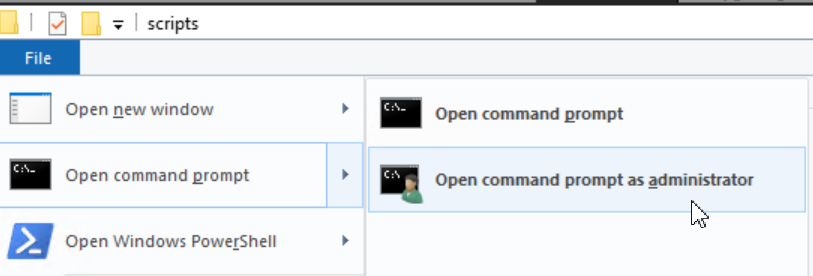
timestamped_ping.bat4. Leave the script running and reproduce the backup or restore issue.
5. Once the issue is reproduce. Stop the script by using CTRL+C in the command prompt the script is running in.
6. Review the C:\Program Files\EMC NetWorker\nsr\logs\ping.out file (or location that you specified) for any network issues (dropped packets, high latency, so forth) which overlap with the timestamp from when the backup or restore issue is observed.
NOTE: The NetWorker Performance Optimization Planning Guide states that latency should not exceed 50 ms between the NetWorker server/storage node and Data Domain. This can result in poor throughput. Higher latency can result in sessions closing unexpectedly.
Affected Products
NetWorkerProducts
NetWorker FamilyArticle Properties
Article Number: 000203350
Article Type: How To
Last Modified: 15 May 2026
Version: 20
Find answers to your questions from other Dell users
Support Services
Check if your device is covered by Support Services.