NRE 8.x: How to clear Java Cache, enable Java Console and Debugging.
Summary: This KB provides an overview of how to clear Java cache, enable java console, and configure Java debug on Microsoft Windows systems using NetWorker Runtime Environment (NRE) to access the NetWorker Management Console (NMC). ...
This article applies to
This article does not apply to
This article is not tied to any specific product.
Not all product versions are identified in this article.
Instructions
NetWorker Runtime Environment (NRE) provides the Java Runtime Environment (JRE) used by the NetWorker authentication service and NetWorker Management Console (NMC).
NOTE: This article is only applicable for NRE 8.x, which is used by NetWorker 19.12.x and prior. For NetWorker 19.13 (and later), see: NRE 17.x: How to clear Java Cache, enable Java Console and Debugging. If Oracle JRE is used instead of NRE JRE, see NetWorker: How To Clear Java Cache, enable Java Console and Debugging (Oracle Java).
Terms used to differentiate systems:
- NMC Server: The system where the NMC server package is installed and
gstdservice runs. - NMC Client: Any host used to access the NMC.
This article can be broken up into the following sections:
- NMC Service debugging. When to use:
- NMC server (
gstd) service is failing to start. - Operations within the NMC are producing unexpected errors.
- Default logging levels are inconclusive.
- NMC server (
- Java Logging. When to use:
- Operations within the NMC are producing unexpected errors.
- Default logging levels are inconclusive.
- Issues are observed on the NMC client.
- NetWorker Runtime Environment debugging:
- NMC server service is operational.
- NMC fails to launch on NMC client.
- Java Cache:
- NMC is behaving abnormally on NMC client (slow, closing, unexpected errors).
- For suspected heap issues, see: NetWorker: How to change the java heap size for the NetWorker Management Console (NMC)
Expand the below sections to see specific troubleshooting steps:
NMC Server Service (GSTD) Debug
GSTD) DebugDebugging can be enabled on the NMC's GST service. The method used is dependent on the type if issue.
Debug levels and their primary use cases are outlined in: NetWorker: Debug information levels
Approach One: NMC is not accessible, the NMC server service is failing to start.
Linux:
- On the NMC server , open an elevated shell.
- Create a copy of the NMC service control script:
cp /opt/lgtonmc/etc/gst_linux.sh /opt/lgtonmc/etc/gst_linux.sh.orig- Open the original script with a text editor:
vi /opt/lgtonmc/etc/gst_linux.sh
- Search for the
Starting GST. Add-D9after$gstdin the Starting GST block, example:
   echo_n "Starting GST: "
      if [ -x "$gstd" ] ; then
          "$gstd" -D9
          code=$?
          echo "done."
- Start the NMC service using the startup script:
/opt/lgtonmc/etc/gst_linux.sh start- Collect and review the output.
When debugging is no longer needed, revert to the original file, or remove -D9 from the Starting GST block. Manage the service using normal systemctl or service commands. For example systemctl start gst
Windows:
- On the NMC server, open an elevated prompt.
- Change directory (cd) to the NMC bin directory:
cd "C:\Program Files\EMC NetWorker\Management\GST\bin"
NOTE: The above command example shows the default NMC installation path. If you have installed the NMC software in another location, you will need to go to your installation path.
- Start the service with debugging enabled:
.\gstd.exe -D9- Collect and review the output
Approach Two: NMC is accessible and specific actions from NMC are being investigated:
- From the NMC's Enterprise screen, click the Setup tab.
- Click the Setup menu and select System Options.

- From System Options, set the Debug Level as required, typically 9.

- No service restart is required, perform actions from NMC requiring debug.
- Render the
gstd.rawfrom the NMC server.
Linux: /opt/lgtonmc/logs/gstd.raw
Windows (Default): C:\Program Files\EMC NetWorker\Management\GST\logs\gstd.raw
To render .raw files, see article NetWorker: How to use nsr_render_log to render .raw log files
- Collect the rendered
gstd.rawfile from the NMC server.
Logging Option One - Enable Java Console:
Logging Option One - Enable Java Console:
This approach is useful for when you want to observe the Java Console events while performing actions directly within the NMC. This can be used for persistent issues, or an issue that can be reproduced on demand. This output can also be logged to a file.
- On the NMC client, open a Windows File Explorer.
- Go to the NRE install location; default:
C:\Program Files\NRE\java - Depending on the NRE version installed, a different JRE folder may be seen. To open the Java control panel, go to
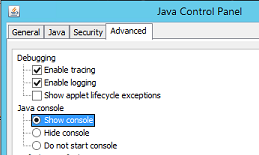
..\jre#.#.#_###\bin\and openjavacpl.exe - Click the Advanced tab.
- Ensure that Enable Tracing and Enable Logging are checked.
- Click the Show Console radio button.
- Click Apply.
- Click Ok to close the Java control panel.
- To Disable the console, repeat the process but select Hide Console.
Logging Option Two - Java Output to a File:
Logging Option Two - Java Output to a File:
This approach is useful for when you do not need the Java logging console open but would like to capture events to a log file. This is useful for intermittent issues or issues that cannot be easily reproduced on demand.
- On the NetWorker Management Console (NMC) server, open the
gconsole.jnlpfile in a text editor.
- Linux:
/opt/lgtonmc/web/gconsole.jnlp - Windows (Default):
C:\Program Files\EMC NetWorker\Management\GST\web\gconsole.jnlp
- In the
application-descsection, add the following options:
<argument>-f</argument>
<argument>C:\\Program Files\\NRE\\logs\\java1.log</argument>
Example:
<application-desc main-class="COM.legato.gwt.framework.LMainWindow">
		<argument>-g</argument>
		<argument>IPADDR_REPLACE_AT_RUNTIME(fe80::d3e7:121a:e342:3332)</argument>
		<argument>-p</argument>
		<argument>gconsole</argument>
		<argument>-i</argument>
		<argument>false</argument>
		<argument>-s</argument>
		<argument>X_NO_SERVER_X</argument>
		<argument>-P</argument>
		<argument>X_NO_SERVER_PORT_X</argument>
		<argument>-t</argument>
		<argument>X_NO_TASK_X</argument>
		<argument>-h</argument>
		<argument>9000</argument>
		<argument>-n</argument>
		<argument>9001</argument>
		<argument>-b</argument>
		<argument>5432</argument>
		<argument>-A</argument>
		<argument>9090</argument>
		<argument>-d</argument>
		<argument>0</argument>
		<argument>-a</argument>
		<argument>X_NO_AUTH_X</argument>
		<argument>-m</argument>
		<argument>X_NO_ISSUER_X</argument>
		<argument>-f</argument>
		<argument>C:\\Program Files\\NRE\\logs\\java1.log</argument>
</application-desc>
NOTE: The log file is generated on the host accessing the NMC, not the NMC server. A different log path may be specified; however, if NRE is used to launch the NMC, this path should exist on all hosts accessing the NMC.
- From the hosts used to access the NMC, delete the
gconsole.jnlpfrom the NRE temp folder. The default path isC:\Program Files\NRE\temp\gconsole.jnlp. Deleting this copy of the file forces NRE to download the new updated version from the NMC server. - The
java1.logfile is created after launching the NMC:

Java Logging - Enabling Java Debug in the NMC Console
- Enable the Java Console or Output to a File as per the above sections.
- Open the NRE NMC Launcher.
- Log in to the NetWorker Management Console.
- From the Enterprise window, CTRL+SHIFT+Right-Click.
- Click Save Debug Messages… and specify an output location.
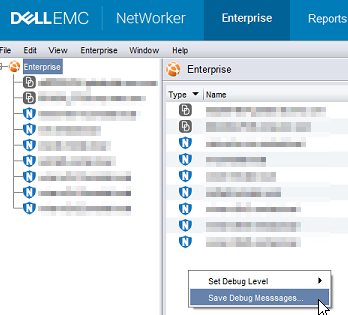
- In the Enterprise window, CTRL+SHIFT+Right-Click again.
- From Set Debug Level, select the wanted debug level. Usually, 7.

- Perform actions within NMC which require debug. Copy the output from the Java Console session and collect the Java output file that is created in step 5.
- To disable debug, repeat the process but set Debug Off.
Enabling NRE Debug:
Enabling NRE Debug:
Enable Java output to a file as per the above section.
NRE debug can be configured inside the NRE
The supported Log Levels from lowest to highest are:
OFF
SEVERE
WARNING
INFO
CONFIG
FINE
FINER
FINEST
ALL
..Program Files\NRE\logs\logConfig.properties file. The default log debug level is WARNING.
The supported Log Levels from lowest to highest are:
OFF
SEVERE
WARNING
INFO
CONFIG
FINE
FINER
FINEST
ALL
Clearing Java Cache:
Clearing Java Cache:
- On the NMC client, open a Windows File Explorer.
- Go to the NRE install location; default:
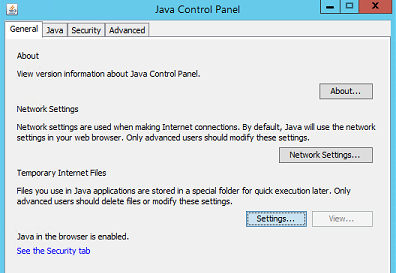
C:\Program Files\NRE\java - Depending on the NRE version installed, a different JRE folder may be seen. To open the Java control panel, go to
..\jre#.#.#_###\bin\and openjavacpl.exe - From the General tab, click Settings.
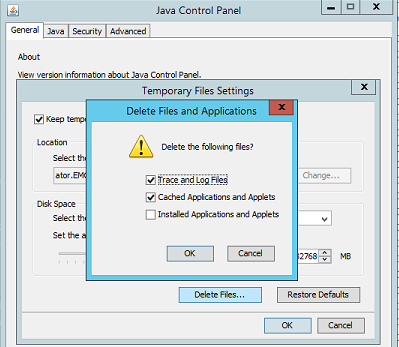
- From the Temporary Files and Settings window, click Delete Files.
- Ensure Trace and Log Files and Cache Applications and Applets is checked, click Ok.
- Click Ok to close out the remaining windows.
Additional Information
Additional Debug procedures:
Affected Products
NetWorkerProducts
NetWorker Family, NetWorker SeriesArticle Properties
Article Number: 000203881
Article Type: How To
Last Modified: 20 Aug 2026
Version: 16
Find answers to your questions from other Dell users
Support Services
Check if your device is covered by Support Services.