PowerEdge: NVIDIA A10 Not Showing in Windows Task Manager
Summary: The NVIDIA A10 GPU is designed for data center and compute workloads, not for desktop graphics. As such, it may not appear in Windows Task Manager. Instead, use the nvidia-smi command-line tool to monitor GPU status. Ensure that the driver is installed, the GPU is detected in Device Manager, and use official tools to verify functionality. ...
This article applies to
This article does not apply to
This article is not tied to any specific product.
Not all product versions are identified in this article.
Instructions
Before explaining why the NVIDIA A10 may not appear in Task Manager, ensure that you have checked the following:
Ensure that the GPU is visible in the Device Manager. If it is not detected, the system may not recognize the hardware correctly.
Note: If the GPU is not detected, troubleshooting of the driver installation and hardware compatibility may be necessary.
Understanding the NVIDIA A10 GPU:
- GPU compatibility with your server
- Firmware and driver updates are applied

Ensure that the GPU is visible in the Device Manager. If it is not detected, the system may not recognize the hardware correctly.
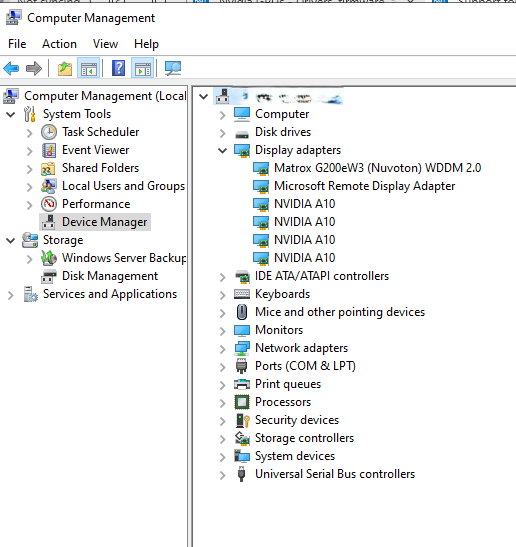
Note: If the GPU is not detected, troubleshooting of the driver installation and hardware compatibility may be necessary.
Understanding the NVIDIA A10 GPU:
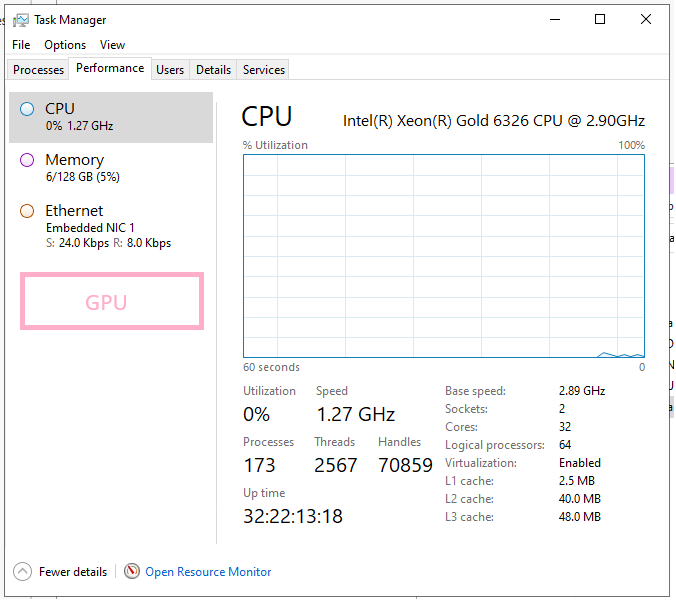
The NVIDIA A10 is not primarily a display GPU—it is designed as a data center GPU for compute and acceleration workloads (AI inference, rendering, virtualization, and so forth), not for driving monitors or handling desktop graphics. It does not present itself to the OS as a DirectX device. Windows Task Manager may not monitor it like standard GPUs.
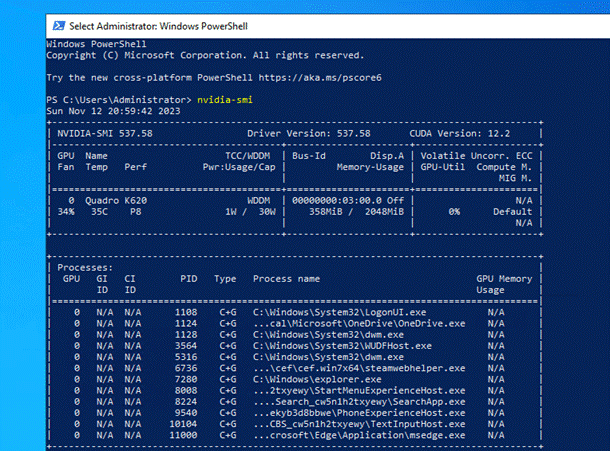
Monitor the GPU with
nvidia-smi
Instead of using Task Manager, use
How to Find
You can locate it using Windows File Explorer or a file search tool. Typical locations include:
nvidia-smi (NVIDIA System Management Interface).
How to Find
nvidia-smi.exe
You can locate it using Windows File Explorer or a file search tool. Typical locations include:
C:\Windows\System32\DriverStore\FileRepository\nvdm*\nvidia-smi.exe
(The folder name starting with
nvdm may vary)
C:\Program Files\NVIDIA Corporation\NVSMI
(on older installations)
How to Run
nvidia-smi on Windows.
- Open CMD or PowerShell as Administrator
- Run the following command:
nvidia-smi
To see command options, use:
nvidia-smi -h
Additional Information
nvidia-smi Documentation Link:
Affected Products
OEMR R740, OEMR R740xd, OEMR R740xd2, OEMR R750, OEMR R750xa, OEMR R7525, OEMR T550, OEMR XR11, OEMR XR12, PowerEdge R740, PowerEdge R740XD, PowerEdge R740XD2, PowerEdge R750, PowerEdge R750XA, PowerEdge R7525, PowerEdge T550, PowerEdge XE2420
, PowerEdge XR11, PowerEdge XR12
...
Article Properties
Article Number: 000315616
Article Type: How To
Last Modified: 07 May 2025
Version: 1
Find answers to your questions from other Dell users
Support Services
Check if your device is covered by Support Services.