PowerProtect Data Protection Appliance, IDPA: Protection Storage Upgrade Procedure
Summary: This article provides the procedure to manually upgrade the Integrated Data Protection Appliance (IDPA) Protection Storage (Data Domain) component to the latest approved version.
This article applies to
This article does not apply to
This article is not tied to any specific product.
Not all product versions are identified in this article.
Instructions
Procedure to upgrade Protection Storage (DD) within IDPA:
It is recommended that this procedure only be followed for appliances that are already on the latest IDPA version and the upgrade is approved as shown in the article IDPA: Allowed Point Product Upgrades.
- Download the Data Domain Operating System version approved in the Allowed Point Product Upgrades article, upgrade RPM package Dell Support site for Data Domain (Log in as registered Dell Support user is required to view this document)
Verify the MD5 or SHA256 checksum for the file you download.- Ensure that there are no backups running on the Avamar server. Log in as admin and disable both scheduler and maintenance:
dpnctl stop sched,maint- Log in to the ACM dashboard with your credentials.
- Use the Protection Storage System Manager UI link to log in into Data Domain (using sysadmin and common password credentials).
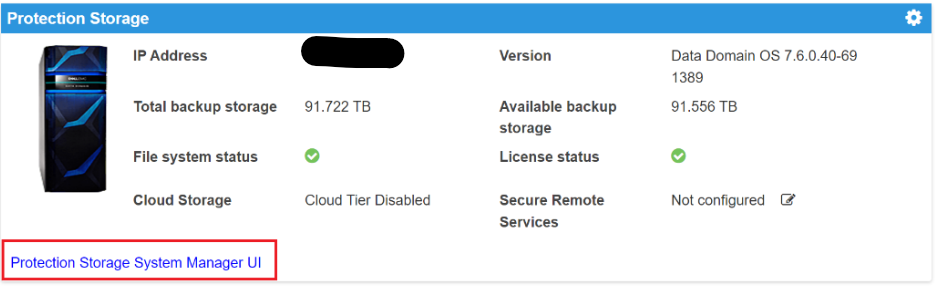
- Ensure that there is no replication job running on the Data Domain.
- Use the Maintenance > System menu from the DD System Manager.
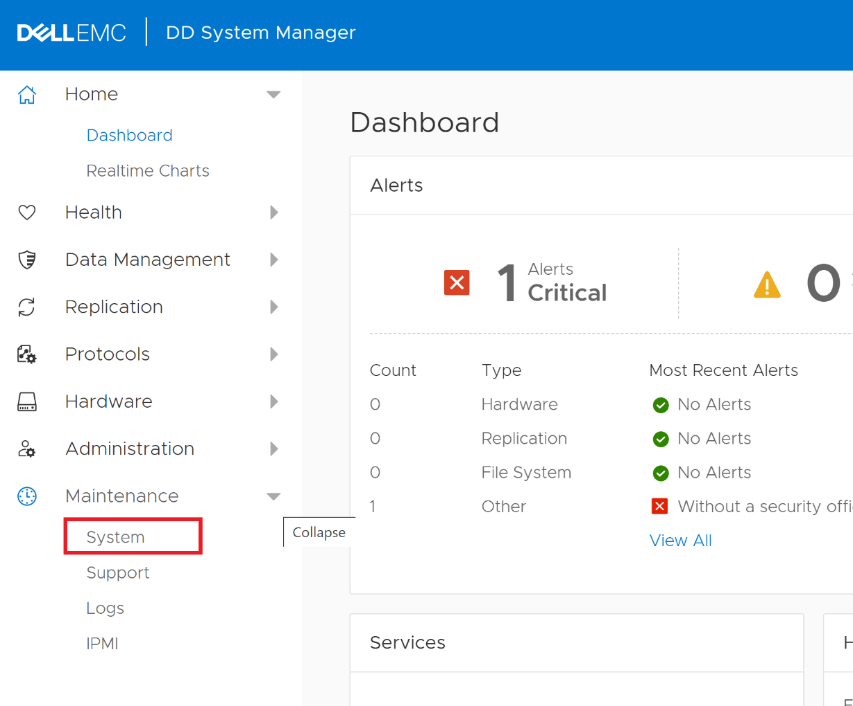
- Use the UPLOAD UPGRADE PACKAGE button to upload the package downloaded in step 1.
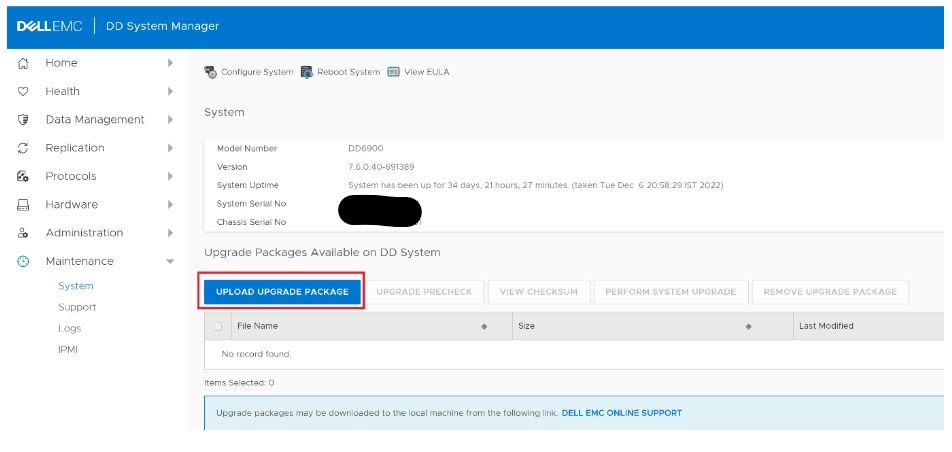
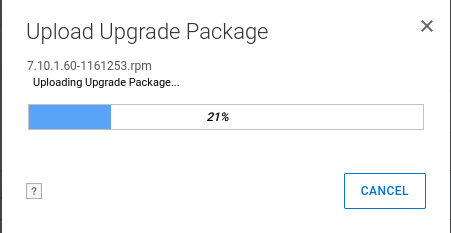
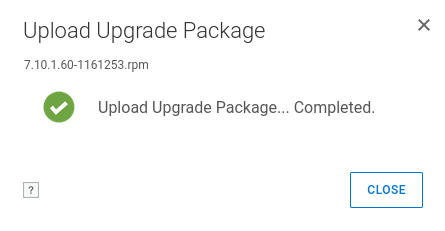
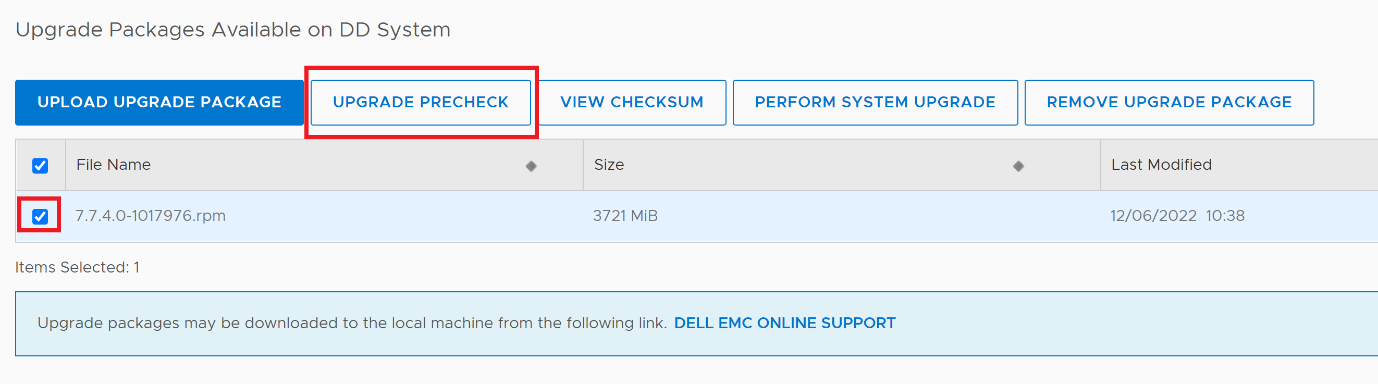
- Select the uploaded RPM package and click the UPGRADE PRECHECK button.
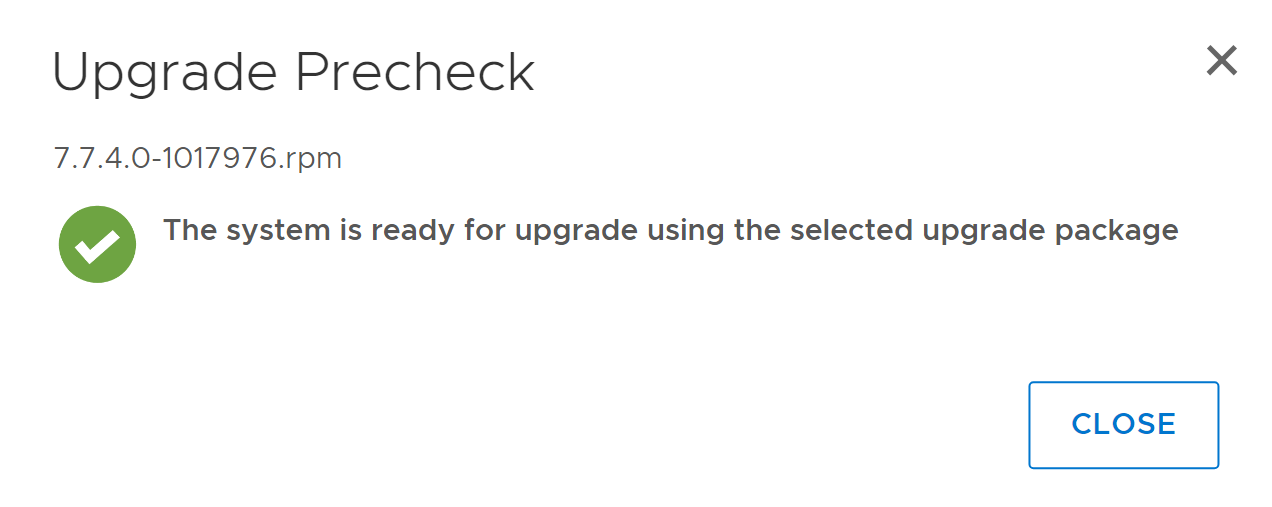
- After the precheck is successful, the dialog box (with the appropriate version) shows. If the precheck is unsuccessful, contact Dell Support for assistance.
- Close the dialog box and select the package to PERFORM SYSTEM UPGRADE. Click OK to continue.
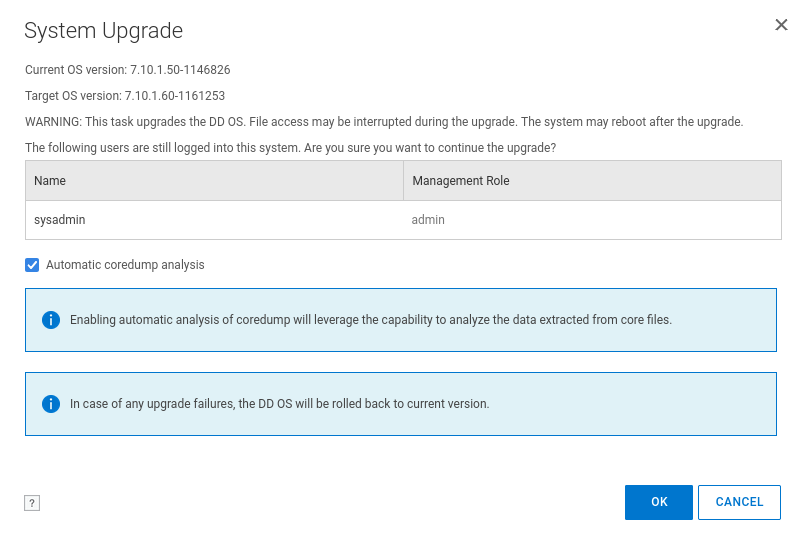
- After clicking the OK button, it shows the Data Domain upgrade progress. The upgrade happens in four stages:
- Pre-Check Upgrade Packages
- Install Upgrade Software
- Reboot System
- Finalize Upgrade
As the Data Domain is rebooting at this stage, it may be required to refresh the web page, although it should refresh on its own.
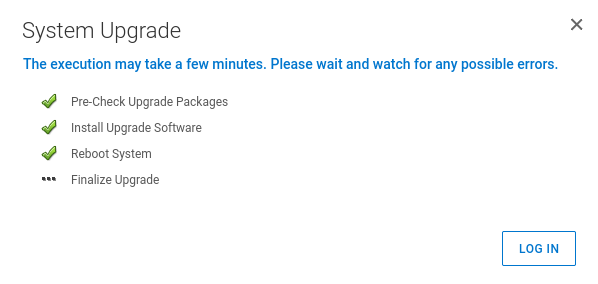
Once the Data Domain returns after reboot, the upgrade is complete. The new version is shown in the ACM dashboard.
- Restart the Avamar scheduler which was stopped in the step 2:
dpnctl start sched,maintAffected Products
Integrated Data Protection Appliance Family, Integrated Data Protection Appliance SoftwareArticle Properties
Article Number: 000206181
Article Type: How To
Last Modified: 14 May 2026
Version: 14
Find answers to your questions from other Dell users
Support Services
Check if your device is covered by Support Services.