PowerFlex 3.6でdevice_configにPowerFlex Gatewayのpuppet証明書がない
Summary: この記事では、データベース内のdevice_configテーブルにPowerFlex Gatewayのpuppet-certがないことが原因で発生する問題を特定して修正する方法について説明します。
Symptoms
-
RCM/ICのアップグレード、サービス モードの開始または終了などのサービス関連操作失敗します。
-
deployment.logには、次のようなエラーが含まれています。
-
post_requestで発生したVXOS REST APIエラー: nil:NilClass の未定義のメソッド '[]'
-
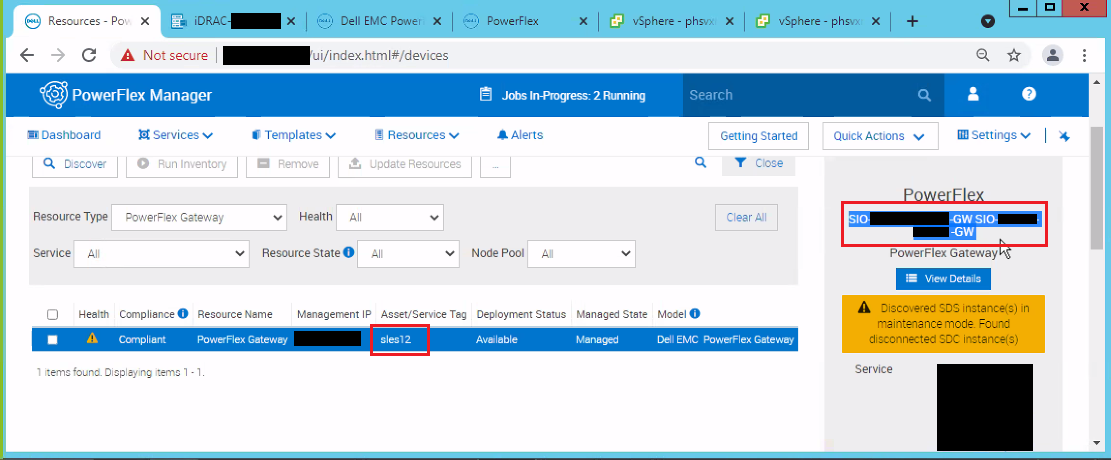
PowerFlex Managerの[resources]の下にあるPowerFlexゲートウェイには、2つの異なる名前がリストされています。
Example:
Cause
3.7.x以降では、PFxMがデバイス設定情報を取得する方法が変更され、puppet証明書名からキーオフされたデータベース エントリーが使用されます
何らかの操作により、PFxMで報告されたゲートウェイ名が変更されました。ゲートウェイが別のホスト名で再インストールされたか、SSL証明書が変更されました
データベース テーブルには現在のPowerFlex Gateway名のエントリーしかありませんが、サービスには古いPowerFlex Gateway名が表示されます。
Resolution
検証:
1) ノードのサービス関連の操作が失敗した/opt/Dell/ASM/deployments/Job-<xxx> のジョブIDに移動します。
例:cd /opt/Dell/ASM/deployments/Job-<xxx>
2) 次のコマンドを実行して、サービスが使用しようとしているpuppet証明書を特定します。
cat deployment.json|grep -i cert|grep scaleio
例:[delladmin@pfxm-jade Job-913d3f1a-b7cd-4fe9-a4b5-2085d8034d17-0-0]$ cat deployment.json|grep -i cert|grep scaleio.
"puppetCertName": "scaleio-sio_gw",
"puppetCertName": "scaleio-sio_gw",
[delladmin@pfxm-翡翠ジョブ-913d3f1a-b7cd-4fe9-a4b5-2085d8034d17-0-0]$
3) asm_devデータベースに接続し、ScaleIOゲートウェイに存在する証明書名を確認します。
psql -U orion asm_dev
asm_dev=> select certname from device_config where certname like 'scaleio-%';
Example:
asm_dev=> certname where certname like 'scaleio-%';device_configからcertnameを選択します
certname
----------------------
scaleio-powerflex_gw
(1行)
4) deployment.jasonファイルから検出したpuppet証明書がデータベースにないことを確認します。この例では「scaleio-sio_gw」 であり、データベースに存在しません
手順4が該当する場合にのみ、次の手順に進みます
1) PowerFlex Manager VMのスナップショットを作成します。
2) 次のクエリーを実行し、現在のゲートウェイのフィールド(certname、host、provider、scheme、credential_id)の値を書き留めます。この例では、現在のゲートウェイはscaleio-powerflex_gwです。
asm_dev=> select * from device_config were certname like 'scaleio-%';
ID番号 | 証明書名 | ホスト |ポート | パス |プロバイダー |スキーム | credential_id |os_credential_id |svm_os_credential_id |os_type |svm_os_connect_ip |svm_os_type | update_time |svm_name |os_connect_ip
----+-------------------------+-----------------+------+--------------------------+----------+--------+----------------------------------+------------------+----------------------+---------+-------------------+-------------+-------------------------------+----------+---------------
49 | scaleio-powerflex_gw | 192.168.150.100 | |scaleio/bin/discovery.rb |スクリプト |スクリプト |ff8080816e8e8257016e8e96df6d00e5 | | | | | |2022-04-13 07:01: 26974846-04 | |
.
3) 次のクエリーを実行して、欠落している証明書の新しいエントリーをdevice_configテーブルに追加します
手記:-次のコマンドで、VALUESフィールドを適切な値に置き換えます。
INSERT INTO device_config (certname, host, provider, scheme, credential_id) VALUES('<Missing cert name>', '<Value from current gateway note down in previous step>', '<Value from current gateway note down in previous step>', '<Value from current gateway note down in previous step>', '<Value from current gateway note down in previous step>');
例: asm_dev=> INSERT INTO device_config (certname, host, provider, scheme, credential_id) VALUES('scaleio-sio_gw', '192.168.150.100', 'script', 'script', 'ff8080816e8e8e8257016e8e96df6d00e5');
挿入 0 1
4) 以下のクエリーを実行して、見つからない証明書の新しいエントリーが追加されていることを確認します。
certname like 'scaleio-%'のdevice_configからcertnameを選択します。
Example:
asm_dev=> certname where certname like 'scaleio-%';device_configからcertnameを選択します
certname
----------------------
scaleio-powerflex_gw
scaleio-sio_gw
(2 行)
asm_dev-> \q
[delladmin@pfxm-jade ~]$
5) PowerFlex Managerで操作を再試行します。