Dell Active Pen Models: Identification, Control Panel, and Fixes
Summary: Discover nine Dell Active Pen models, identify your pen, install the Control Panel, and troubleshoot issues. Learn more about compatibility and troubleshooting steps.
Instructions
Dell Active Pen
This article describes how to identify the Dell Active Pen model, install the Control Panel (if available), and troubleshoot issues.
There are nine Dell Active Pen models: PN556W, PN557W, PN338M, PN579X, PN350M, PN5122W, PN7522W, PN771M, and PN7320A.
| Pen | Picture |
|---|---|
| PN556W |  |
| PN557W |  |
| PN338M |  |
| PN579X |  |
| PN350M |  |
| PN5122W |  |
| PN7522W |  |
The Dell PN7320A Active Pen was only sold for the Latitude 7320 Detachable laptop. For more information about the Dell PN7320A Active Pen and troubleshooting steps, go to the PN7320A Active Pen User Guide.
Dell Active Pen Model
Go through the following steps to identify the pen model:
Does the pen have a clip?
- Yes
- ➤ Is the color of the pen dark gray?
- ✔ Yes => Pen model is PN556W.
- ✔ No => Pen model is PN338M.
- ➤ Is the color of the pen dark gray?
- No
- ➤ Is the color of the pen gray?
- ✔ Yes
- ➤ Is there a USB Type-C charging port on the pen?
- ✔ No => Pen model is PN5122W.
- ✔ Yes => Pen model is PN7522W.
- ➤ Is there a USB Type-C charging port on the pen?
- ✔ No
- ➤ Is there a date code on the pen?
- ✔ No => Pen model is PN579X.
- ✔ Yes
- ➤ Is the date code of the format MIXXX? Example:
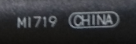
- ✔ Yes => Pen model is PN557W.
- ✔ No => Pen model is PN350M.
- ➤ Is the date code of the format MIXXX? Example:
- ➤ Is there a date code on the pen?
- ✔ Yes
- ➤ Is the color of the pen gray?
- Dell Premium Active Pen PN579X Quick Start Guide - Provides information about how to insert the batteries and change modes.
- Dell Premium Active Pen PN579X User's Guide - Tells you about the features, installing and using the Active Pen Control Panel.
- Dell Active Pen PN579X Support Center - Provides steps to setup and troubleshoot your Dell Active Pen PN579X
- Dell Active Pen PN557W Quick Start Guide - Provides information about how to insert the batteries and change modes.
- Dell Active Pen PN557W User's Guide - Tells you about the features, installing and using the Active Pen Control Panel.
- Dell Active Pen PN556W and PN557W Support Center - Provides steps to setup and troubleshoot your Dell Active Pen PN557W
- Dell Active Pen Quick Start Guide - Provides information about how to insert the batteries and change modes.
- Dell Active Pen User's Guide - Tells you about the features, installing and using the Active Pen Control Panel.
- Dell Active Pen PN556W and PN557W Support Center - Provides steps to setup and troubleshoot your Dell Active Pen PN556W
- Dell Active Pen PN338M Quick Start Guide - Provides information about how to insert the batteries and basic usage.
- Dell Active Pen PN338M Support Center - Provides steps to setup and troubleshoot your Dell Active Pen PN338M
- Dell Active Pen PN350M Quick Start Guide - Provides information about how to insert the batteries and basic usage.
- Dell Active Pen PN350M Support Center - Provides steps to setup and troubleshoot your Dell Active Pen PN350M
- Dell Pro Plus Active Pen PN5122W Quick Start Guide - Provides information about how to insert the batteries and basic usage.
- Dell Pro Plus Active Pen PN5122W User's Guide - Tells you about the features, installing and using the Active Pen Control Panel.
- Dell Pro Plus Active Pen PN5122W Support Center - Provides steps to setup and troubleshoot your Dell Pro Plus Active Pen PN5122W
- Dell Pro Premium Active Pen PN7522W Quick Start Guide - Provides information about how to insert the batteries and basic usage.
- Dell Pro Premium Active Pen PN7522W User's Guide - Tells you about the features, installing and using the Active Pen Control Panel.
- Dell Pro Premium Active Pen PN7522W Support Center - Provides steps to setup and troubleshoot your Dell Pro Premium Active Pen PN7522W
From the list, select your Active Pen to be taken to its drivers page (which opens in a new tab or Window). Then follow the instructions below to download and install the Dell Active Pen Control Panel software.
- Dell Active Pen - PN579X
- Dell Active Pen - PN557W
- Dell Active Pen - PN556W
- Dell Active Pen - PN338M - The Dell Active Pen Control Panel software is not available.
- Dell Active Pen - PN350M - The Dell Active Pen Control Panel software is not available.
- Dell Pro Plus Active Pen PN5122W
- Dell Pro Premium Active Pen PN7522W
- Touch or click download to the right of Dell Active Pen Control Panel (Windows 10 RS2 -Creators Update and up).
Note: When you are running Windows 8 (8.1), touch or click download to the right of the Dell Active Pen Control Panel file.
- Touch or click the up arrow to the right of Save in the banner at the bottom of the screen, and then select Save as.
- Ensure that Downloads is selected in the column on the left.
- Touch or click Save.
- Touch or click Run in the banner at the bottom of the screen.
- The installation process begins (the User Account Control window may appear, if so touch or click Yes), and then follow the prompts.
See the Dell Active Pen User's Guide for your Active Pen on how to use the Dell Active Pen Control Panel software. The guide is on the Manual tab, under Style in the Electronics and Accessories section. For more information, see Dell Knowledge Base article Manuals and Documentation for your Dell Product for information about downloading and viewing manuals.