How to Manually Upload Files to Dell Technical Support
Summary: The file upload function of Dell TechDirect allows sending data directly to Dell Technical Support. Follow these eight steps to provide necessary information to your contact at Dell Support. ...
Instructions
If you want to send system reports or other files to Dell Technical Support, you can use the file upload function of Dell TechDirect. The uploaded files are bound to the Service Tag you provide during the process. There is no prior registration needed for usage.
Use the Dell TechDirect file upload, if:
-
The related system or its management tool (for example SupportAssist) does not have access to the Internet.
-
Dell Technical Support asked you to obtain files bigger than 8 MB.
-
Other ways of providing the files have failed before.
Steps
-
Open tdm.dell.com/file-upload in your Internet browser.
-
Enter the Service Tag of the system to which one or more files you want to upload belong to.

Figure 1: Service Tag field -
Click Verify to unlock the next step.
-
Now enter your contact information.
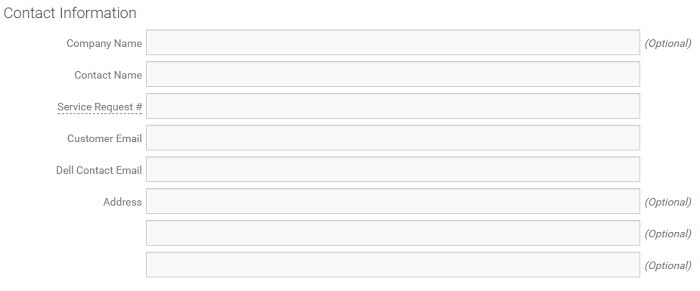
Figure 2: Your Contact Information -
Click Choose file and open the file you want to upload.
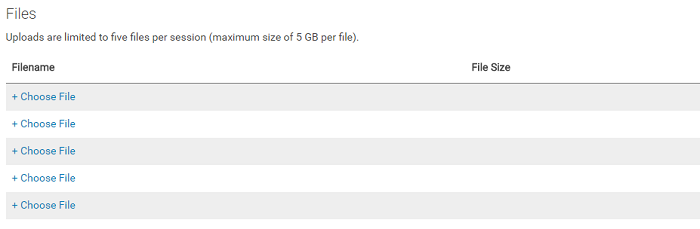
Figure 3: Choose a file to uploadNote: Per instance, only five files can be uploaded, with a maximum size of 5 GB each. -
Click Submit.
-
Now a new page is displayed, which shows the upload progress.
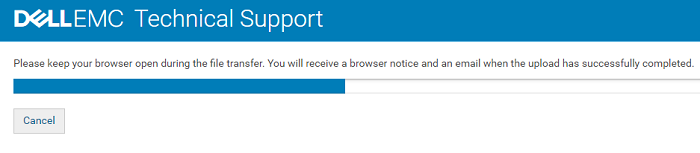
Figure 4: Upload progressNote: This page must be kept open until the upload is finished. -
When the upload is completed, click Finish. The upload notification is automatically sent to the provided Email addresses.
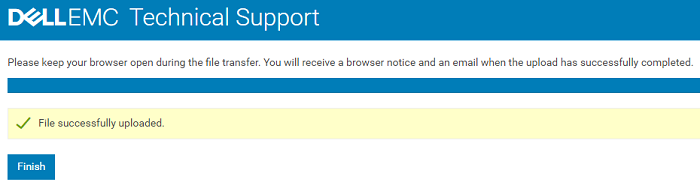
Figure 5: Upload finishedNote: If there are issues during upload or a missing notification mail, inform your Dell Contact about this to verify a fluid workflow.
Additional Information
How To Use Techdirect To Upload Files To Service Requests
Duration: 00:01:31 (hh:mm:ss)
When available, closed caption (subtitles) language settings can be chosen using the CC icon on this video player.