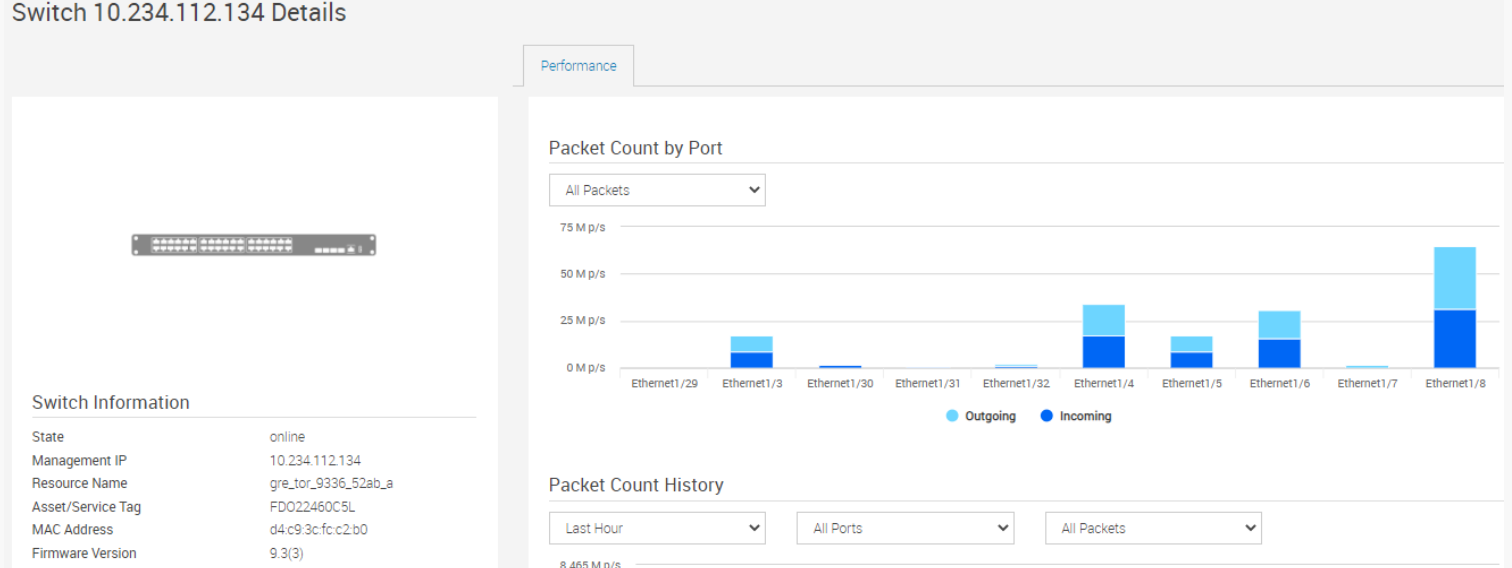
PowerFlex 3.X: Switch performance metrics are not visible in PFxM
Summary: PowerFlex Manager switch performance metrics are blank because NXAPI feature is not enabled Performance metrics are not being updated in PowerFlex Manager, which is shown using HTTPS protocol. ...
Symptoms
FACTS:
In order for PFxM to report switch performance metrics on a Cisco Switch (3 K / 9 K), the following is true:
- Both HTTP and HTTPS must be enabled on the Cisco switch
- PFxM uses HTTP to check NXAPI status and then collect metrics using HTTPS, therefore feature nxapi should also be enabled
Symptoms:
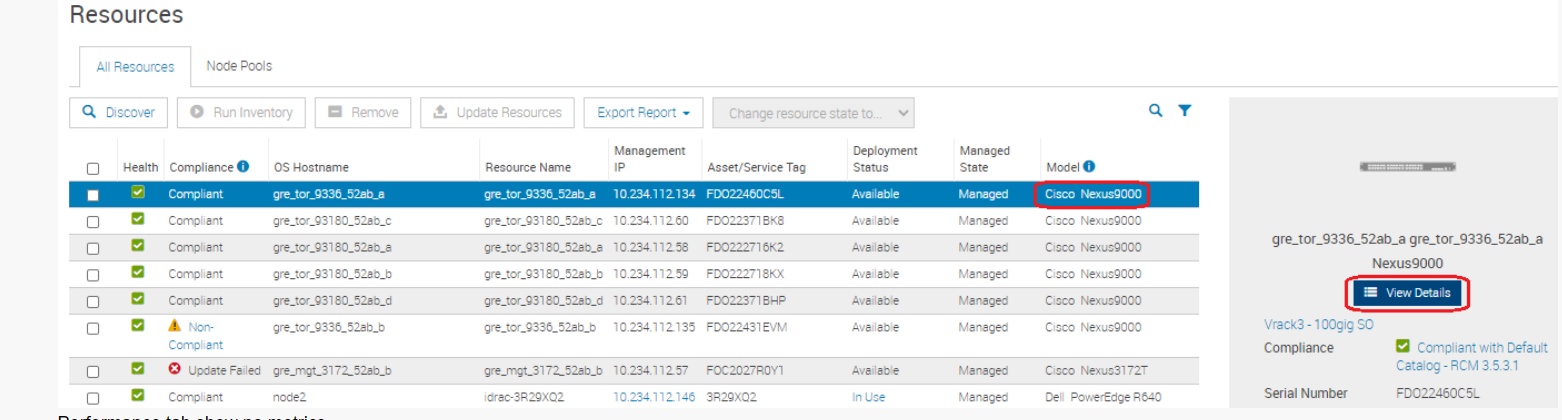
- PowerFlex Manager > Resources > Cisco 9 K switch > View details:
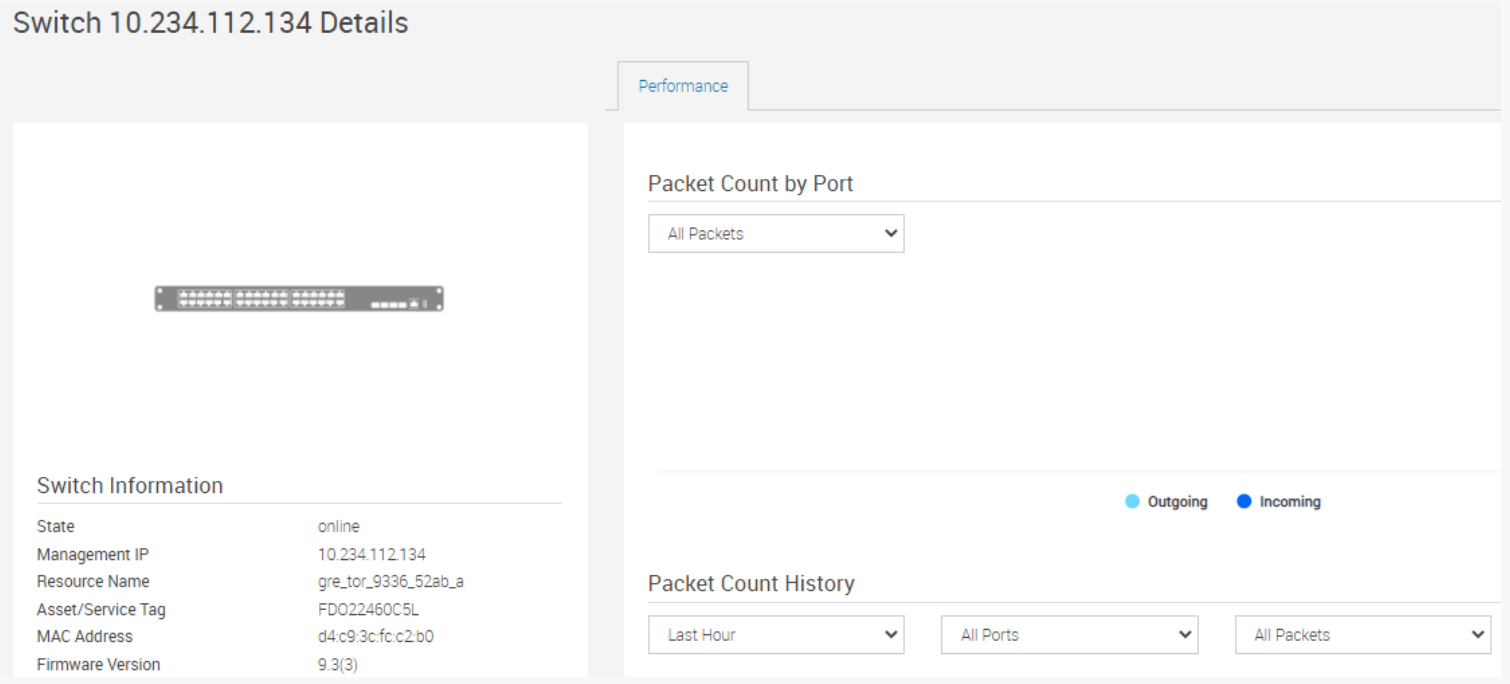
The performance tab shows no metrics:
Cause
NX-API uses HTTP/HTTPS as its transport. CLIs are encoded into the HTTP/HTTPS POST body.
Starting with Cisco NX-OS Release 9.2(1), the NX-API feature is enabled by default on HTTPS port 443. HTTP port 80 is disabled.
Resolution
1) Log in to switch > enable nxapi feature:

! Enable and configure NXAPI.
config t
feature nxapi
! Disable HTTP, only HTTPS supported for security
no nxapi http
! Use the management interface only to communicate for NXAPI
nxapi use-vrf management
PFxM 3.5 and earlier uses HTTPS and HTTP for status check and metrics fetching, therefore keep nxapi enabled for HTTP.
Note: If we enable the nxapi with the feature nxapi command it only listens on HTTPS not HTTP, so we need NXAPI to listen on HTTP.
! Enable and configure NXAPI.
config t
feature nxapi
nxapi http port 80
2) After changing the switch, go to Resources > add check box next to switch > Run Inventory.

3) View details now show switch performance metrics