Dell Networking SONiC: Upgrade or Downgrade SONiC Using SCP Protocol with Software like WINSCP
Resumen: This article explains Dell Networking SONiC upgrade or downgrade using SCP protocol in the WINSCP application.
Este artículo se aplica a
Este artículo no se aplica a
Este artículo no está vinculado a ningún producto específico.
No se identifican todas las versiones del producto en este artículo.
Instrucciones
Note: You can use any application which supports the SCP protocol to upload a firmware file to the switch. In this article, we are using WINSCP application to demonstrate the process.
Steps:
- Ensure that there is ample space in the switch to copy the SONiC file. Use the command:
df /home -h
Sample output
admin@sonic:~$ df /home -h
Filesystem      Size  Used Avail Use% Mounted on
root-overlay     29G  5.0G   23G  18% /
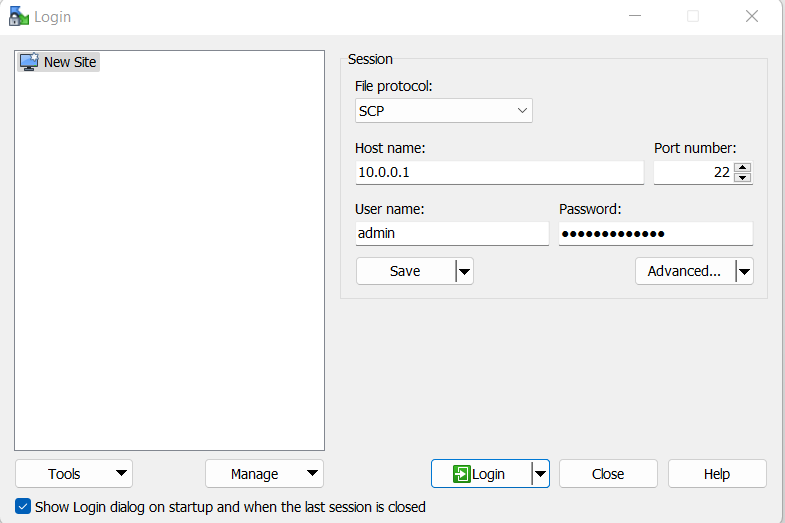
- Log in to switch using WINSCP. Use SCP as file protocol.
- Copy the file into the switch and note the file path. In below, the file path is /home/admin.
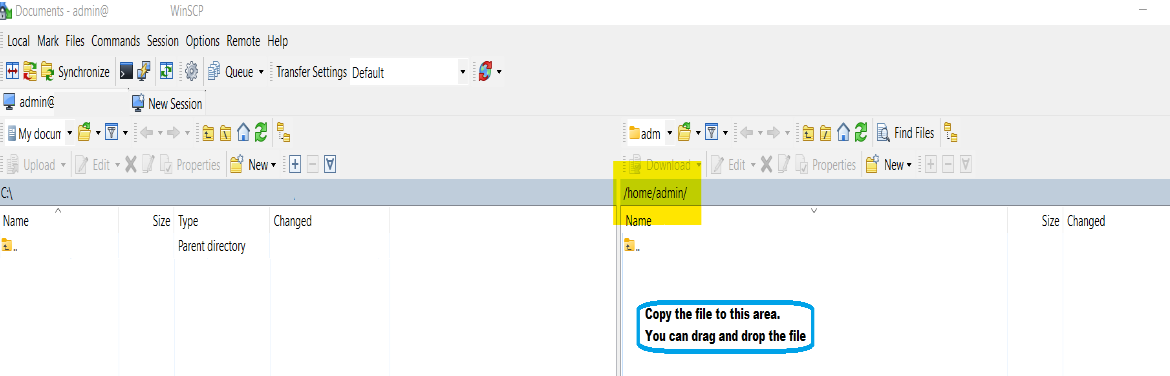
Below is a sample screenshot after copying the file successfully. The file name of SONiC upgrade file is Enterprise_SONiC_OS_4.0.5_Edge_Standard.bin.

Log in to the switch using SSH and any terminal application like PuTTY.
NOTE: Ensure saving the configuration using command write memory before issuing the image install command and we have a backup of the configuration.
Below is the list of commands that we are using:
| Command | Explanation |
|---|---|
admin@sonic:~$ sonic-cli |
Log in to Dell SONiC |
sonic# dir home:/ |
Check if SONiC version file is copied properly to home directory. |
sonic# write memory |
Save Configuration |
sonic# image install file://<File path>/<Install File.bin> |
Install the file. Ensure to use the full file path. For example, /home/admin/ |
sonic# show image status |
Check Image install progress. |
sonic# show image list |
Show image list |
sonic# reboot |
Reboot switch |
sonic# show version |
Show Sonic Version |
Optional Commands:
| Command | Explanation |
|---|---|
sonic# image set-default <Image file> |
In case the appropriate SONiC image is not selected as Next, configure it manually. |
sonic# image remove <all/image file> |
Remove old firmware to save space. |
Sample output:
- Log in to Dell SONiC. Use Command:
sonic-cli

admin@sonic:~$ sonic-cli
sonic#
- Check if the file is properly copied using command:
dir home:/

sonic# dir home:/
-------------------------------------------------------------------------
Date(Last Modified)      Size(Bytes)    Type      Filename
-------------------------------------------------------------------------
2023-02-23 19:22         1032101870     -         Enterprise_SONiC_OS_4.0.5_Edge_Standard.bin
- Save the configuration. Use Command:
write memory

sonic# write memory
- Install Dell SONiC. We must use the full file path, for example, /home/admin/File-name.bin. Use Command image install file:
//<File path>/<Install File.bin>

sonic# image install file://home/admin/Enterprise_SONiC_OS_4.0.5_Edge_Standard.bin
%Info: Check 'show image status' for image install progress.
- Check Image install progress using command:
show image status

sonic# show image status
-----------------------------------------------------------
Global operation status  : GLOBAL_STATE_SUCCESS
-----------------------------------------------------------
File operation status    : TRANSFER_VALIDATION
File size(bytes)         : 0
File transfer bytes      : 0
File download speed      : 0 KB/s
File progress            : 100%
Transfer start time      : 2022-09-30 17:42:22+0000
Transfer end time        : 2022-09-30 17:42:22+0000
-----------------------------------------------------------
Install operation status : INSTALL_STATE_SUCCESS
Install start time       : N/A
Install end time         : N/A
sonic#
- Verify if the new Version is chosen as next booting file using command:
show image list

sonic# show image list
Current: SONiC-OS-4.0.3-Campus
Next: SONiC-OS-4.0.5-Campus
Available:
SONiC-OS-4.0.5-Campus
SONiC-OS-4.0.3-Campus
(Optional) In case the appropriate SONiC image is not selected as Next, configure it manually. Usually this is not required.
sonic# image set-default SONiC-OS-4.0.5-Campus
- Reboot
sonic#
sonic# reboot
reboot in process .....
Waiting for the reboot operation to complete
- After Reboot, verify SONiC is upgraded (Output trimmed for brevity):
admin@sonic:~$ sonic-cli
sonic# show version

Software Version  : 4.0.5-Campus
Product           : Enterprise SONiC Distribution by Dell Technologies
- After upgrade, ensure the SONiC file is deleted from home (usually it gets deleted on its own):
sonic# dir home:/
-------------------------------------------------------------------------
Date(Last Modified)      Size(Bytes)    Type      Filename
-------------------------------------------------------------------------
sonic#
(Optional) In the case Dell SONiC file is not deleted, delete using command:
delete home://<filename>

sonic# delete home://Enterprise_SONiC_OS_4.0.5_Edge_Standard.bin
Proceed to delete home://Enterprise_SONiC_OS_4.0.5_Edge_Standard.bin? [y/N]:y

sonic# dir home:/
-------------------------------------------------------------------------
Date(Last Modified)      Size(Bytes)    Type      Filename
-------------------------------------------------------------------------
Productos afectados
Enterprise SONiC Distribution, PowerSwitch E3200-ON Series, Dell EMC Networking N3200-ON, PowerSwitch S5212F-ON, PowerSwitch S5224F-ON, PowerSwitch S5232F-ON, PowerSwitch S5248F-ON, PowerSwitch S5296F-ON, PowerSwitch Z9100-ON, PowerSwitch Z9264F-ONPropiedades del artículo
Número del artículo: 000212674
Tipo de artículo: How To
Última modificación: 11 abr 2024
Versión: 4
Encuentre respuestas a sus preguntas de otros usuarios de Dell
Servicios de soporte
Compruebe si el dispositivo está cubierto por los servicios de soporte.