Exportation des journaux d’événements Windows
Résumé: Découvrez comment exporter les journaux de l’observateur d’événements sous Windows 11 ou Windows 10. Ce guide explique comment enregistrer des journaux à l’aide de l’Observateur d’événements. ...
Cet article concerne
Cet article ne concerne pas
Cet article n’est associé à aucun produit spécifique.
Toutes les versions du produit ne sont pas identifiées dans cet article.
Instructions
- Appuyez sur la touche Windows.
- Saisissez
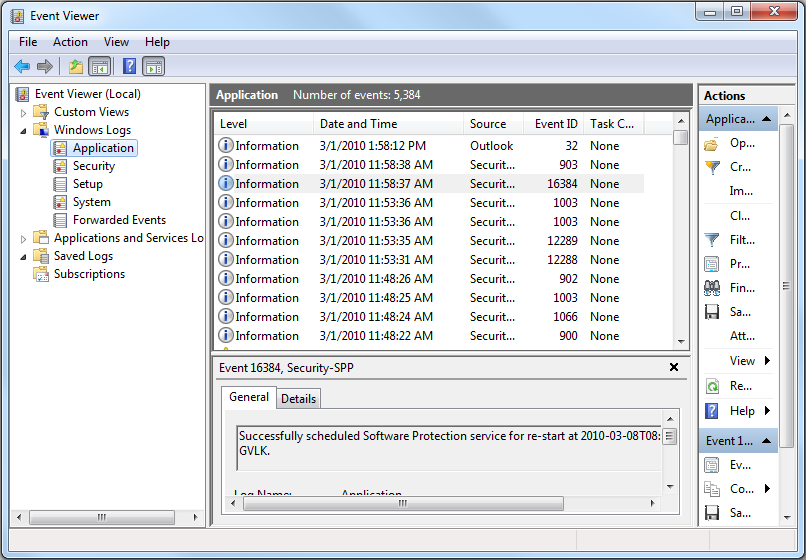
Event Viewer, puis sélectionnez Observateur d’événements dans la liste. - Dans le volet de gauche, sélectionnez le type de log à exporter.
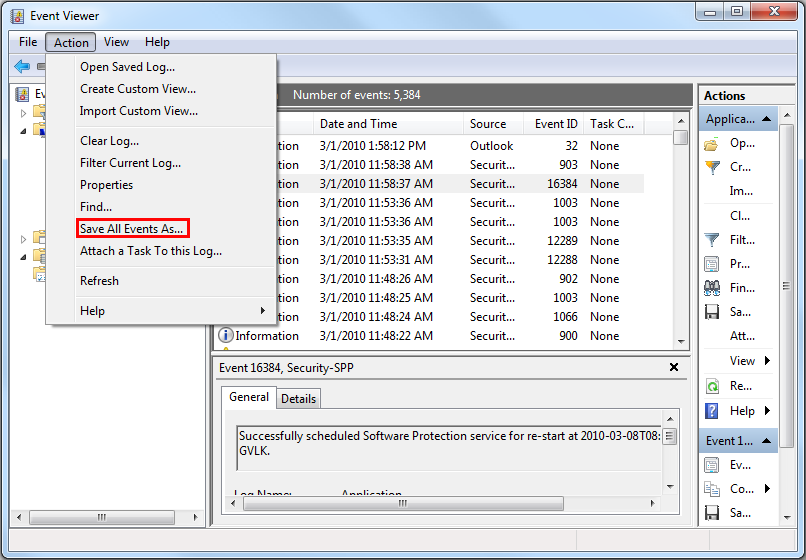
- Enregistrez le journal en cliquant sur Action , puis sur Enregistrer tous les événements sous.
Pour plus d’informations, consultez la page Comment enregistrer des journaux d’événements
Pour plus d’informations sur les journaux d’événements du BIOS pour les ordinateurs portables Dell, reportez-vous à la section Journaux des événements du BIOS et journalisation des diagnostics sur les ordinateurs portables Dell.
Informations supplémentaires
Articles recommandés
Voici quelques articles recommandés sur ce sujet qui peuvent vous intéresser.
Produits concernés
Alienware, Dell All-in-One, Dell Pro All-in-One, Dell Pro Max Micro, Dell Pro Max Slim, Dell Pro Max Tower, Dell Pro Micro, Dell Pro Slim, Dell Pro Tower, Dell Slim, Dell Tower, Inspiron, Legacy Desktop Models, OptiPlex, Vostro, XPS, G Series
, G Series, Alienware, Dell Plus, Dell Pro, Dell Pro Max, Dell Pro Plus, Dell Pro Premium, Inspiron, Latitude, Dell Pro Rugged, Vostro, XPS, Legacy Laptop Models, Fixed Workstations, Mobile Workstations, Dell Pro Max Micro XE FCM2250, Dell Pro Max Slim XE FCS1250, Dell Pro Max Tower T2 XE FCT2250, Dell Pro Max 16 XE MC16250, Dell Pro Micro Plus XE QBM1250, Dell Pro Slim Plus XE5 QBS1250, Dell Pro Tower Plus XE5 QBT1250
...
Propriétés de l’article
Numéro d’article: 000124382
Type d’article: How To
Dernière modification: 19 avr. 2026
Version: 9
Trouvez des réponses à vos questions auprès d’autres utilisateurs Dell
Services de support
Vérifiez si votre appareil est couvert par les services de support.